















If you’re not using the Wordfense security plugin on your website you’re doing a big mistake. And if you’re not using any of the security plugins it’s even worse. The wordfence security plugin is used by smaller websites to even big E-commerce websites which are using WordPress.
Today I will teach you how to install and use wordfence security for your website and keep your site safe. Because you see a lot of threads on the Internet. A lot of floating viruses and malware on the internet can attack your website and your site can be hacked.
How to install Wordfence Security
So don’t wait for that time, install Wordfence security now.
Go to your WordPress admin panel and then from the left sidebar over on plugins and click add new. Now search for the Wordfence Security (firewall & malware scan ) plugin.

You can see they got 4500 plus reviews and four plus million active installations. And an almost very good rating of around 4.5. I think the bad rating is because it’s a little bit complex plugin sometimes. But I’m going to explain everything. So you don’t need to worry about the complexity of the plugin. It does a lot of great work. You can see this is updated three days ago. It is frequently updated and they always keep updating the definition of viruses and malware. This keeps your website safe. Now once it is installed click activate so plugins are activated.

Wordfence Security Dashboard
You can find this plugin in the left sidebar workforce. Click on wordfence security because I was already using the reference plugin in your case. If you’re using it for the first time. They can ask you for your email ID to get the free key. Once you get that key you will see a screen. This is the dashboard. You can see the firewall is predicting 64 and scan security which is the detection of security issues is 60.
We are going to use this plugin’s free version. We are not going to cover the pro version. Because I’m using this free version for so many years on different websites and works really well. If you’re somebody who really wants a high level of security. You can go for the pro version also.

If you scroll the page you have a lot of information about wordfence security. And your information on the scans. For example, you can see I got two issues in recent scans. I will show you how you can scan your website. And then it shows you. If there is an update available for plugins or themes. Below is the firewall summary. That shows how many attacks were blocked on your website in a day week or month.

You can see I got 158 complex attacks blocked on my website. And 15 boot force text blocked and a total of 173. This is text blocked by reference on all the websites so more than 4 million websites are using word fence. This is the number of attacks blocked by reference on all the websites.
Wordfence Security Firewall
It is really nice because it’s a big plugin. It gets a lot of data from the attacks happening on different websites. And on the base of that data, it makes your website even safer. You got firewall scan tools login security all options and you got the help of course. So first let’s see what is firewall. Click on firewall Okay!
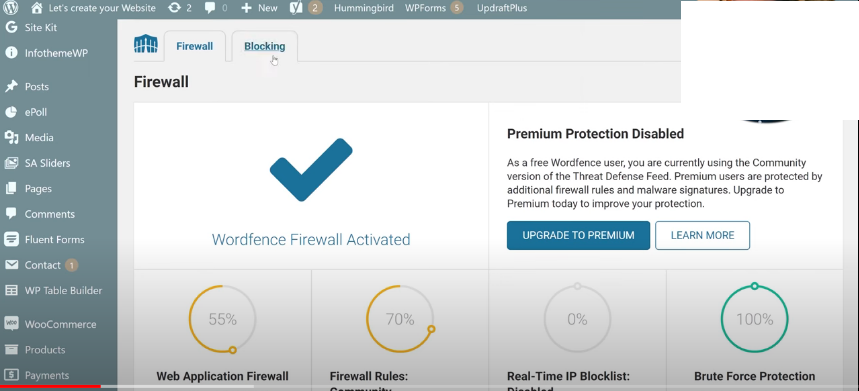
This is the firewall page. You can see the different stats about how advanced protecting your website is. And then you got rate limiting. Where you can block the callers from using too many resources or stealing content.
Blocking IP Address | Country | Custom Patterns
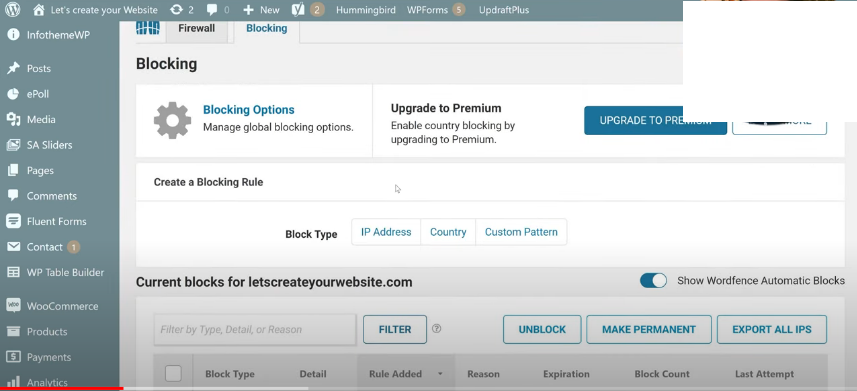
On this page, you can see a lot of stats about firewalls. And here you can see the option for blocking these all. Let you take control of protecting your site with powerful features like blocking traffic on IP, IP range, hostname, browser reference, and a lot of different options. These options are really useful.
When you find some unusual traffic on your website from certain IP and from a certain country you can block all those things from here. And also by the time when you use the wordfence website, you see a lot of IPs that are blocked by wordfence security. Which was trying to steal some data or trying to inject something into the website. You will see all the IPs will be listed here. This is a 500 block you don’t need to put a lot of mind here. That’s why I like wordfence security. It is an autorun plugin you just install it one time and then configure it a little bit as I’m explaining.
Malware Scanning
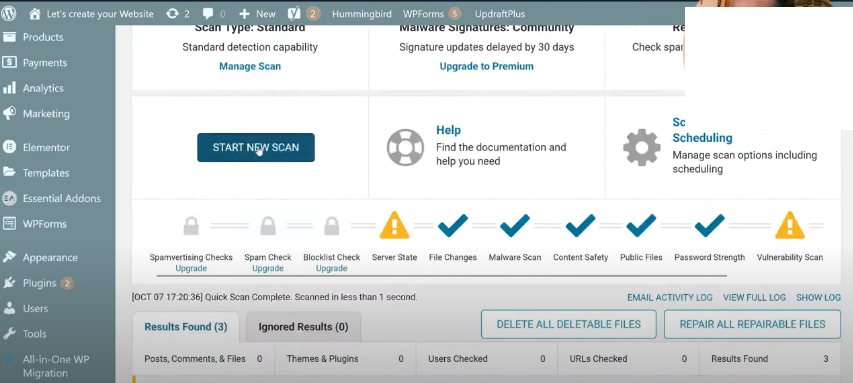
You know all the options which are important for you. And they’ll make your website really safe. The most interesting part of this plugin is scanning. If you go to scan here. And then from here, you can start a new scan. It will take a few minutes to scan your complete website. But once the scan is done you can see a lot of messages by wordfence security.
Scanning for file changes
What you can do to make your website safer. This is not something you have to do. And there are a lot of things that wordfence security will fix for you automatically. You will see it in a minute. Now it is scanning for file changes if there’s a file on the WordPress repository and on your website. If they’re different files but are named the same. They’re coming from the same plugin or from the same theme. But they’re different. This kind of triggers a warning for wordfence security because the original file is different from the file on your website.
So that can be a possible security threat. Because what happens sometimes? When somebody hacks your website. And the file looks very similar. For example, admin.php is a file added by WordPress. And what do the attackers do? They will hack the file and add some malicious code to the website. What wordfence security will? It checks their file against the original file in the WordPress repository. It will tell you this file has been changed. And then you can fix that file just by wordfence. And then it scans for malware content, safety public files, password strands, and vulnerability scans. In a few minutes, you will see a lot of recommendations by the wordfence security plugin to make your website safe.
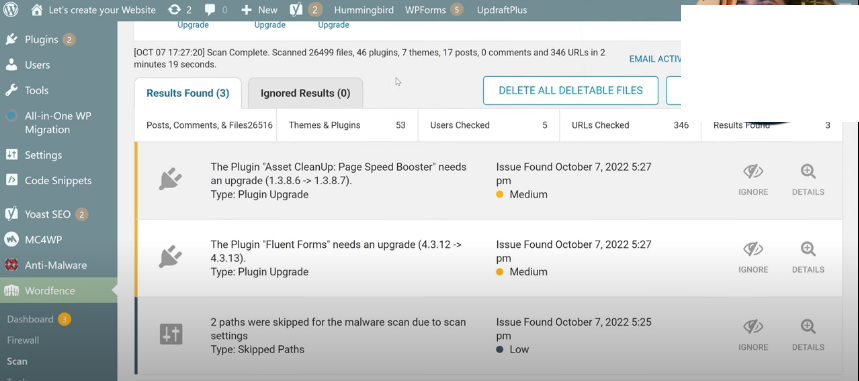
When the scan is done. I found three issues on the website. Two of them are update-related issues. I always tell you to keep your website updated all the time to keep it safe. Wordfence is telling the same thing. So you should keep your website updated all the time. And then there’s the issue of password skipped for the malware scan.
Mark as fixed
Due to scan settings if you click here you can see what is the issue. I got a folder on my website demo. I would read this folder after creating this blog. Then what you can do? You can go to the option and change the paths or you can mark it as a fix. It is a false alarm you can just mark it as fixed and this will be solved.

Always create a backup website before anything big on your website
If you have any related websites. They all will be shown here. And you can see it here. If you have some issues. For example, for file changes or malware scan what you can do? You can click on delete or deletable files or you can use options repair or repairable files. This will automatically repair those issues. I am not having any of those issues on websites. I cannot see those things. But if you have this thing you can click on repair all repair files. Guys, I always create a backup website. No matter what you’re doing on your website. You should always have updated backups before doing anything big on your website.
If you have a backup. You can always restore your website from backups. And then we have a tools option. If you click on tools you see live traffic here. Who is visiting your website right now? You can see this is me who’s visiting my website. WordPress tells me if I want, I can directly block this IP. I’m not going to block my own IP. And you can see this is something malicious that is not suitable for the website. You can stop the IP of this person directly. And to know more about IP. You can use users and who are. And it will give you information about where this person is coming from. What he did do on the website?
Block live IP
For example, if somebody is from a different country. And is trying to log in to your website. He visited your login.php page. In that case, it seems like it’s malicious activity. Seems like somebody’s trying to login into your website admin panel. So what you can do? Just block this IP from here and this person cannot access your website anymore. And you can see a lot of IPs that are automatically blocked by wordfence security are trying to access different things on my website.

But they’re already blocked. This was the live traffic and there is a lookup option. I think this is not really very important at this moment. And guys if you think that I am leaving some options. Because they’re not really very important. Or they like to order things. And it doesn’t make sense for a lot of the people who are reading this post. This is all you can see on this page live traffic is a really important one and then here is login security.
Two Factor Authentication
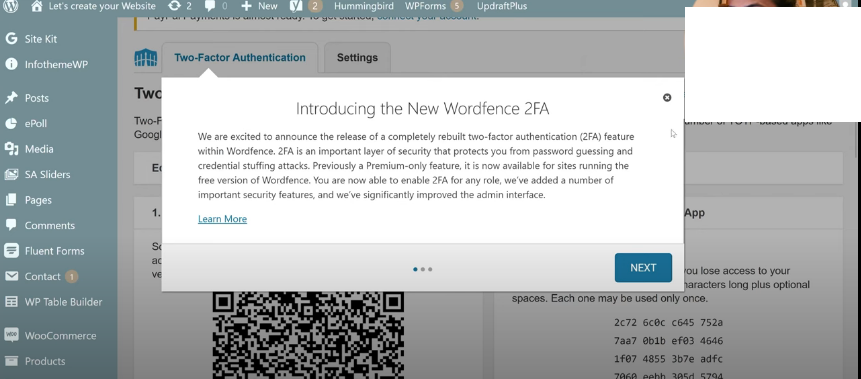
There’s a two-factor authentication provided by wordfence security. If you want you can use this option. I’m not a big fan of this thing. But if you’re somebody who wants to turn on two-factor authentication. you can use this option. And here you got settings for two-factor authentication. And the most important page for you will be the all options page. If you go to the all options page. You can see all the options provided by wordfence security. The thing which is interesting here is this one basic firewall options.
For example, if your website is new. You can put the website in learning mode. And after a few days when WordPress will understand the website traffic. You can choose enabled protecting mode. Then we got advanced firewall options. You can add your IP here. Which should bypass all the rules. Because sometimes what happens. For example, sometimes you forget your password. And you try to enter a password multiple times. It happens to everyone. So what happens with blocking your IP. Because for wordfence security it will be like an attack. You can add your IP here and it will always bypass all the rules. And you will never get blocked even after using the wrong passwords.
Four hours is good for blocking any user
I think four hours is a good amount of time a blocked how long do you want this user to be blocked after using the wrong passwords or using the forgot password apps so four hours I think is a decent time. This is an interesting one immediate lockout and where the usernames I think you should use this option because sometimes people try to enter a new website by like admin user or the name of your site or something like that.
Wordfence Security Plugin does not slow down your website
Some people say the wordfence security plugin slows down the website right in my case I use a lot of websites none of my websites got slowed down maybe because I use also nice hosting which is more powerful so if you can see this your server is getting a high load you can use this option and check to use low resources scanning which reduces server load by lengthening the scan duration it will take a long time to scan but it will like less powerful which will bring less load on your serverless everything can leave the same then you have advanced scan options.
Here you can add some files which you don’t want to scan for example JPG files PNG files or web images you can add those here but I recommend you mostly keep everything like this how it comes with word fence and then we got live traffic we already covered this option then you got import export and login security which we already discussed. I hope this post was not very long but I think this is really important for you guys to have this plugin website from day one when you created your website the first plugin you should install is the wordfence security plugin if you like the article and you think it was useful for you so subscribe to my blog.
