















Welcome to plesk premium email tutorial powered by colab. In this article you’ll learn about this extension’s most important aspects like coordinating your team’s projects. Having your own private cloud service for file sharing within your organization. Document creation and editing with multi user collaboration and team chat to keep your organization productive.
But before we begin there are three prerequisite steps that should be address.
First ensure that your domain and its webmail sub-domain successfully resolve to your plesk server. If you’ve just set up a new plesk server remember it can take up to 72 hours for dns records to propagate.

Second it’s highly recommend that you let plesk manage the domain’s dns zone. While this is not a requirement it is best practice.

As you’ll otherwise be left creating and managing a significant amount of dns records manually through your registrar or dns host.

Third secure your domain, webmail, subdomain and mail services with an ssl certificate.

Here we’ll use a free let’s encrypt certificate again make sure to include your domain, with www, the webmail, subdomain and mail services on the domain.
Then click “Get it free” after the domain and mail services are secure and properly resolving it’s time to install the plesk premium email extension.
Plesk Premium Email

Click the extensions item in the main plesk menu browse or search for plesk premium email. When you find it click get it free the extension will install quickly.

And the extensions page will be refreshed in order to use all services that come with the extension. You’ll need a plesk premium email license which you can buy here on the extension page. Without this license only basic email file sharing and chat services will be available with the plesk premium email extension.
Necessary Packages – Plesk Premium Email Tutorial

Now installed system packages must also be installed. To enable its functionality plesk makes this easy to accomplish in one click. By identifying the necessary packages notification bar and clicking install.

Once the necessary packages are installed. Expand the domain cart for your domain on the plesk premium email screen. Each service within this extension can be individually toggle on or off within the enabled applications section. Currently we only have the email extension installed but let’s take a look at the other solutions that create the complete collaboration suite.
Seafile

Seafile provides your own private cloud service for storing sharing and transferring files. And it’s directly integrate into plesk premium email.
Collabora

Collabora is a collaborative document authoring and editing service. That features word processing, spreadsheets and presentations compatible with other leading suites.
Mattermost

Mattermost is a secure real time chat solution for organizations and companies that features enterprise grade security for connecting people tools and automation to increase collaboration.
All of these integrations can be easily control from within plesk premium email.

Simply begin the install process by clicking install for the desired collaboration extension. And once installed open the extension to follow any remaining installation prompts after installation is fully complete.

Expand the desired domain card again and ensure the tool is toggled on within the enabled application section.
Creating Email Address

When you create a regular plesk mail user on a domain with plesk premium email services enabled. The user automatically gets access to all of these services mail, chat, file sharing and collaborative document editing.

No further action is required. You can use all of the email and collaboration tools provided through a web interface available on the webmail subdomain of your website.

The interface features all aspects of the plesk premium email extension that you’ve enabled. Email along with its associated contacts, calendar, files, notes and tasks.
Mattermost is available using the chat menu item. Documents stored through Seafile are accessible as a folder within the file screen. And collabora is completely integrated within files for creating and editing documents.
In addition to this web interface you can also access email calendars and address books on your mobile via the push enabled activesync protocol.

Simply select the exchange server type, enter your email and password. And then you’re in the automatic configuration of server and account settings is available for most modern mobile and desktop email clients.
Websites Links – Plesk Premium Email Tutorial
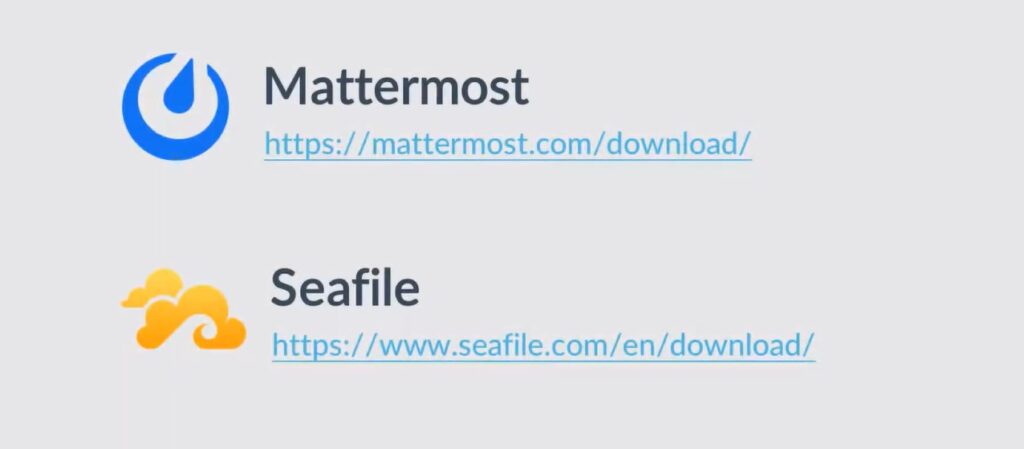
Desktop clients for Seafile and mattermost are available from their respective websites. And you can get both of their mobile applications from your choice of the apple app store or the google play store.
Editing documents with collabora is only available through the plesk premium email web interface. You’ll be able to create and edit documents invite collaborators to the document. And engage in real time editing sessions together.
Plesk premium email allows for the sharing of email folders calendars task lists and address books with other users within your organization.

Simply go to the resource you like to share and from its menu. Click edit and there you can add the user with whom you’d like to share the resource.

The specified user or users can then enable the shared resource within settings. By selecting the folders option and using the toggles in the other users folder.
You can use shared folders to organize collaborative work resources. Assist in communication and productivity or to delegate your calendar to a personal assistant.
Resources can also be made available organization wide as public folders from the plesk premium email extension.
Manage Public Folders

Simply expand your domain card and click to manage public folders select the type of resource you’d like to make available.

Lets go to public address book then click add.

Then Type the Name of the user. Further follow the prompts.
Access to these email storage, calendar, task list ,address book, or file folder resources is control on a per user basis.

Then go to Access Control List.

So some users can have full access others could have read only. And still others could be exclude altogether.

If you ever find that something is not working as expected or you’re facing technical difficulties. The troubleshooting tab of plesk premium email may help you detect common configuration issues. Then you can scan for issues and they’ll be list below in the issue section. Where you’ll then be able to either directly fix the issue or click for more information to learn more about this topic.
If you want to learn more please visit our blog page.


