














Hi Guys! Today we are going to see how to reset your WordPress site. Now let’s say you have built your site with WordPress. And for some reason you want to go back to the default WordPress site. You can do that by reading this article. So after reading this article, you will be able to reset your website back to how it was before. And then start from scratch.

Let’s reset our WordPress site First, let’s see how our site looks right now. Here it is, Now, this is the site which we are going to reset. To reset this site, we are going to do 2 steps The First step is to install the reset plugin.
Install the reset plugin
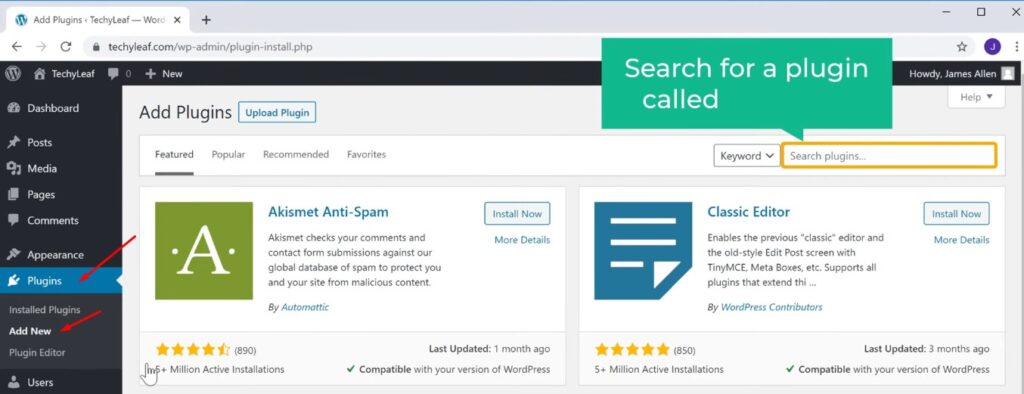
So to install the plugin, Let’s go to our WordPress dashboard Now go to plugins and click ‘Add New’ Now here, search for a plugin called ‘wp reset’.
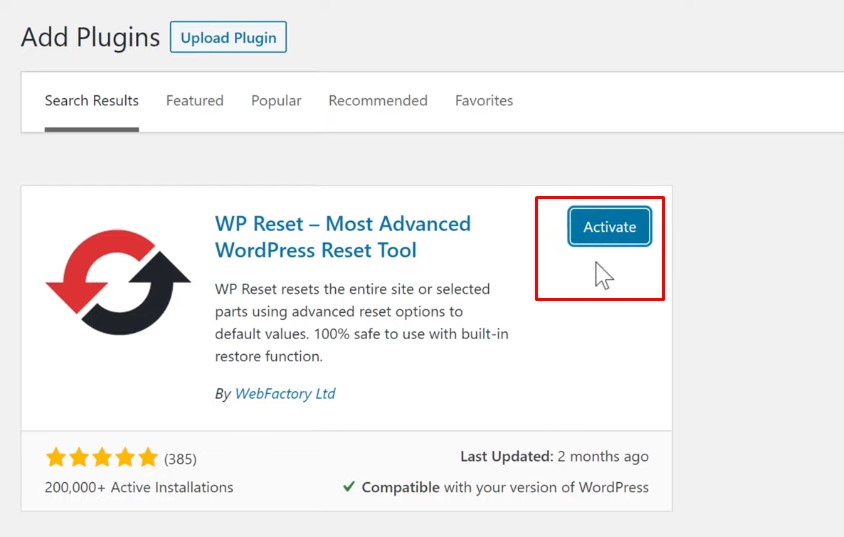
And you will get this plugin, Now this is the plugin which will help us to reset our site. So to install the plugin, Let’s click ‘Install’ And then click ‘Activate’. So now, we have successfully installed the plugin.
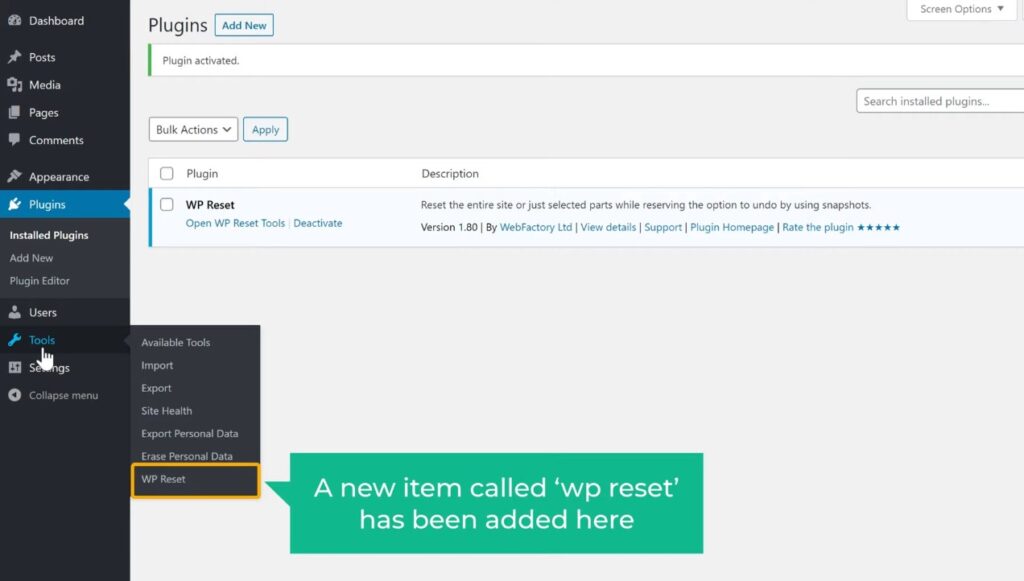
And now if we go to tools, you can see that a new item called ‘wp reset’ has been add here Once you’ve installed the plugin.
Next, let’s go to the step 2, which is to Reset our WordPress site, Using this plugin. Now once you reset your site, you will lose all the data on your site. So it is important to take a backup of your site before you proceed.

Now to reset our site, using this plugin, Let’s go to ‘Tools’ and click ‘WP Reset’ And it will take you to this page. Now before you reset your site, if you want to quickly revert back to your current site, then you can also take a snapshot of this site, with this plugin.
To take a snapshot of your current site
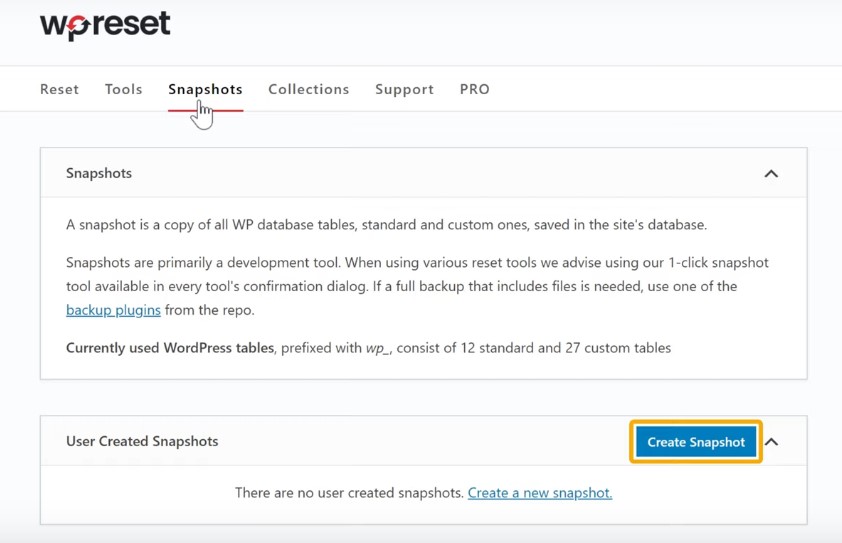
So to take a Snapshot of your current site, Just go to ‘snapshots’ tab And click ‘Create Snapshot’.
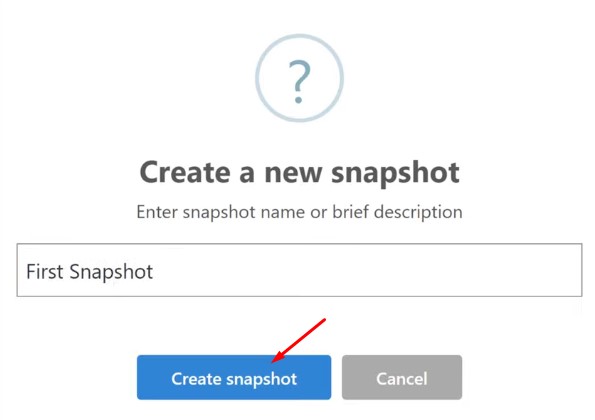
Now, enter a name for the snapshot And then click ‘Create Snapshot’. As you can see, our snapshot has been created. Now remember that this snapshot, is not a replacement for a backup. It is important to have a separate backup, to keep your data safe, before you reset the site.
Reset your WordPress site using the plugin
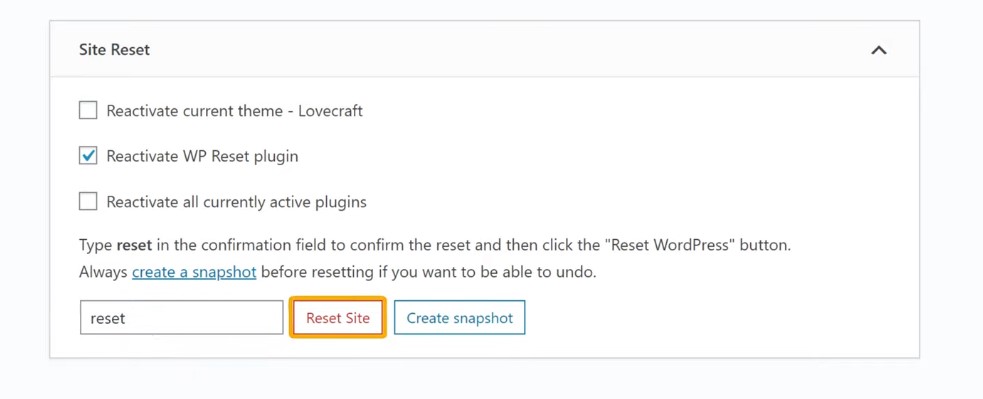
So, Once you have created the snapshot We can now reset our site. So to reset our site Let’s go back to ‘Reset’ Tab and then, scroll down to site reset. Now here, Type ‘Reset’ and click ‘Reset Site’.
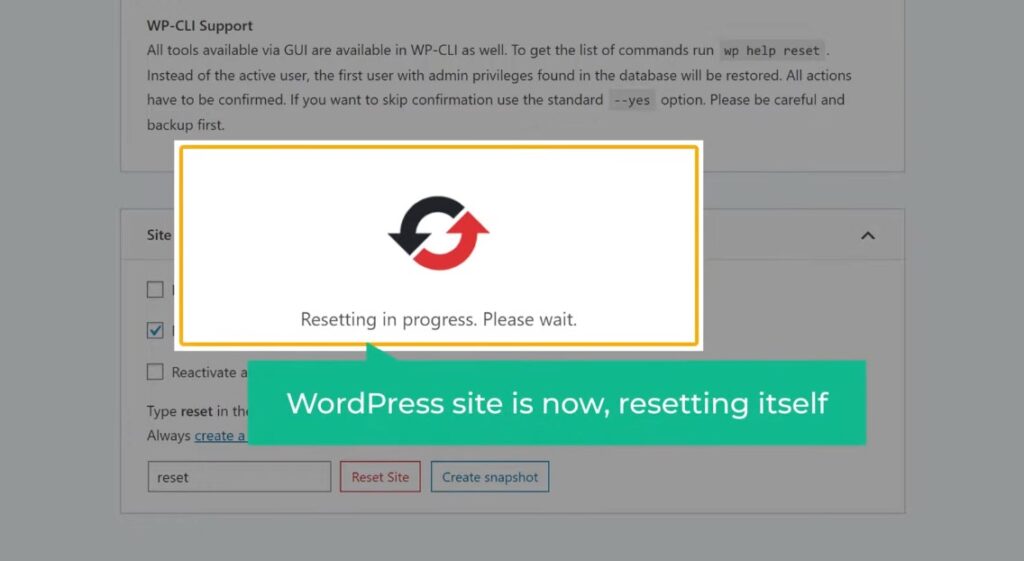
And now if we click ‘Reset WordPress’ You can see that our WordPress site is now, resetting itself. And it’s done!
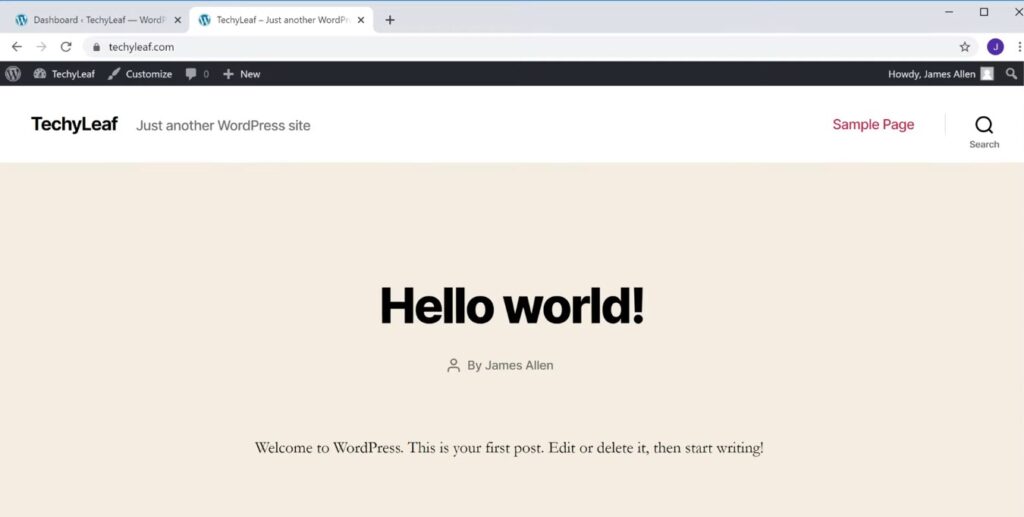
So now, if we go back to our website And click ‘Refresh’ You can see that, Our WordPress site is back to its default state So this is how you can reset your WordPress site And now you can start building your site from scratch. So now you know how to reset your WordPress website.

Now, how do we restore the snapshot, which we took before? So to restore the snapshot, Let’s go back to our WordPress dashboard And then go to ‘Tools’ and click ‘WP Reset’ Now go to ‘Snapshots’.
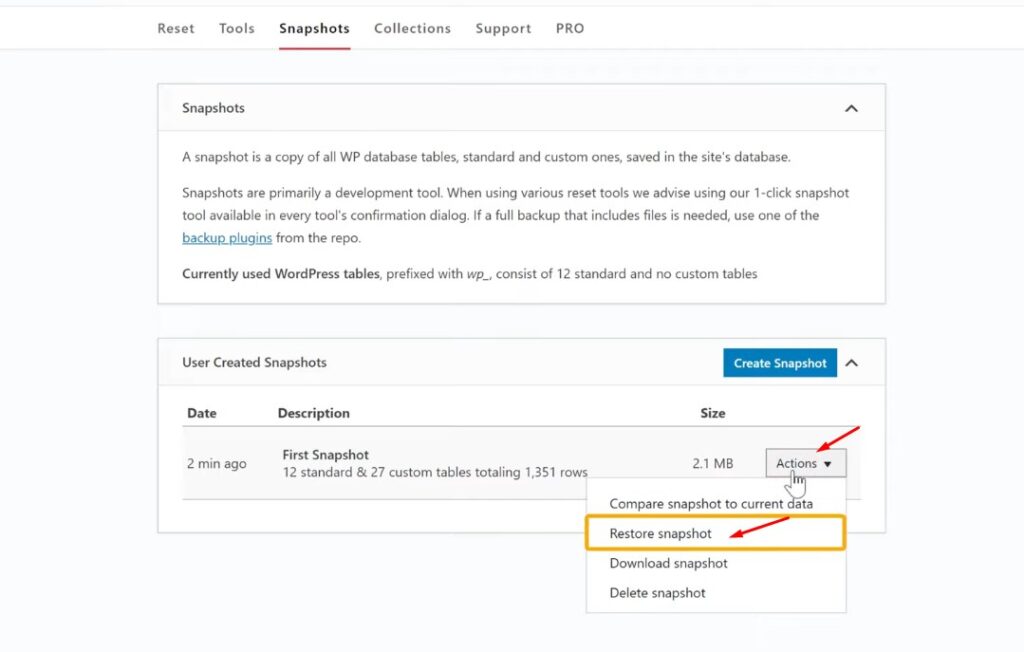
Here you can see the snapshot which we created before. Now to restore the snapshot Click ‘Actions’ And click ‘Restore Snapshot’. And now if we click ‘Restore Snapshot’ You can see that our snapshot has been restored!
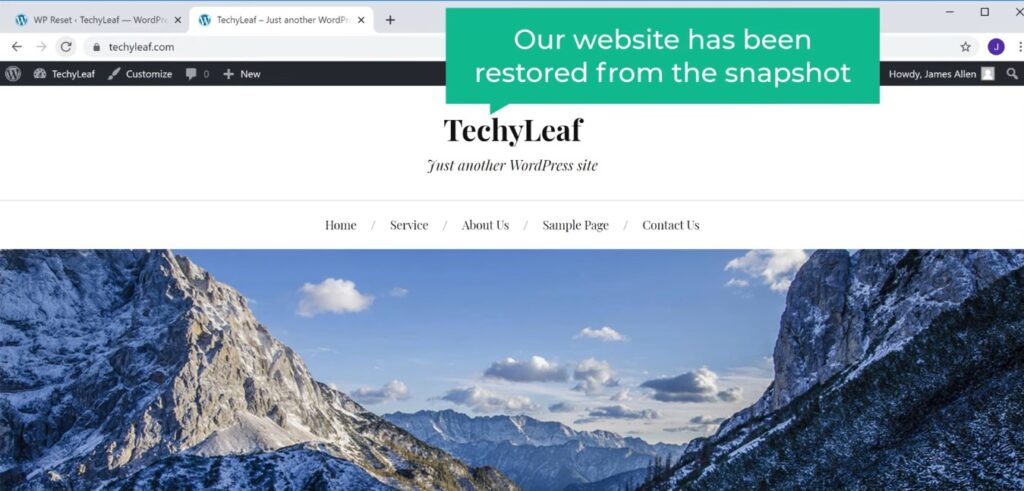
So now, if you go back to your site You can see that this is how our site was before. Now if we click refresh you can see that our website has been restored from the snapshot. So this is how you can restore a snapshot of your site. That’s it guys So this is how you can reset your WordPress site. If you want to learn more about WordPress, visit our blog page.
