















Lets walk you through the easy way that you can reset your password in WordPress using phpMyAdmin. Under normal circumstances, resetting your password.
WordPress is quite easy you simply go to the logon screen and click on forgot my password.
The problem comes if you no longer have that email address that’s in your profile.
If your WordPress website is having issues sending email then you’ll never get that email reset link.
To go around that problem you can simply go into your hosting provider’s dashboard.
We also call that the cPanel in most cases and you can reset it using the phpMyAdmin area.
Now this is a bit of an advanced technique and you’ll be using the phpMyAdmin.
Before change on your database so we suggest that you make a backup copy of your WordPress site before proceeding.
To Change Your Password
So the first thing you want to do is go ahead and log in to your WordPress hosting provider’s area it’s usually the cPanel or access the cPanel from the username and password that
you’ve got from your hosting provider.
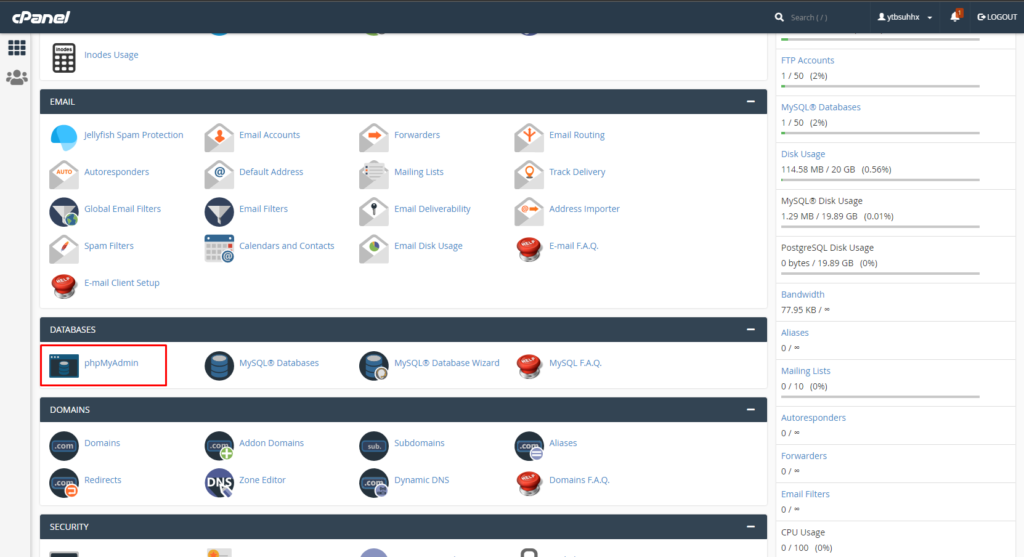
Now we’re looking for phpMyAdmin so we’ll just click on this and it’ll open up the databases that we have associated with our hosting provider.
You probably only have one or maybe two so, so just expand the one that you know that is associated with your website.
Once we click on that now we’ll see all the tables that are a part of our website and the table that we’re looking for is the wp_users table.
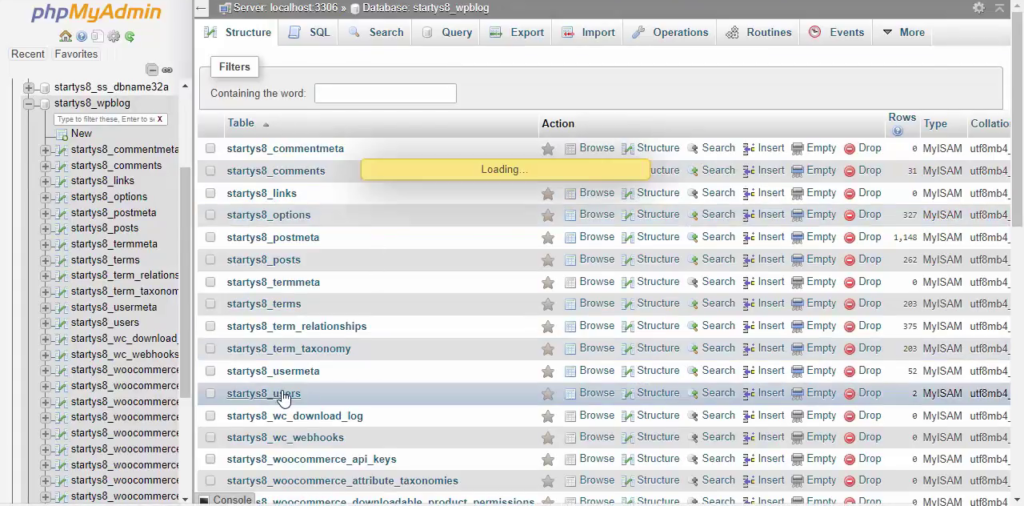
You might also see a different prefix ahead of users like you see here that’s for security purposes but basically you’re looking for the prefix that your hosting provider gave you underscore users so what we want to do is we want to change that so let’s click Edit here and these are all the columns that we can change for this table.
The one that we’re looking for is the one that’s associated with our username for the website. So we want to click on this one and the field that we want to change is the password field,
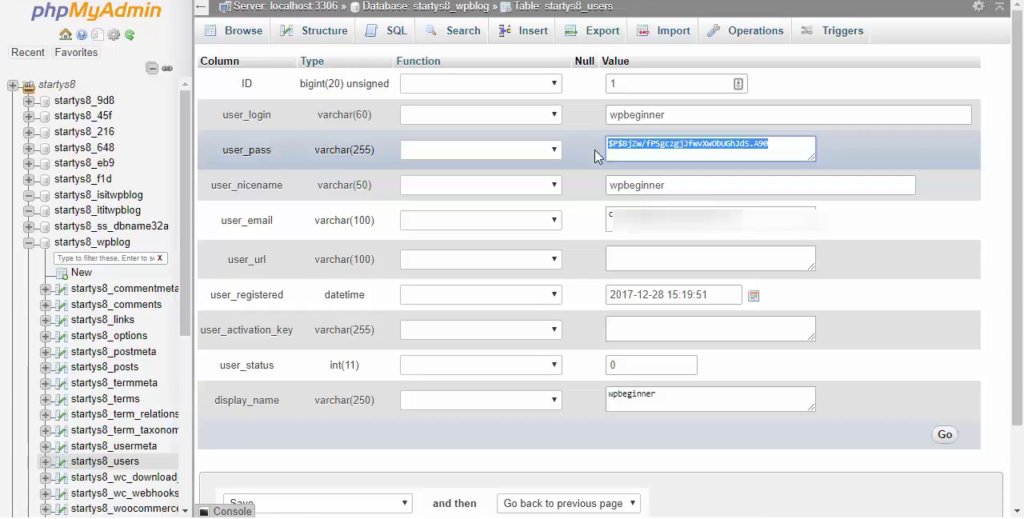
The user_pass field and under user underscore pass you see this really interesting password and it looks like it’s very difficult and don’t worry it’s actually not the password itself that you’re seeing it’s the encrypted version of the password.
So you don’t have to create one that looks this crazy so let’s go ahead and highlight this and delete that information and then we’ll go in and you can add the value that you need for your password.
Try and make a strong password that would be difficult for someone to guess, for simplicity I’m simply going to use this and once you’re done with that we also want to click on the function column because we want to re-encrypt this password and we’ll be using the md5 encryption.
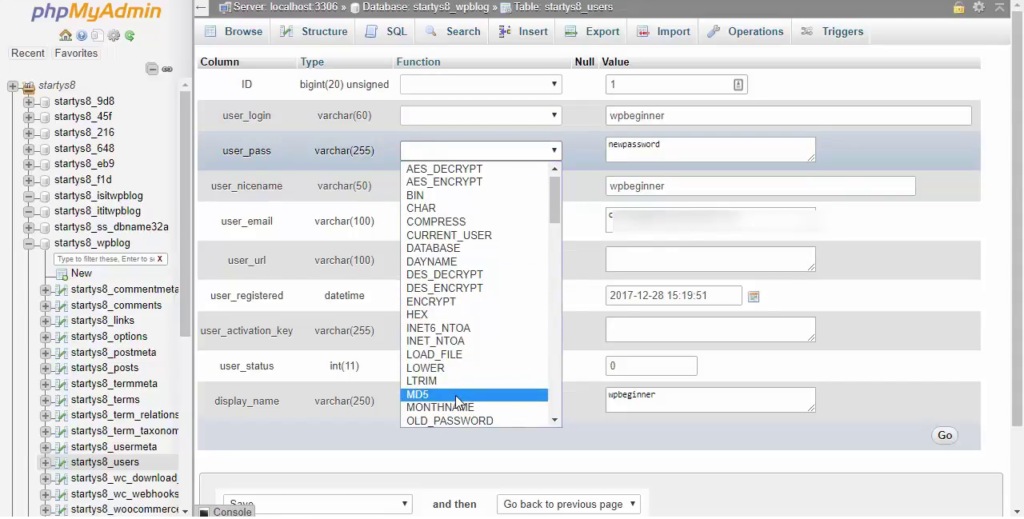
So click on md5 and then down at the bottom let’s just click Go and the great thing about that is once we click go it will update our password.
Now you should go back and try to logged in.
this is how to reset a WordPress password from phpMyAdmin.
