














Hi guys Today we’re going to see How To Display WordPress Posts In a Grid Layout. Let’s say you have a website And you want to display posts in a grid layout, which looks more organized. You can do that by reading this article. And anyone who is visiting your website can easily go through your posts and find what they’re looking for.
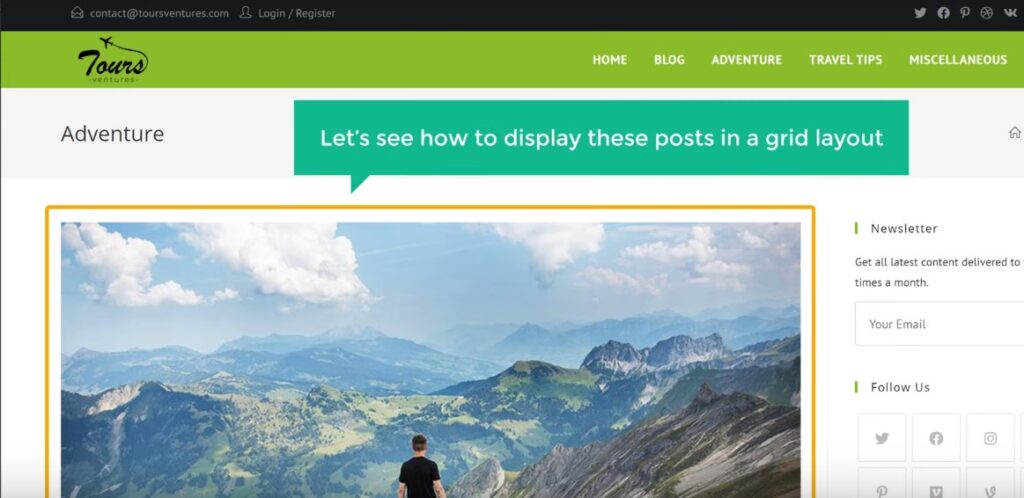
Let’s display our posts in a grid layout. First, let’s see the website, where we want to change the posts layout Here it is. Now if we click on adventure, You can see that, we have the posts, of this category. So now let’s see how to display these posts in a grid layout. so to display the post in a grid layout We’re going to do 4 steps.
Install ‘Content Views’ plugin – To Display WordPress Posts In a Grid Layout

The first step is to install a plugin in WordPress. So to install the plugin, Let’s go to our WordPress dashboard. Now go to plugins, And click add new, Now search for a plugin called ‘content views’. And you’ll get this plugin, This is the plugin, which is going to help us display our posts in a grid layout. So to install the plugin, Let’s click install and then click ‘activate’.
So now we’ve successfully installed the plugin, Once you’ve installed the plugin, In order to show your posts in a grid layout to display in WordPress, You need to first create a layout for your posts.
Create a layout for your posts

So let’s go to the second step, Which is to Create a layout for your posts. So to create the layout, Just go here, And click add new. Now here you need to give a name for your layout, I’m going to enter ‘blogs’.
Select Categories
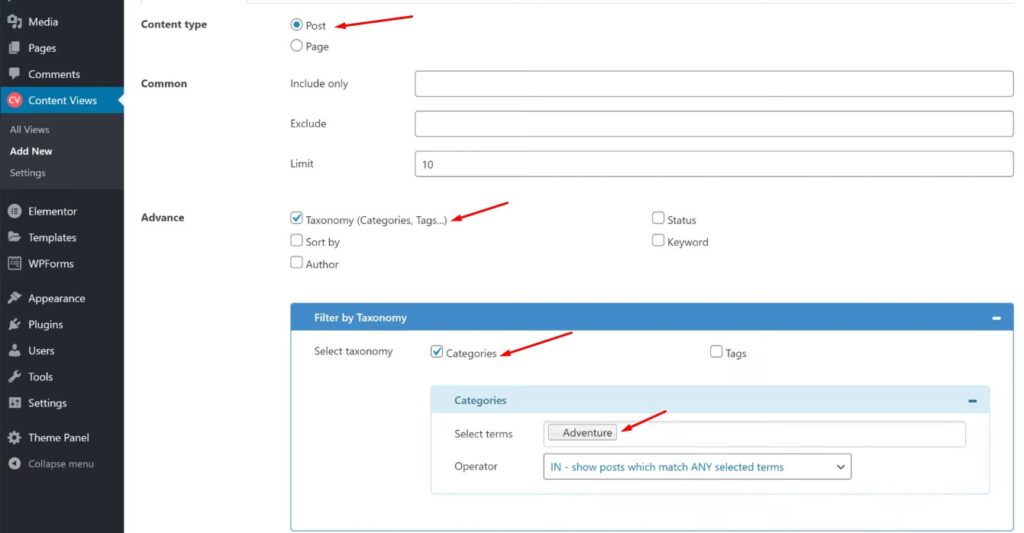
Scroll down, And here you need to select which posts you want to display in a grid layout. Now as we want to display the posts of a particular category. Let’s click here, And then select Taxonomy (categories, Tags…). As soon as you select it, Here it’ll ask you to select the category of posts, for which you want to create the grid layout. So to select it, Just click here, And here you can see all the categories of your posts. Now You can select the category you want. I’m going to select ‘adventure’.
Now all the posts under adventure will be displayed in a grid layout to display WordPress posts. Now if you want to display more categories in the grid layout You can click here and select more categories. Okay, So once you’ve selected the categories.

Now to complete creating your layout, Just scroll up, And go to display settings. Now here you need to select the type of layout you want for your posts. As you can see by default grid layout is selected. Next, here you need to select the number of posts you want to display in a row. Let’s say you want to display 3 posts in a row. So just enter 3, Now to see a preview of how your posts will look, Just click update preview. And here you can see how your posts will appear on your site.
Okay, now to save this layout, Just click save, And now we’ve successfully created our layout, Once you’ve created the layout.
Add the layout to your website
Next, let’s go to the 3rd step, which is to add the this layout to your site.
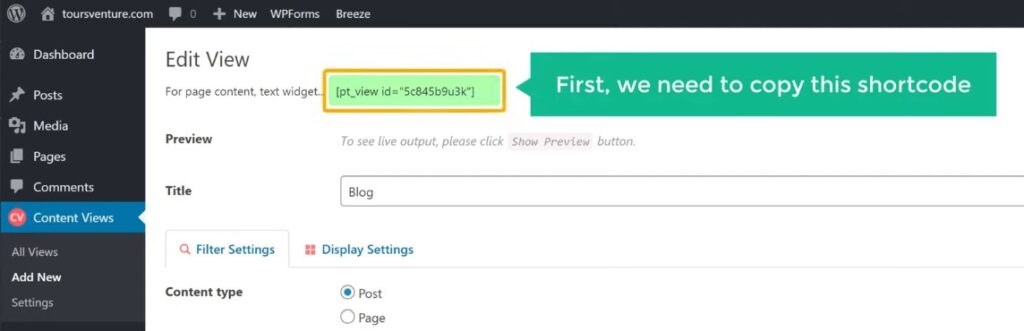
In order to add the layout to your site, First, we need to copy this shortcode. So let’s copy this code, once you have copied the code. Now to add the layout to our site We need to create a new page and then paste this code.
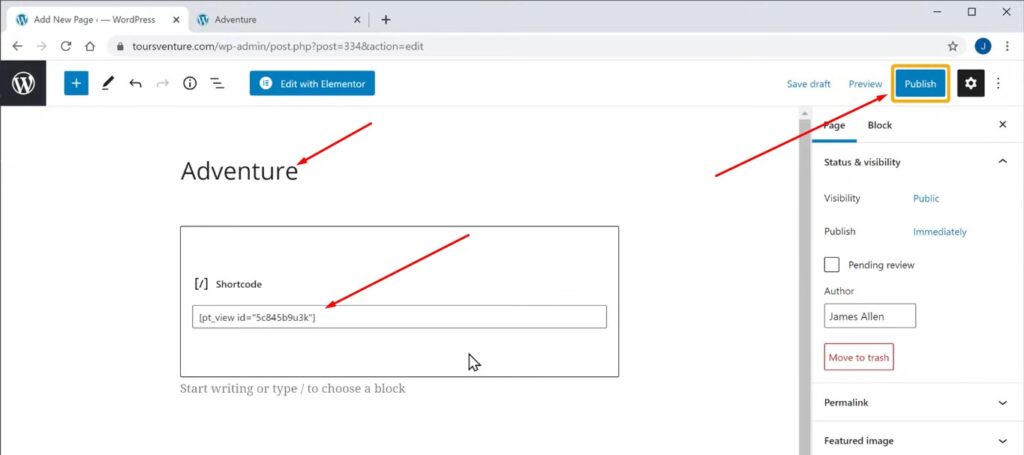
So to create a new page, Go to ‘pages’ and click add new. Now enter a title for your page, As we’re displaying posts of the adventure category. I’m going to enter ‘adventure’. Now to add the layout to this page, Just click here And then paste the shortcode which we copied before, Once you’ve done that, To publish this page Let’s click publish.
And our layout will be added to our site, So to check that, Let’s click ‘view page’.

And you can see that we’ve now got our posts in Grid Layout to display in WordPress. So now we’ve successfully added the grid layout to our site.
Add the page to your menu
Once you’ve added the layout, We can go to the final step, Which is to add this page to our menu.
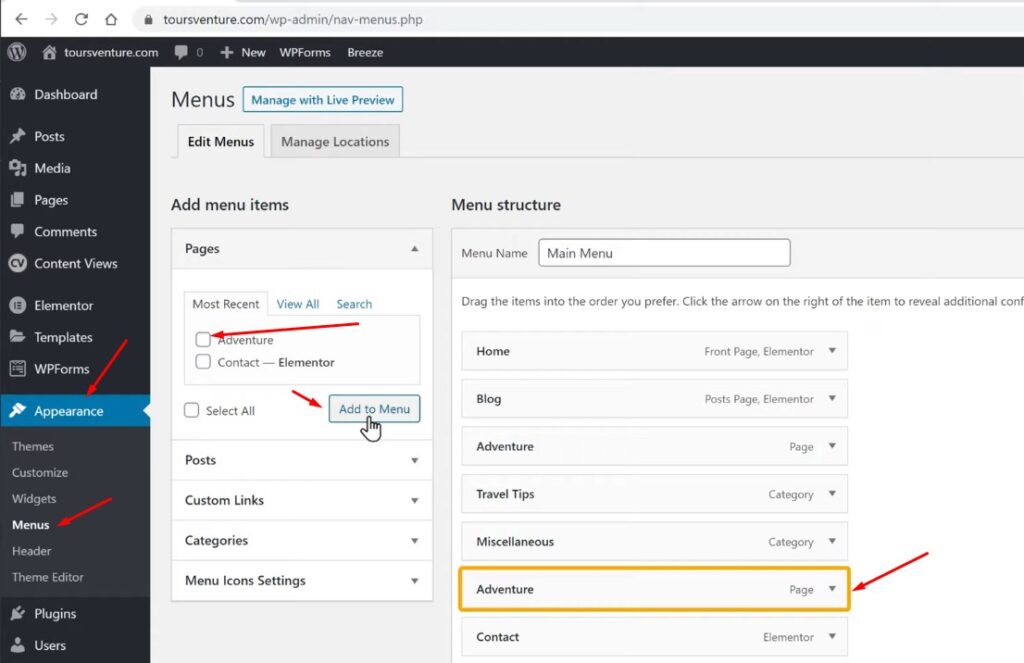
So to add the page to our menu, Let’s go to appearance And click menus. Now here you can see the page which we just created, So to add this page to our menu, Just select it And then click ‘add to menu’. And here you can see our page is added.
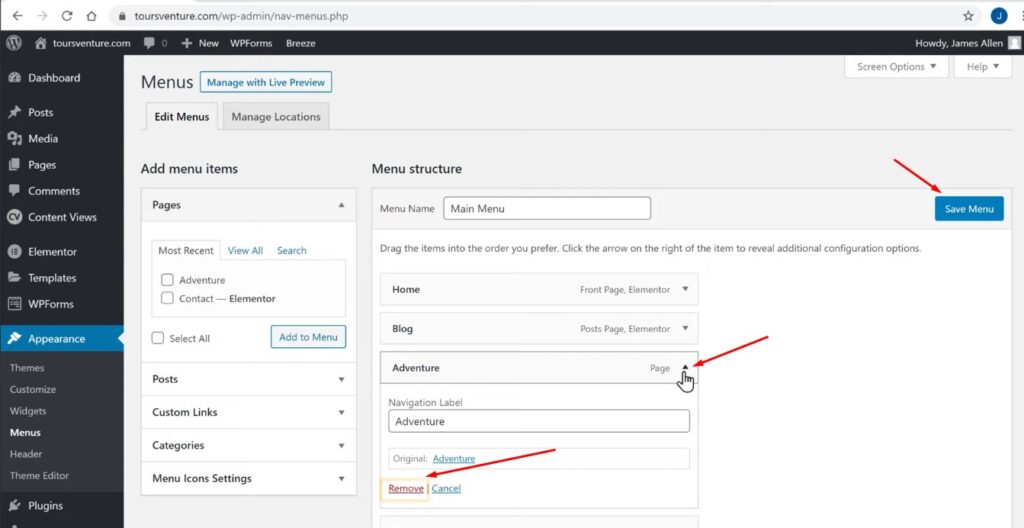
Now if you see here, we have another page with the same name called adventure. This is the page which we already had on our site. So now as we don’t need this page anymore, Let’s remove it from our menu. To remove it, Just click here, then click remove, And the page will be removed. So to save the changes, Let’s click save.
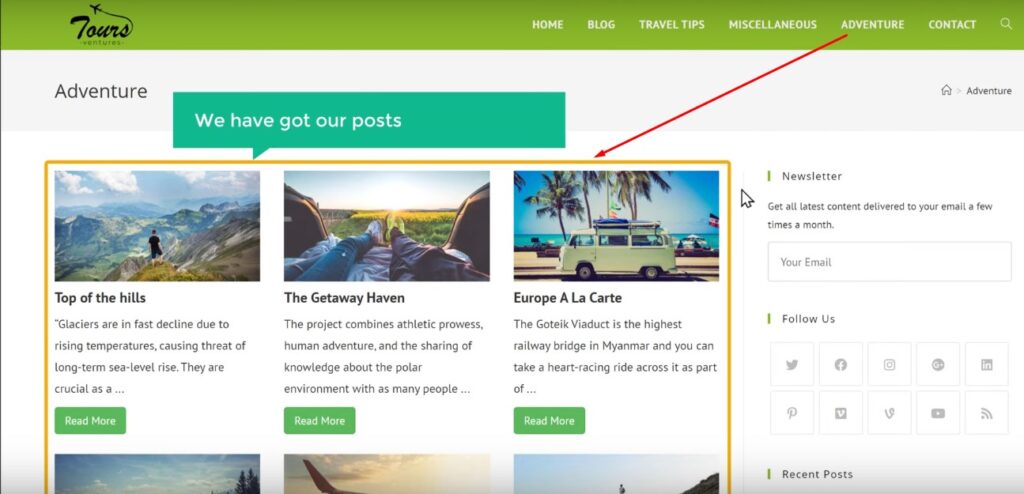
And if we go to our website, And click refresh, You can see that our new page has been added to our menu. Now if we open this menu You can see that, we have got our posts in the grid layout. Okay, so this is To Display WordPress Posts In a Grid Layout.
Now, If you want to know more about WordPress, visit out blog page.
