














I’ll walk you through the options for customizing your WordPress theme, help to decide which
ones are right for you and show you how to do it safely and efficiently.
All right, let’s get started.
If you’re wanting to add functionality to a theme, you’ll have to install a Plugin.
If you’re changing fonts, colors and perhaps the layout of your theme, this can be done with the Customizer in your WordPress admin screen.
You’re working with a page builder theme, you’ll use the Page Builders Features to customize the design of your site.
And if you install the Framework Theme, you can use one of the available child themes to customize your site, along with any customization options available on the admin screens.
If your theme is specific to your site, and you’re comfortable doing it, edit the theme’s code directly.
You want to edit the code of a third party theme, create a child theme.
Now, if you want to edit the code, you’ll have a number of options available to you from using the block editor to the customizer, right to editing the files.
We’ll look at them all in this video, but let’s start with the simplest option, installing a Plugin.
Themes dictate the design of your site, the way it looks and the way it displays content.
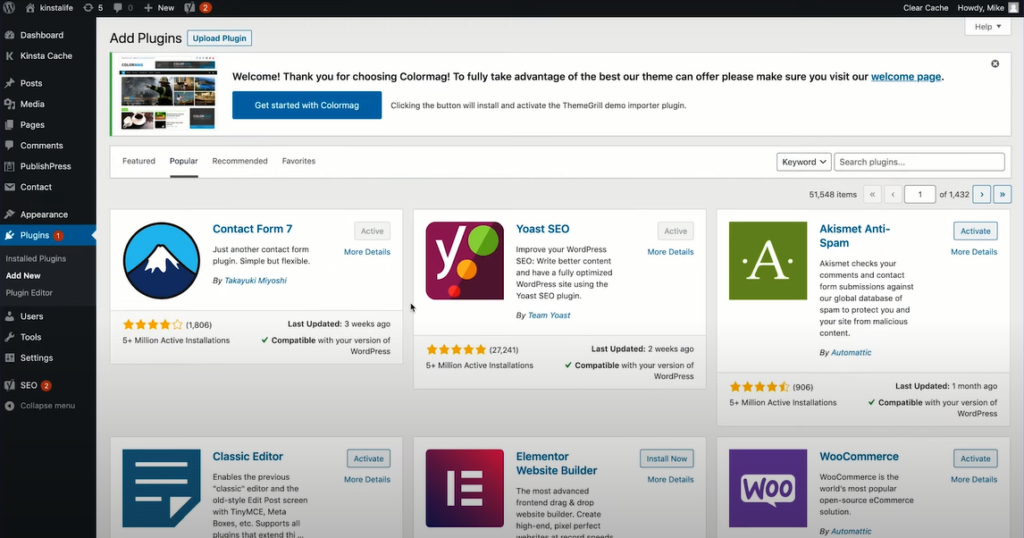
Plugins add extra functionality.
If adding functionality to your theme is what you’re looking for, then you don’t need to change the theme, but just install a Plugin.
Good examples of what you would use a Plugin instead of a theme for including adding widgets, registering custom post types and taxonomies,
Creating custom fields and adding extra features like a store or SEO enhancements.
Using the Customizer
If the changes you want to make are designed focused and relatively simple, you may be able to make them via the admin screens.
The customizer gives you a variety of options for tweaking your theme.
What’s available to you will depend on your theme.
And you may see something called the editor in the appearance menu.
Steer clear of this for reasons I’ll describe shortly.
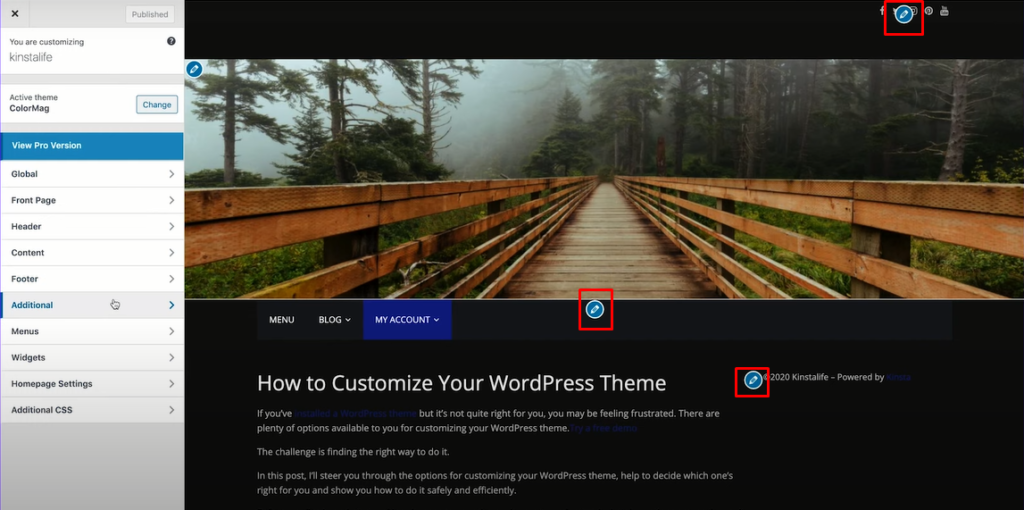
The WordPress customizer is the easiest way to customize your WordPress theme.
You can access this in one of two ways.
When viewing your site, you have to be logged in.
Once you’re logged in, click the customized link in the admin bar at the top of the screen.
In the admin screen, click on appearance and then customize.
This will take you to the customizer.
Here, you’ll see I’ve added the free theme color mag, which has many customization options.
It’s added sections to the customizer for designed features including a header image, social media, category colors and a design options tab that takes you through to yet more tabs,
Which you can make changes to the layout and design of your site.
Different themes have different customization options, but newer themes seem to be adding more and more of them all the time.
If you find a theme that you like, but that isn’t quite right for you, you might find that customizing it gives you exactly the design and layout you need.
Using the Page Builders Features
Next, let’s briefly talk about the theme editor and why not to use it.
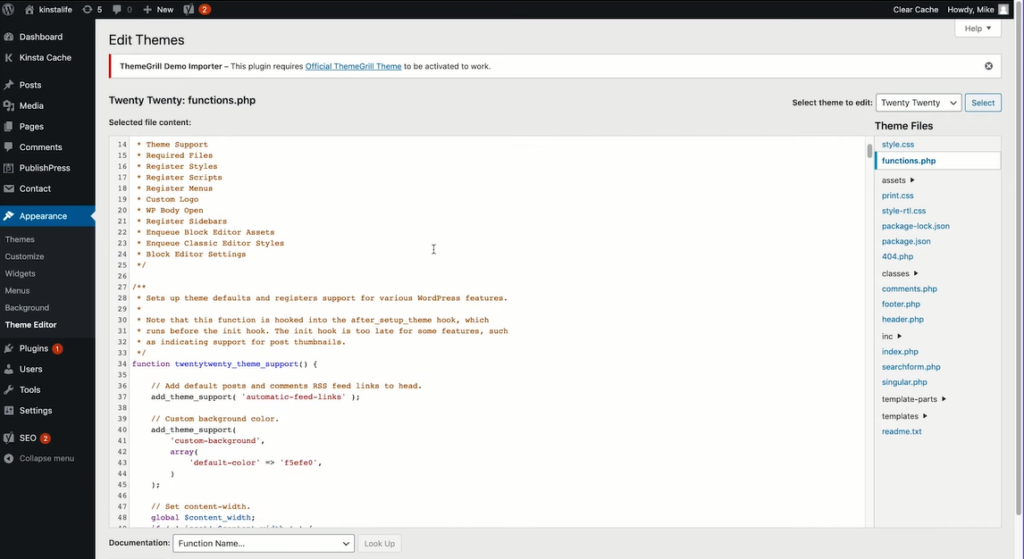
In your admin screen you may notice an option called the theme editor which you can access via appearance and then theme editor.
This gives you access to the files in your theme, meaning that you can directly edit them but wait, don’t do anything just yet.
Even if you’re comfortable writing CSS or PHP, editing the files in your theme is a bad idea for a couple of reasons.
If you’ve bought or downloaded a third party theme, any changes you make will be lost the next time you update the theme, and you always want to keep your theme updated for security reasons.
Most importantly, if you make a change that breaks your site it won’t be tracked, and the previous version of the file won’t be changed. You could irrevocably break your site.
If editing the code in your theme is what you’re looking for, then we recommend using a staging site before doing it in your live files.
If you’re looking to edit your third party theme, you should do so via a child theme.
We will touch more on this shortly.
WordPress also knows the theme editor can mess up your files and site.
So it does prompt you with a warning before entering it.
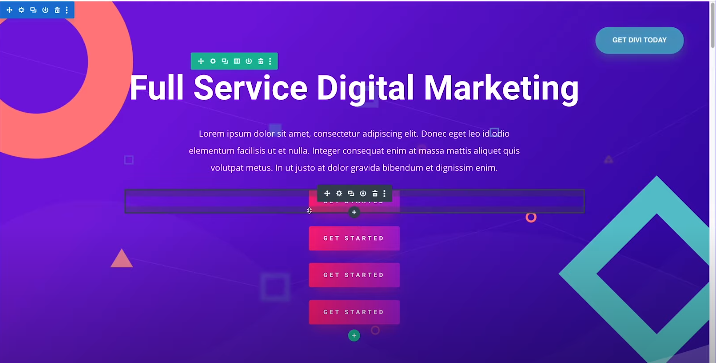
Page builders and frameworks to customize your WordPress theme.
WordPress already has many ways you can customize your theme by changing your design and layout via the customizer.
But some themes take this further and are designed to be extended and significantly customized.
Those themes are called theme frameworks.
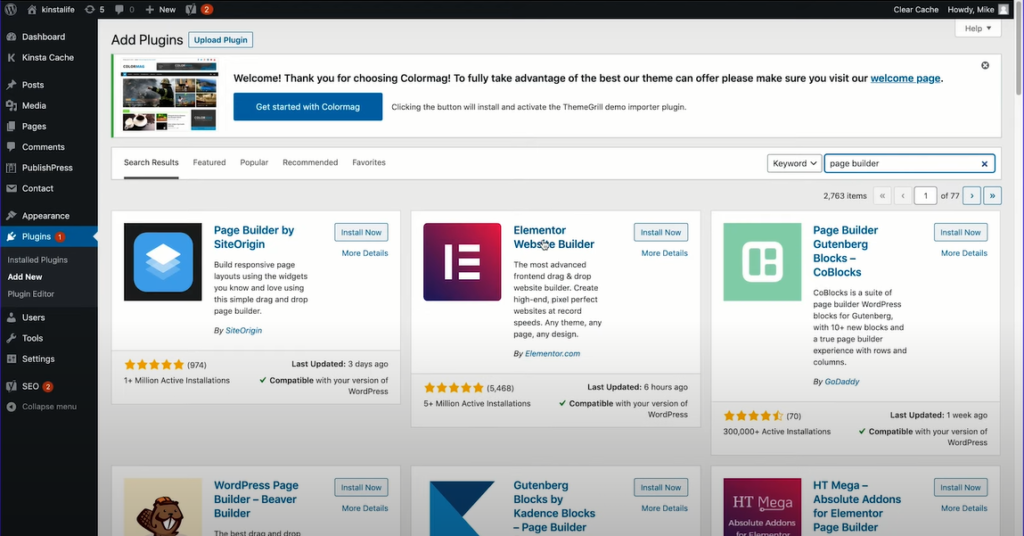
Page builder Plugins are designed to make it easy for you to set the design of your site using an interface that lets you see what you’re getting.
You install a page builder Plugin with a compatible theme and then use the options it gives you to design your site exactly the way you want it.
A well known page builder is Elementor. Page builders give you a lot of flexibility with layouts in designing your page.
If you use a website builder like Wix, they can help ease the transition to WordPress.
If you prefer a WYSIWYG interface for your WordPress content, they can help you design the pages quickly. An alternative to page builders is frameworks.
These are suites of themes designed to work together.
There’s one parent theme which the framework and a choice of child themes.
That you can use to customize the main theme and make it look the way you want.
A great example of theme frameworks is Divi which has customization options that let you tweak the design of your child theme.
Even further, including a drag and drop interface similar to those of page builders.
Editing your Themes Code
If you are comfortable editing your themes code via CSS and or PHP, then you have the greatest degree of control.
If you’re editing your own theme which is specific to your site and was developed especially for it, then you can make edits to the theme directly.
But if you’re working with a third party theme and want to edit that,
You should create a child theme to avoid losing your changes next time you update the theme.
Every WordPress theme has a style sheet called style.css.
It contains all the code for styling your site, layout, font colors, and more.
Pay attention when editing the style sheet.
Specificity means that the code for an element isn’t always coming from where you think it is.
Elements will inherit styling from other elements that are above them in the hierarchy of the page, unless you add styling which is specific to the lower element.
To discover what elements CSS is affecting on the page. You can use the inspector in your browser to view the CSS.
You can use this to write the new CSS that targets individual elements or range of elements or classes on the page.
If all of this talk of elements, classes and specificity is new to you, you may want to steer clear of directly editing your theme’s CSS, at least until you’ve learned more about CSS and how it works.
Another file that pretty much every theme will have been the functions file.
This is the file that makes a bunch of stuff work in your theme.
Inside it, you can find code to register theme features like featured images, widgets, and more.
If you’re tempted to add functional code to your theme, this is where you’ll add it.
But be aware, in most cases you should really be writing a Plugin.
Ask yourself would I want to keep this functionality if I switched themes in the future?
If the answer is yes, write a Plugin instead of adding code to the functions file.
Plugins don’t have to be big.
There’s nothing to stop you from creating one for a couple of lines of code.
The functions file is all written in PHP.
So you’ll need to be familiar with that.
Don’t blindly copy code you find via a Google search. Take the time to work out, what that code does, and to understand it.
That way, you’re less likely to add code that isn’t as good as it should be, most of the files in the theme are theme template files.
These are files which determine what content WordPress outputs on a given page and are chosen accordingly to the template hierarchy.
If you want to change the way content is output on a specific post, page, or archive, you’ll need to either edit one of these files or create a new one.
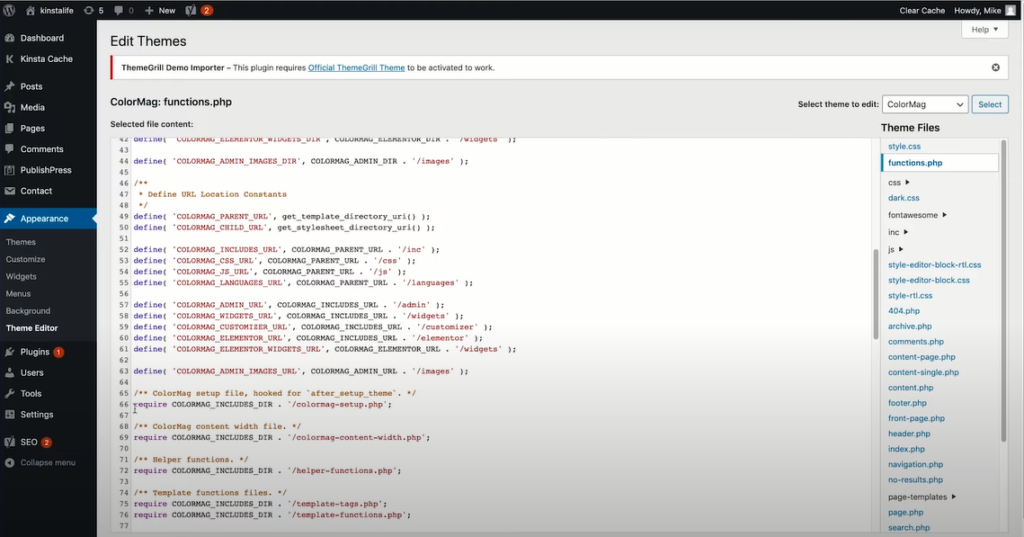
For example, say your theme has an archive.php file, that’s being used to output archive pages for categories and tags. You want to make changes to the way tags or output.
So you create a file called tag.php, which would be based on archive.php with your tweaks.
Again, be careful editing the files, they could break your site.
Always tests on a local installation and or a staging site first.
Whichever of these file types you need to edit, you should do it properly.
Customizing your WordPress theme isn’t all that difficult
But take the time to identify the right option for you, so you make your customization safely and without breaking your site.
Kinsta’s WordPress hosting can speed up your website up to 200%, and you’ll get 24/7 support from our expert WordPress engineers
