














Today we’re going to see How to change the link structure in WordPress (permalinks). Now these links are also known as permalinks.
What is a Permalink?

First, let’s see what is a permalink. Let’s say you have a website like this, Now if we go to any page on our site, You can see that we have a URL for this page. This URL is called the Permalink. So like this, every page on your site will have a permalink.
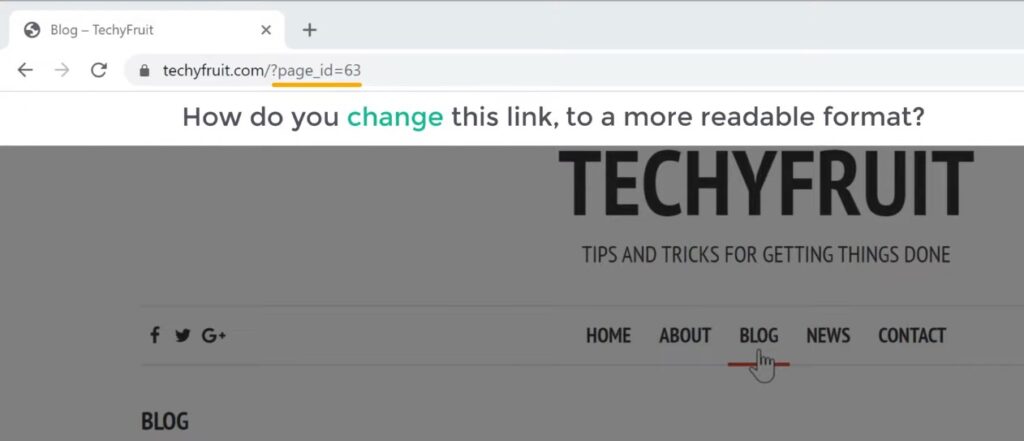
Okay, now if we look at this link, You can see that this part of the link is not very clear and understandable. Now how do you change this link, to a more readable format. So after reading this article, you will be able to change the links on your website. This will make your site URLs look good and also perform better in the search results.
Change the Permalinks – The Link Structure in WordPress

Let’s change the permalink format of our site. So to change the permalinks, Let’s go to our WordPress dashboard. And then go to settings, And click permalinks. Now it’ll take you to this page. This is the place where you can change the permalinks of your site. Right now, you can see that “plain” is selected, which means the links of your pages will be shown like this.

Now to change the permalinks, to a more readable format like this Just select the option called ‘post name’ here. And then click ‘save changes’. And now the permalinks of all our pages will be change.
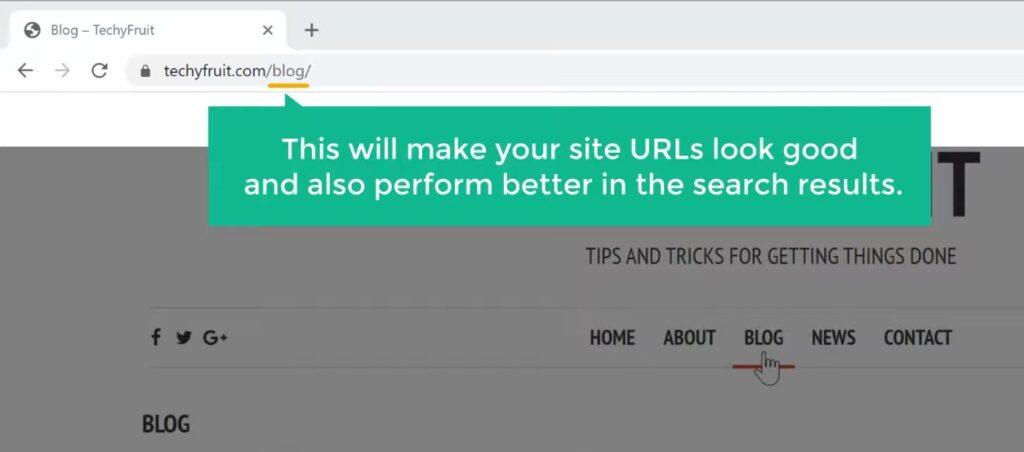
To check that, Let’s go to our site. Now if we click refresh. You can see that our link has been change and it looks more readable.

Okay now if we open any blog post on our site,. You can see the link of our blog post has also changed, And it shows the name of this post. So once you select the ‘post name’ option, Along with the pages, the links of all your blog posts will also be change. Okay, so we’ve successfully changed the permalinks of our site. And the URL of your website pages will be more clear and understandable to viewers. And it is more user friendly and better for SEO.
So now you know how to change the link structure of all the pages on your wordpress site. But, what if you want to change the permalink of a particular post on your site.
Change the Permalink of any particular post on your site
Next, let’s see how you can change the permalink of any particular post on your site. So To do that, Just click edit post here.
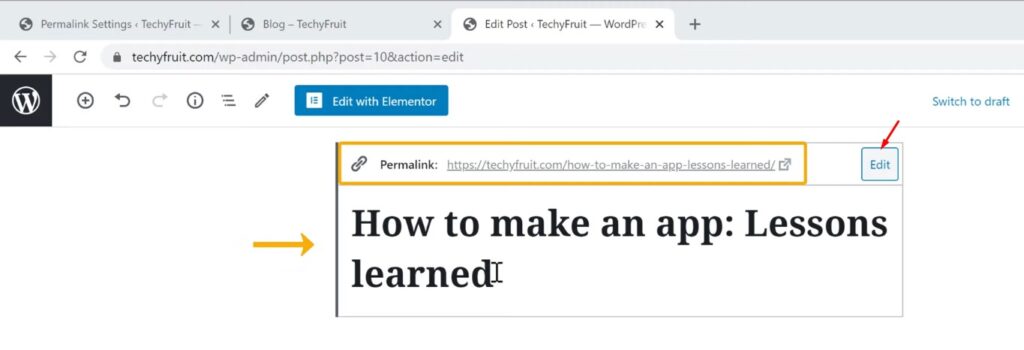
Now to change the permalink of this post, Just click the title of this post. And you can see that the permalink of this post has appeared here, So to change it, Just click edit, And then enter the text you want.
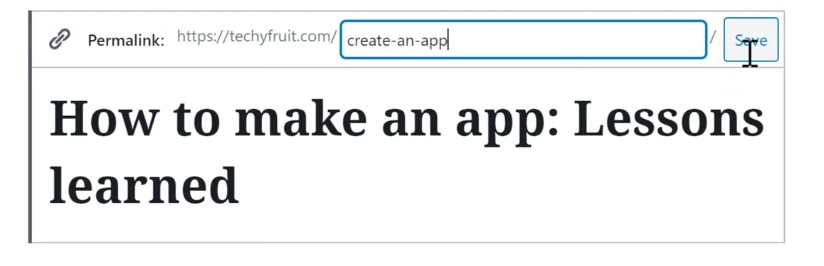
I’m going to enter ‘create an app.’ Now to save the changes, Just click save. And then click update, So now the link of this post will be change.

To check that, Let’s go back to our site. And click this post Here you can see that, the link of our post has been change. Now make sure you change your links only when your post is ‘new’. If it’s an old post, and other pages on the web, have already linked to it, once you change this link on WordPress, the old links will stop working.
Also if your site was rank on google search results, changing this link will affect your ranking of your post or page. So keep this in mind, when changing links on an already established website or blog. Okay so now you know how you can change the permalinks of a particular post on your site.
So that’s it, guys, This is how you can change the permalinks link of your WordPress website. Now if you want to know how you can change the site title and the tag line on your WordPress site, You can read out upcoming articles on our blog page.
