














Hi guys, Today we’re going to see how to add WhatsApp chat to WordPress website. So let’s say you have a website And you want to let your visitors contact you using WhatsApp. You can do that by adding a WhatsApp chat to your website.
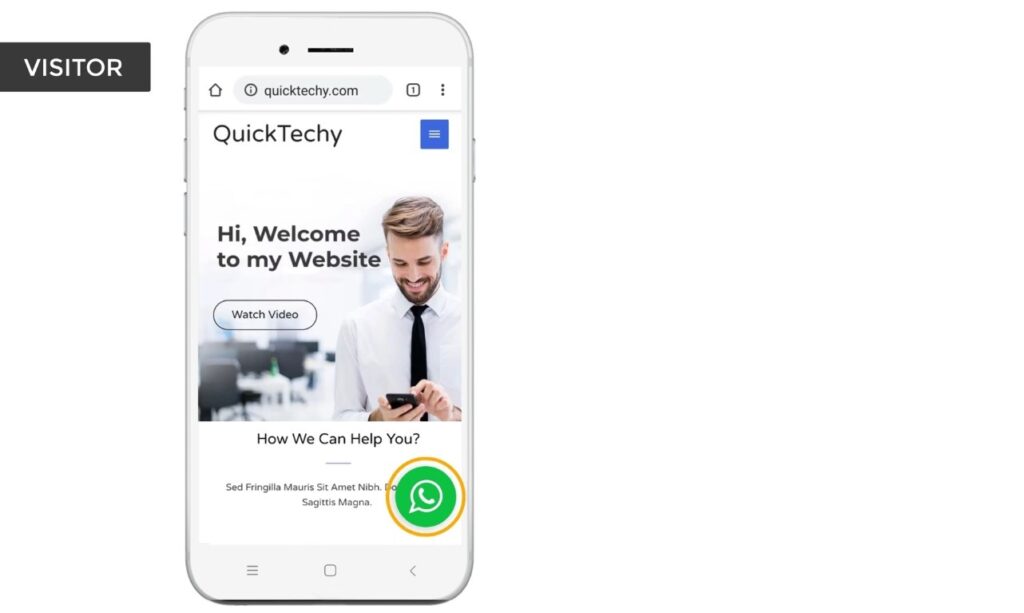
So after reading this article, you’ll be able to add WhatsApp chat like this. And anyone who is visiting your website can contact you, Just by clicking this icon.
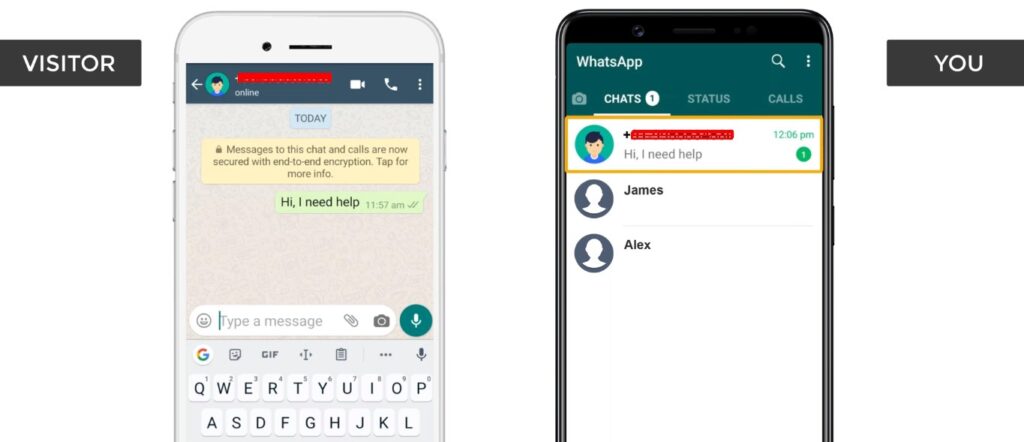
Once they click it, it will open your WhatsApp number. And now if the visitor types their message & sends it, you’ll receive that message on your phone. And now if you want to reply to that message, you can simply click here and then reply to your visitor.
Installing Whatsapp Plugin – to add WhatsApp chat to WordPress website
Let’s add Whatsapp to our website So to add a Whatsapp chat, We’re going to do 2 steps. The first step is to install a plugin in WordPress.
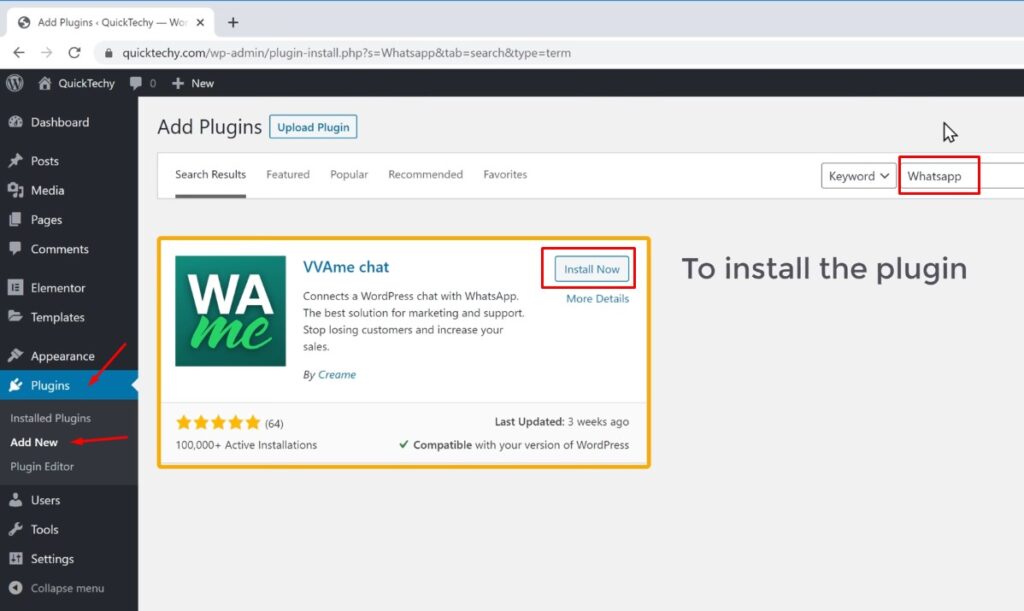
So to install the plugin, Let’s go to our WordPress dashboard. And then go to plugins. And click add new. Now search for ‘WhatsApp’ And you’ll get this plugin. So this is the plugin, Which is going to help us add the WhatsApp chat, to our website. To install the plugin, Just click install And then click activate. So now we’ve successfully installed the plugin.

Connect your WhatsApp account – to add WhatsApp chat to WordPress website
Once you’ve installed the plugin, Let’s go to the next step, Which is to connect your WhatsApp account to this plugin. So to connect it Just click settings.
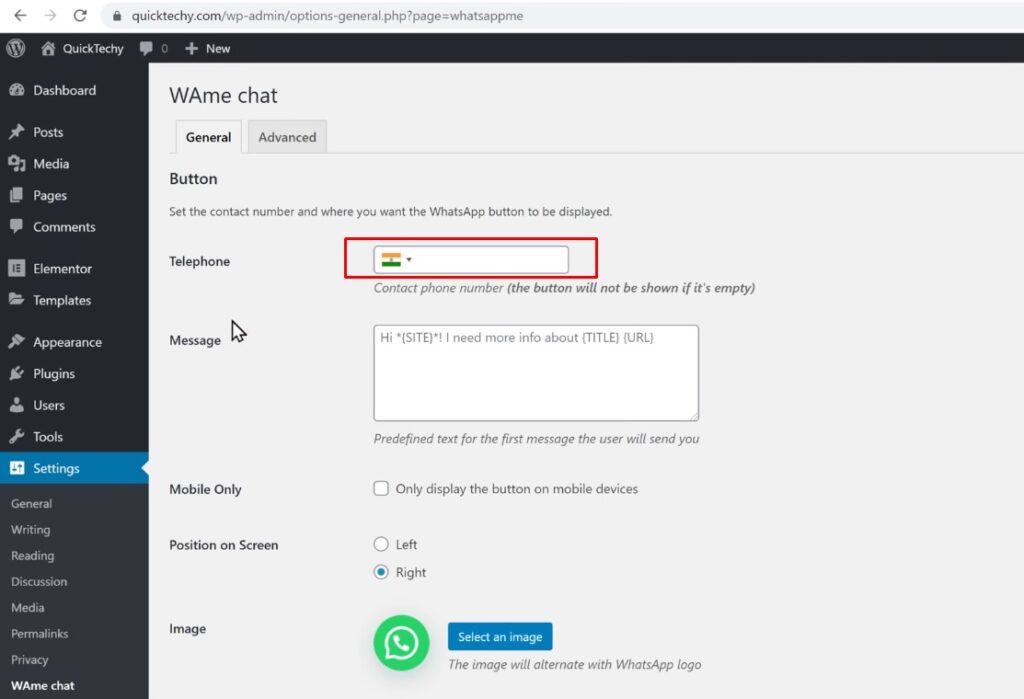
Now here you need to enter your WhatsApp number, where you will receive your messages. So I am going to enter my number. Now, once you enter your number, if a visitor tries to contact you, their message will be sent to this WhatsApp number. So now, Just scroll down, And then click save changes. Now as soon as you click save changes, The WhatsApp chat will be added to your website.
So to check that, Let’s go to our website, So Let’s take our mobile. and now if we go to our website, you can see that we have got our WhatsApp chat here.
Now let’s say a visitor wants to contact you, Now All they have to do is, Just click on this icon. and it will open your number And now if a visitor sends a message. You can see that we have received that message on our phone. Now to reply to your visitor, All you have to do is, Just open it, And then send your reply.
So this is how you can add a WhatsApp chat to your website.
Whatsapp Notification
Next, let’s see how you can add a new message notification.
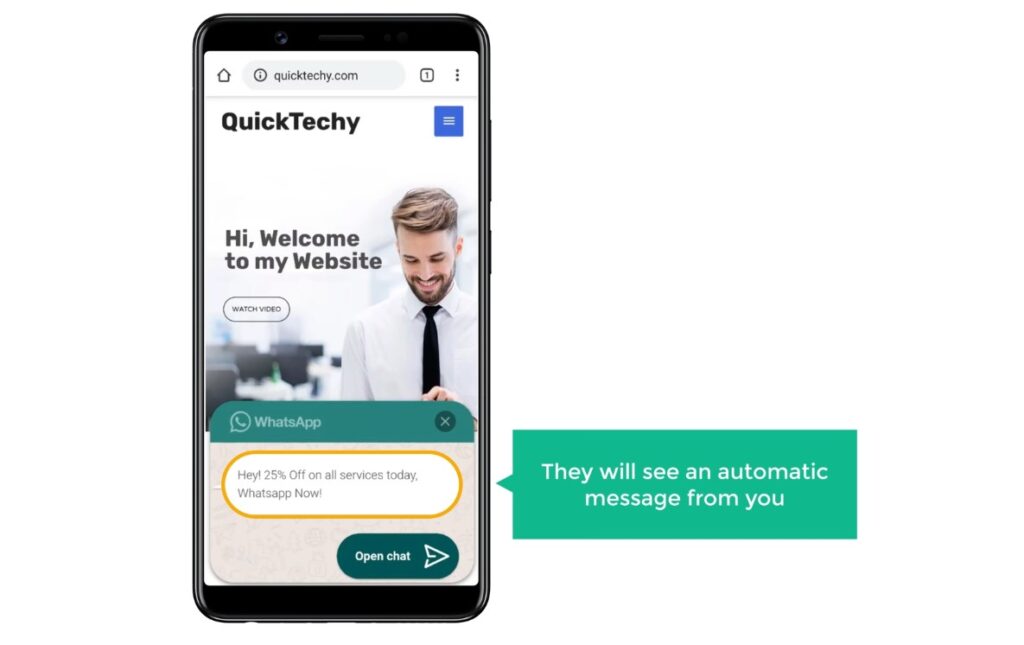
Once you add this notification, If a visitor opens this chat, They will see an automatic message from you. and they can click here to start chatting with you. by adding a message like this, you can attract more people to contact you.
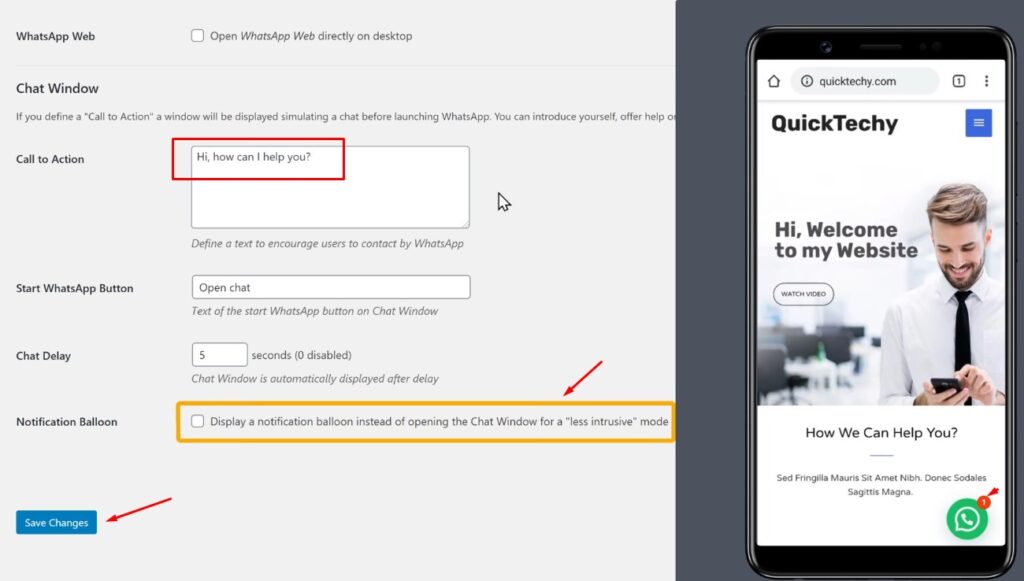
So next let’s see how you can add this message to your WhatsApp chat To add the message, Just go to WordPress. Now on this page, Just Scroll down. And here, You need to enter the message, you want to show in your chat. So, I am going to enter my message Now by default, when a visitor comes to your website, your message will automatically pop up like this.
Notification Balloon
Now instead of this, if you want to show the notification icon first, And then let your visitors click it You need to, enable Notification Balloon option here. So once you’ve enabled that, Here you need to enter when you want your notification to appear. Let’s say you want the notification to appear, after two seconds, You need to enter ‘2’ on Chat Delay option. So let’s enter that, And once you entered these details, Click save changes. As soon as you click save changes. Your message will be successfully added to your WhatsApp chat.
So to check that, Let’s again go to our website Now if we refresh the page, You can see that, We’ve received a notification in WhatsApp And now if we click on notification, you can now see the message, which we added. Now if the visitor wants to chat with you, they can click here. So this is how you can add a new message notification to your WhatsApp chat.
Okay, so now you know how your visitors can contact you using WhatsApp From their mobile.
Visitors can contact you from their computer
Next, let’s see how your visitors contact you, from their computer. So to let your visitors contact you from their computer.
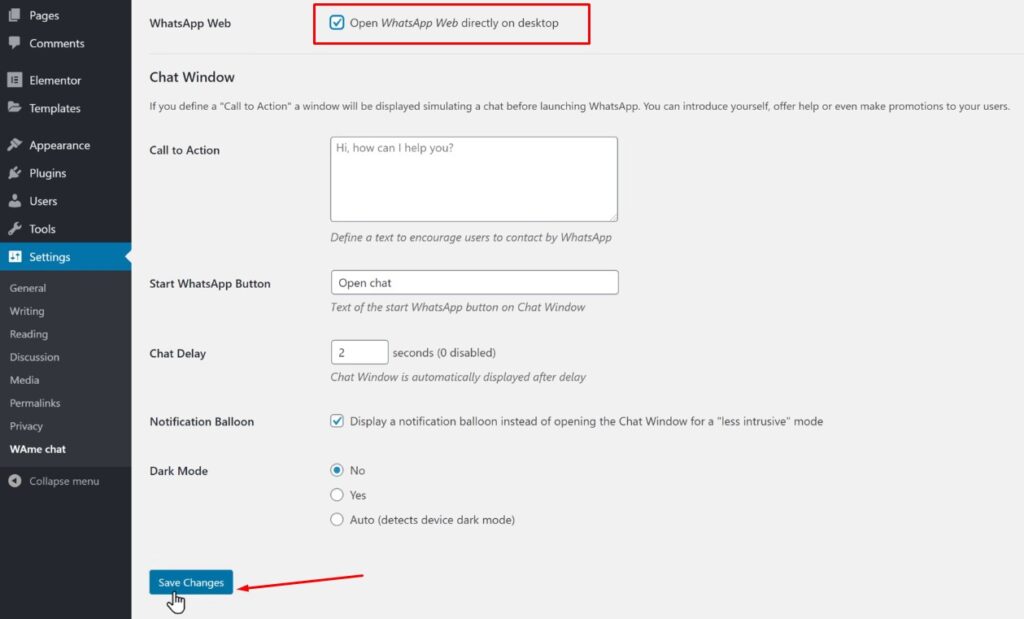
Just go to WordPress. Now scroll down And then enable the WhatsApp web option here Now if we click save changes, And then go to our website on a computer.

You can see we have our WhatsApp chat here. Now if our visitor clicks here, They’ll be taken to the WhatsApp web login page.
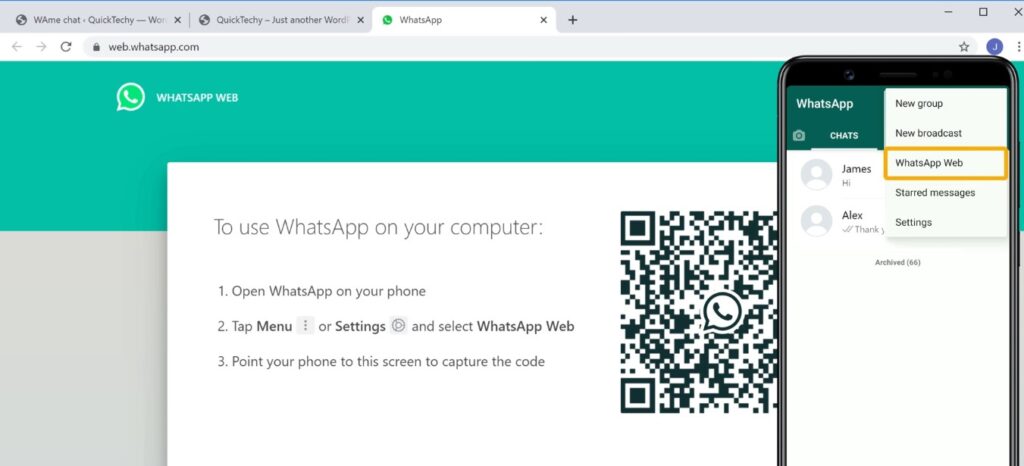
Now to contact you, they need to first login to WhatsApp, using their phone. So to login, first they have to open WhatsApp And then go to ‘menu’ And choose Whatsapp web. Now if they scan this code, They will be logged in And your number will be opened here. And now they will be able to send their message, from here. So, this is how your visitors can contact you, from their computer.
Now you know how to add a WhatsApp chat to your website.
If you want to learn more about WordPress, visit out blog page.
