














Today we’re going to see how to add a downloadable file in WordPress quick & easy. Let’s say you have a website, and you want to give your visitor’s a way to download files from your website You can do that easily by reading this article.

You will be able to add a downloadable button to your site like this.

And if someone clicks the button, they will be able to download the file by clicking here. And the file will be download.
We are going to do 2 steps The first step is to upload the file to your site So to upload the file.

Let’s go to our WordPress dashboard Now go to ‘Media’ and click ‘Add new’.

And it will take you to this page. Now to upload the file Just drag the file from your computer And drop it here. And as you can see, our file has been upload. So once you have uploaded your file.

We can now go to Step 2, which is to add file this to your site. So to add the file just go to the page where you want to add the downloadable file And click ‘Edit post’ on WordPress.

Now Go to the place where you want to add the file. Now let’s say you want to add the downloadable file here.
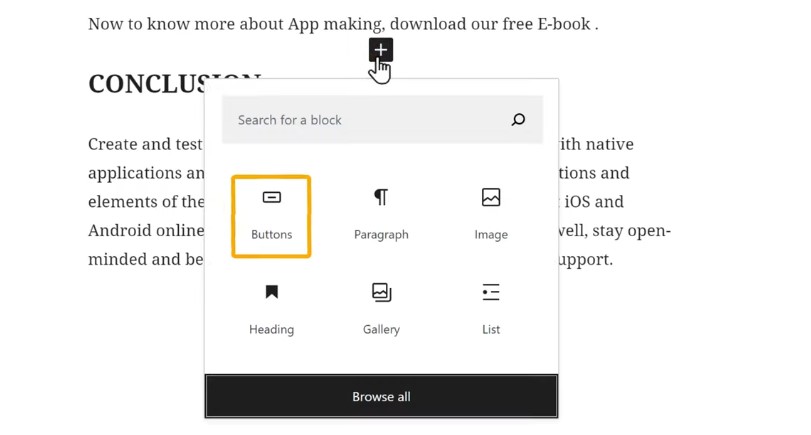
First, you need to add a download button So to add the button Just click the plus icon and select the ‘Button’ element. And as you can see the button has been add. Now enter the button text you want I am going to enter “ Download E-Book”.
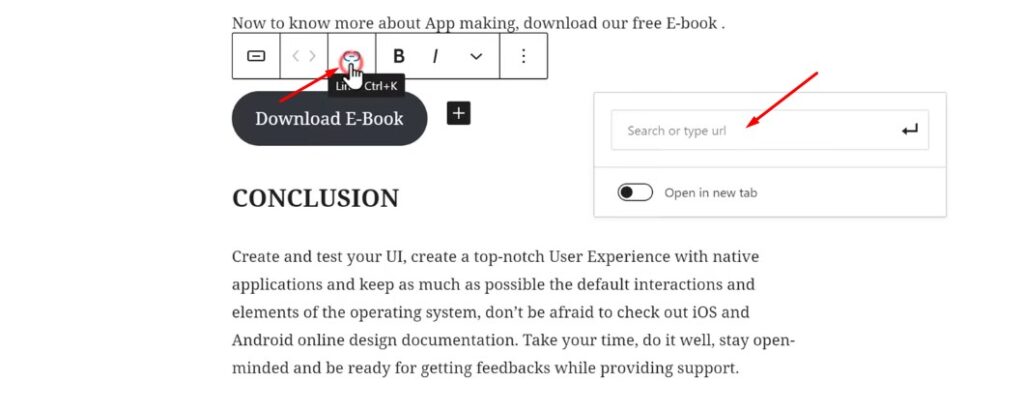
Now to add our file to this button, Just click here And it’ll ask you to enter the link of your file.
Add the downloadable File to your WordPress website
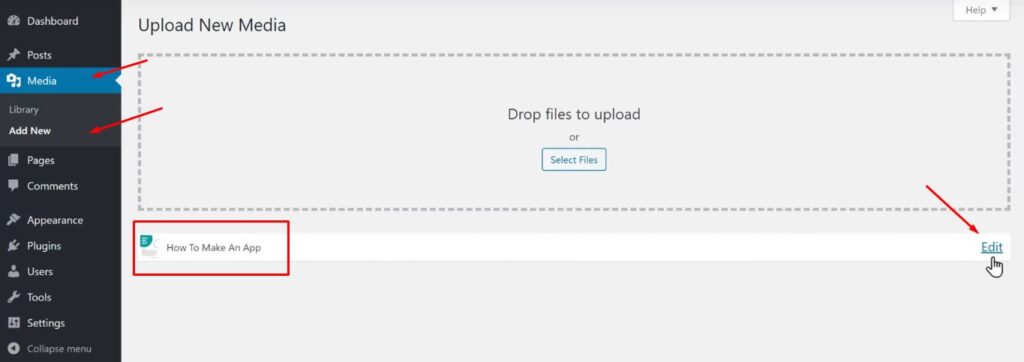
So to get the file link Let’s go back to our WordPress dashboard And then click ‘Edit’.
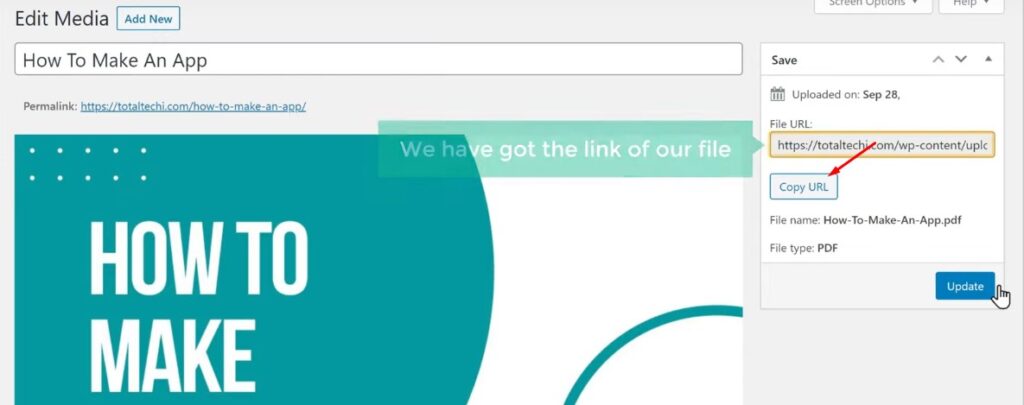
And it will take you to this page. Here you can see that we have got the link of our file So Lets click here to copy this link.
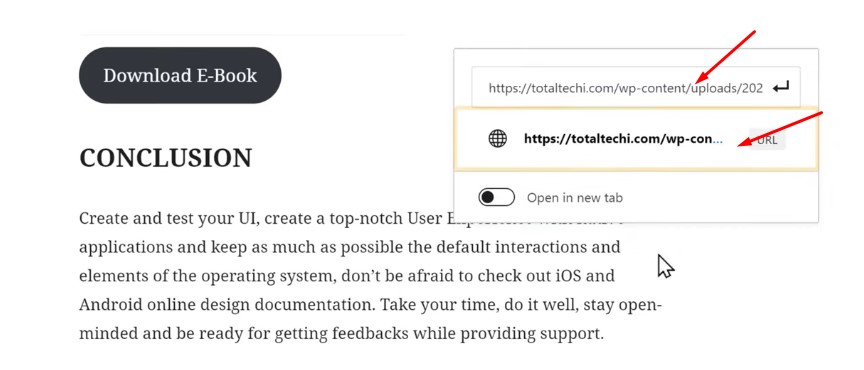
Now go back to this tab and then paste it here Now click here, And the file link will be add to your button.
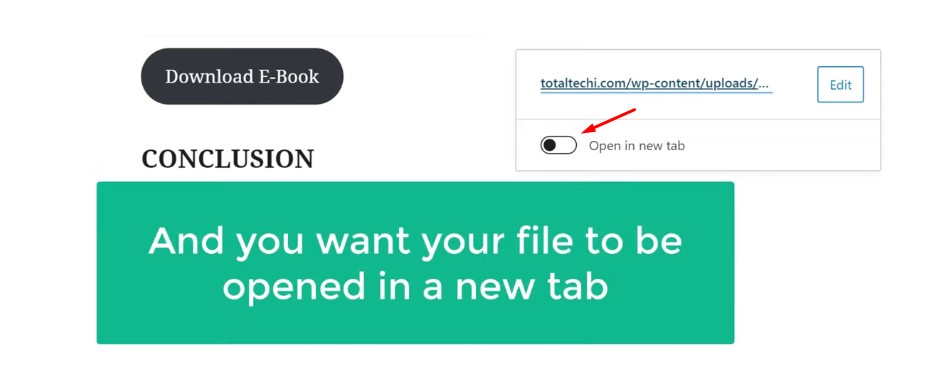
Now when someone clicks this button, and you want your file to be open in a new tab, Just enable this option.
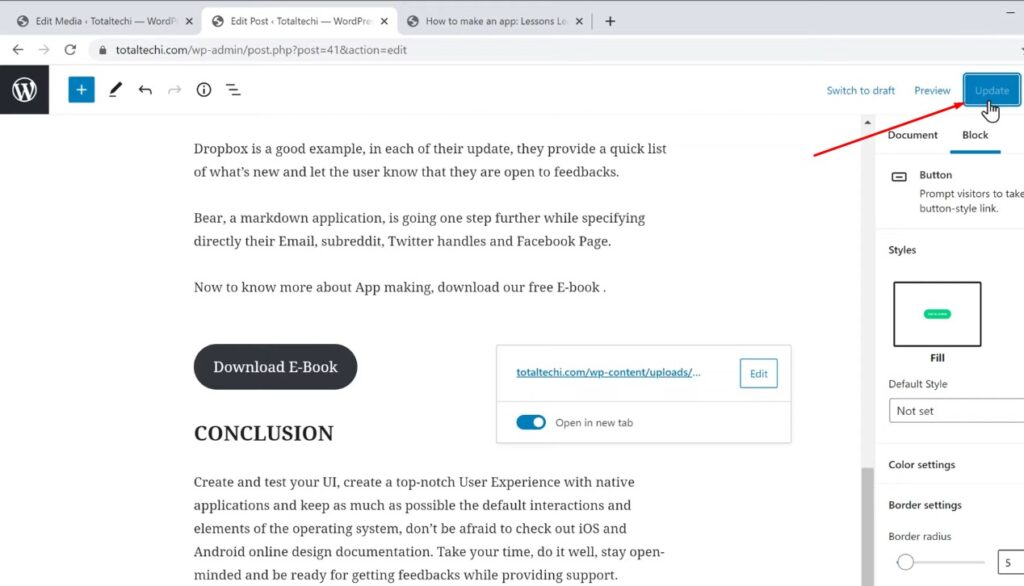
Once you have added the link Now to save the changes, Just click ‘Update’ And your file will be link to your site. And your visitors will be able to download the file from your site.
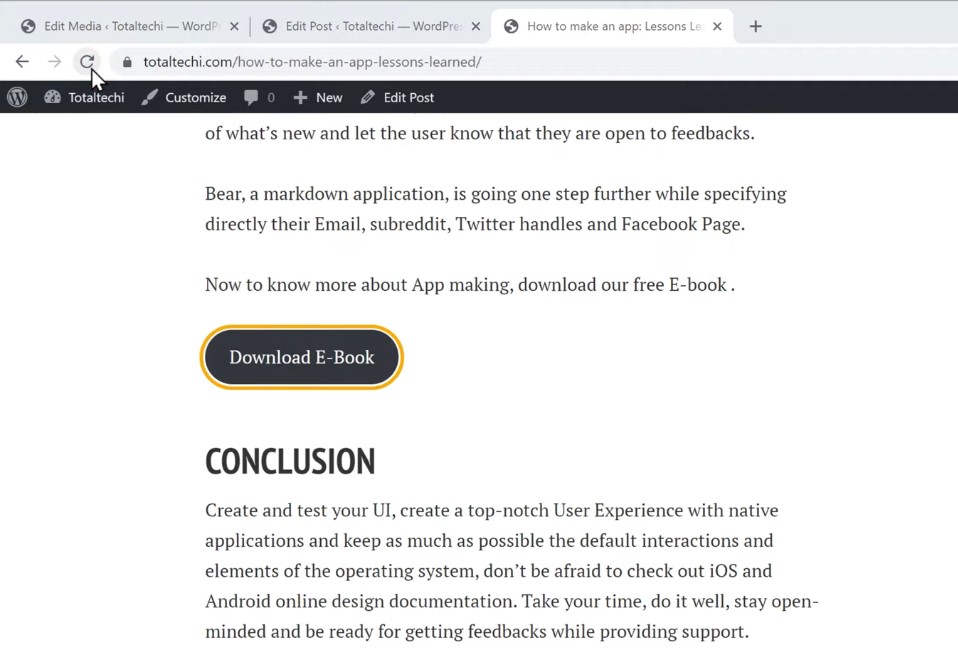
So to check it, Let’s go back to our website Now if we click ‘Refresh’. You can see that, we now have the download button on our site.
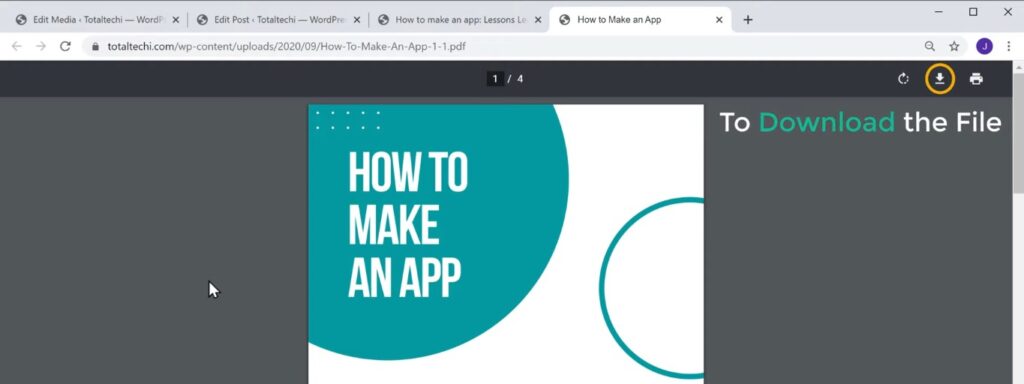
And now if our visitor clicks the button, you can see that our file is open in a new tab. Now to download the file Just click here, and select the location where you want to save the file. And then click ‘save’ Now as you can see, our file has been download. So this is how you can add a downloadable file to your WordPress site.
Add a Downloadable File to a page which is built using Elementor
Next, let’s see how you can add a downloadable file to a page which is built using elementor.
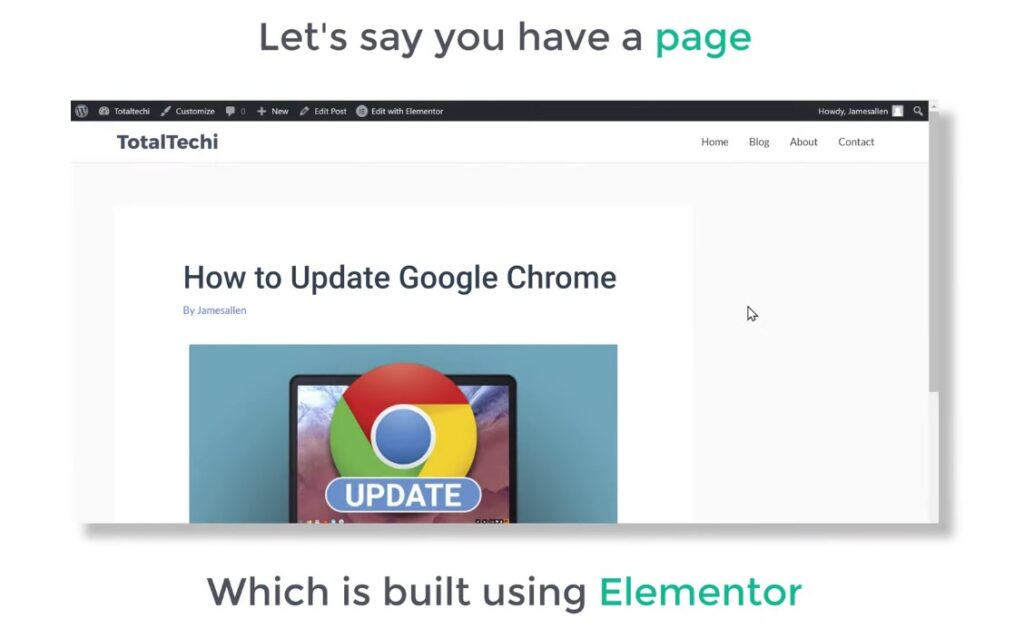
Let’s say you have a page like this which is built using elementor.
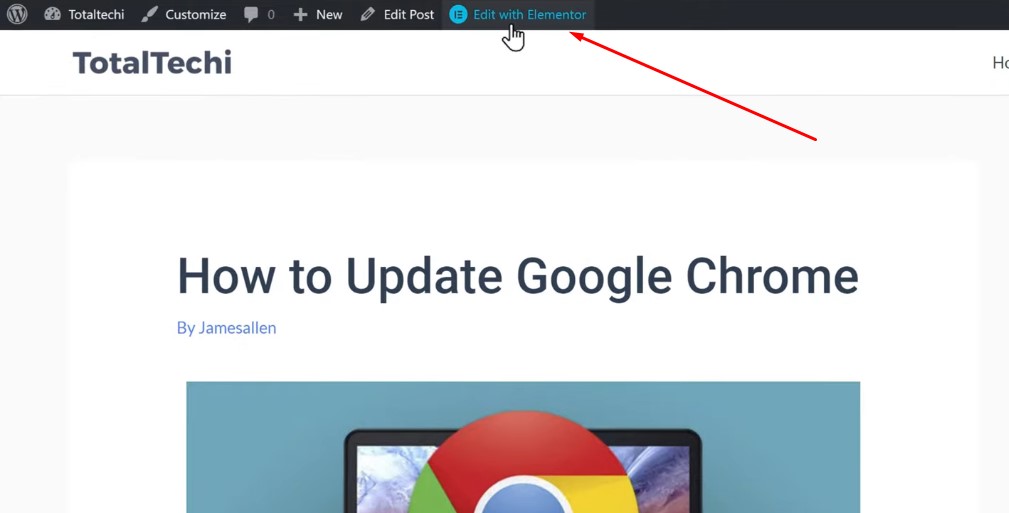
Now to add the downloadable file to this page Just click ‘Edit with Elementor’. And it will take you to Edit with elementor page.
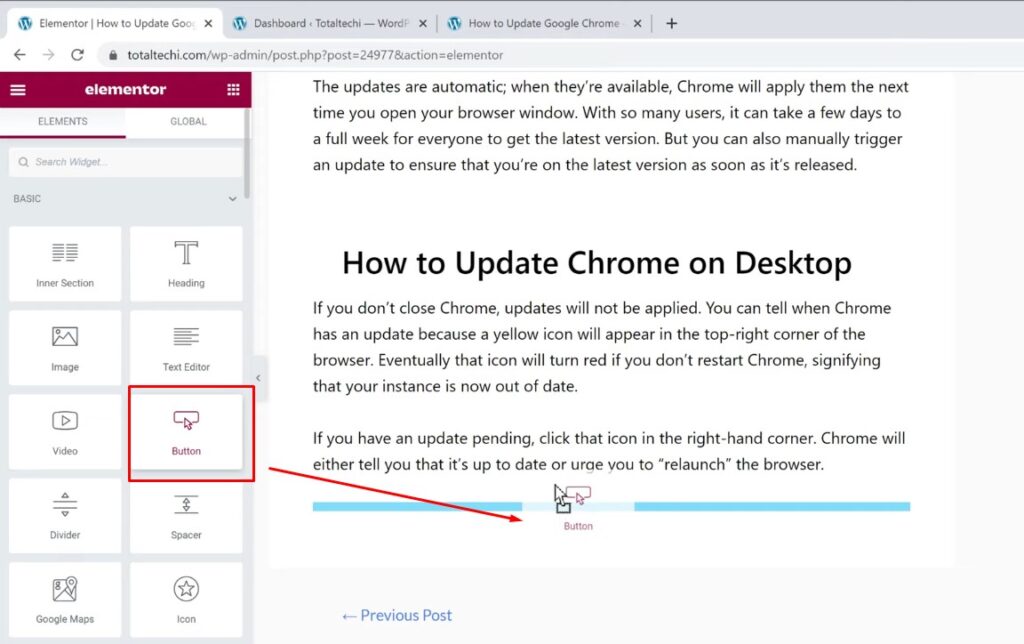
Now go to the place where you want to add your file in WordPress Let’s say you want to add the downloadable file here. So just like we did before, First, let’s add the download button. So to add the button Just drag the button element & drop it here. Now to change the text of this button enter the text you want I’m going to enter “Download here”.
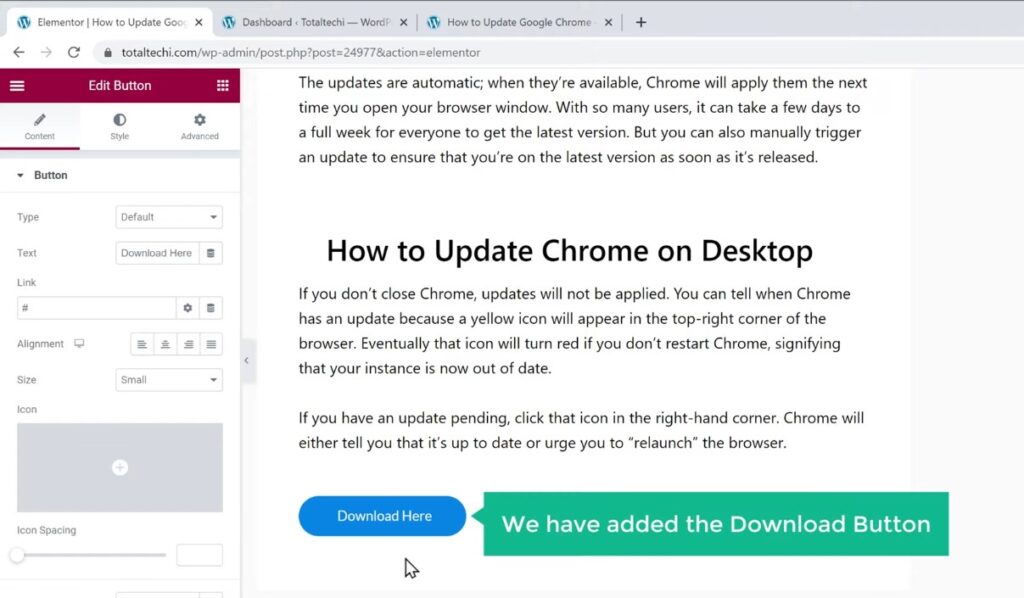
So now we have added the download button. Once you have added the button, Now to add the downloadable file, here you need to enter the link of your file.
Copy URL for the file
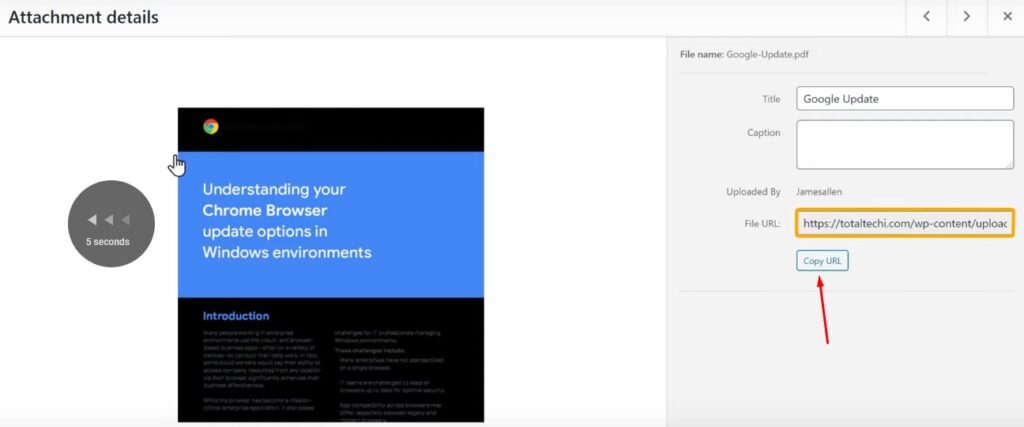
So to get the link, Let’s go back to our WordPress dashboard. And click ‘media’ here you will be able to see the files, which have been upload on our site. Just click on Edit And here you can see the link of this file. So let’s copy this link And then go back to this page.
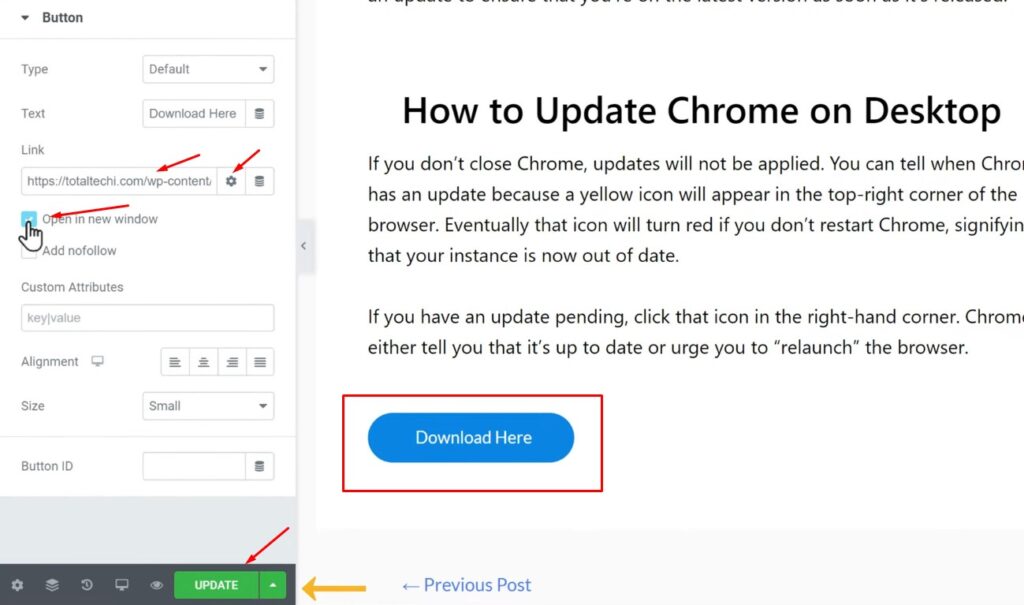
Now here you need to paste the link which you copied. So first, let’s remove # And then paste the link here. Now if you want to open this file in a new tab Just click here and select ‘open in a new window’. Once you have add the link, Click ‘Update’ And your file will be link to your site.
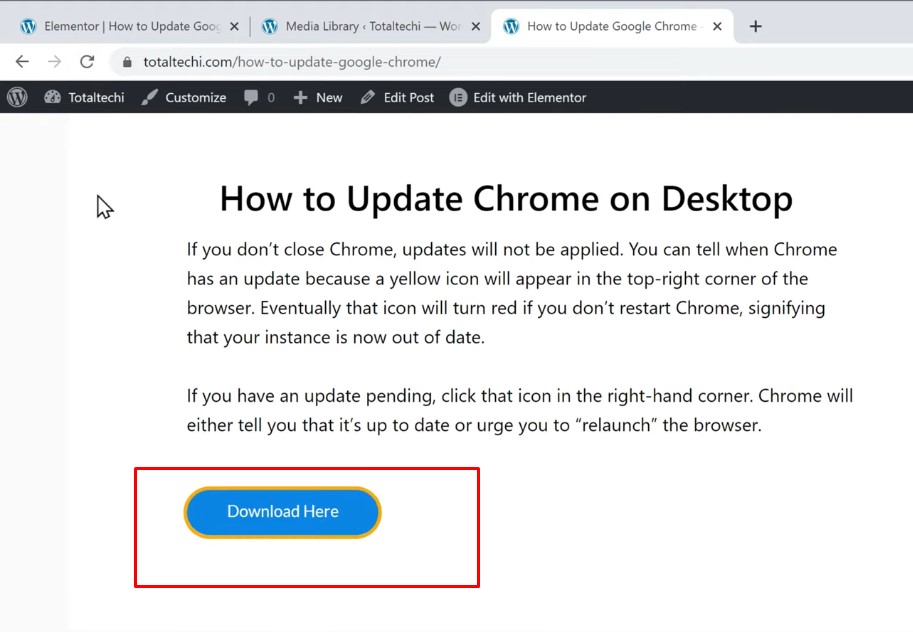
So now if we go to our page, And click ‘Refresh’ You can see that our download button.
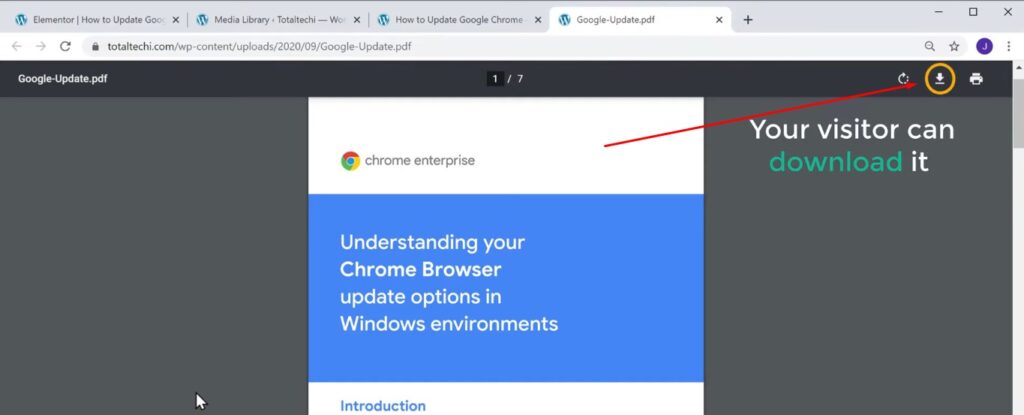
And if you click on it You can see we have got our file in a new tab. And your visitor can download it from here. So this is how you can add a downloadable file to a page which is built using wordpress elementor. That’s it guys So now you know how you can add downloadable files to your WordPress website. Now If you want to know more about WordPress you can check out our blog page.
