















In this article I’m going to show you how to download and install Ubuntu Server and configure it.
To create Virtual Machine its same procedure like previous article. If you are still now sure how to make one then watch this video.
So after creating Virtual Machine click start normal which is going to bring up another dialog box for our installation.
Running Ubuntu Server with Linux
You can see the interface for this is a little different it’s all terminals. No GUI, there’s nothing to click on, and this is what enterprise software is.

Not configuring anything special. Just click on enter to select English language.

Hit Enter again to select “Install Ubuntu”.

Proxy is one of our real-world projects in the future. And I’ll just leave that blank and Hit enter for done to continue.

Mirror address that’s fine just leave it and Hit Done.

Use entire disk which is a 10 gig that we specified just hitting Enter.

and for this just use the down arrow on your keyboard because it’s asking if you’re sure you want to continue. And I am sure I want to continue because it wants to format the disk that we specify the 10 gig.
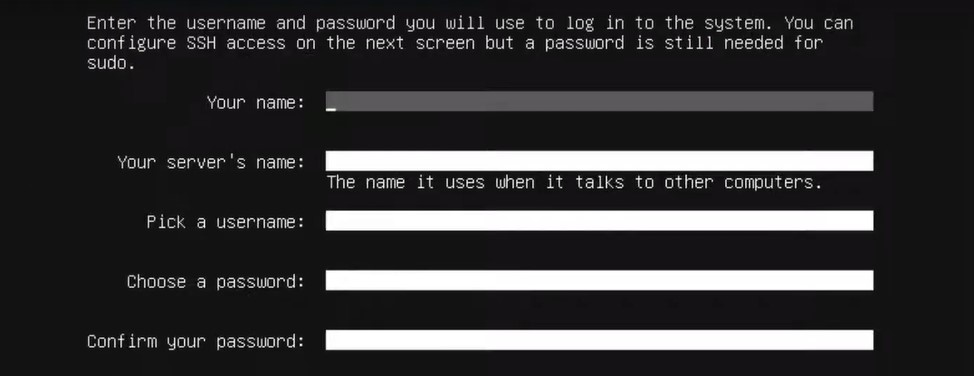
Here I’m just going to specify my username web server name. You can fill according to your details and hit enter to done.

Here is asking if I want to install open SSH server. Well we’re going to do that on separate article. So it doesn’t really matter when I select on “Install OpenSSH Server” it will deselect it and go to done and Hit Enter.

Here if you want to install any software you can just hit enter to select but I’m not interested in anything at this time so that it goes quickly.

The kernel is getting installed.

If you want to see a log of what’s happening you can select that and you’ll be able to see everything.
First boot up of Ubuntu Server
Okay so we are done everything and if you hit enter to reboot now the system is just gonna restart.

You can ignore the field the ones in red that’s so completely okay just hit enter to continue.

Looks like we’re done. Use your login and password which you created while installing Ubuntu server and there we go.

Now hit CTRL + L. This will clear the screen for us and that’s it.

Ubuntu Server Commands
To operate Ubuntu server you need to just run command from the terminal.
Use this command LS with root.
ls /

This will bring files and folder of your Ubuntu Server Operating System.
Use another command “PWD”.
pwd
This command show directory to show me where I currently am but we’ll go through each of all these commands in future tutorials so that’s it that’s your Ubuntu server.

I’m just gonna go back out of the full menu and we have our bunch of server running everything looks good.


