















In this article we’ll learn connecting to EC2 Virtual Machine in AWS instance. if you want to see how to create Virtual Machine in EC2 click the link.
And to do that first of all let me show you the same file that I downloaded previously. if you remember the key pair we created while creating the virtual machine.
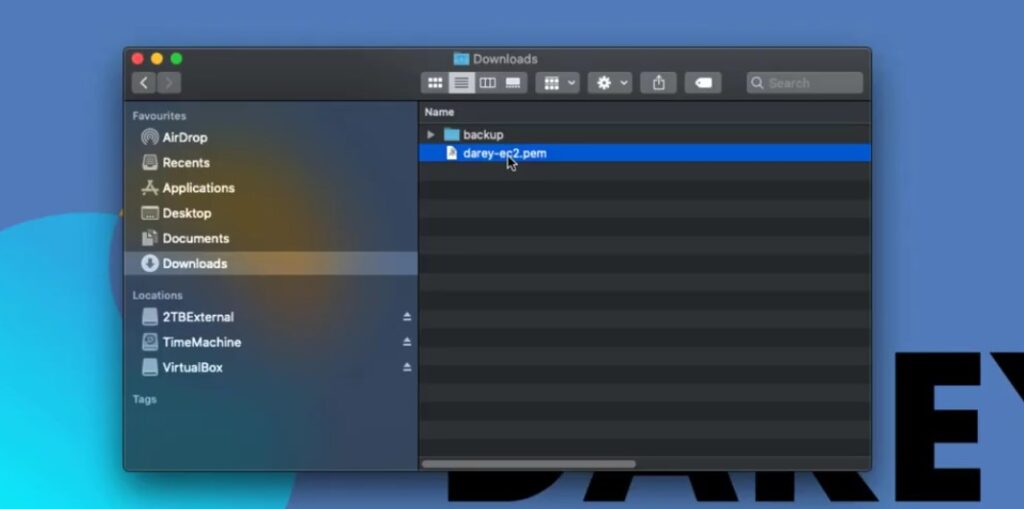
Now it’s in my downloads folder and it’s called darey-ec2.pem. Now I’m we’re gonna need the terminal to do this. So if you’re on a MacOS this is how you’re gonna do it. If you’re on a Windows computer I would show you in another article how to do that.
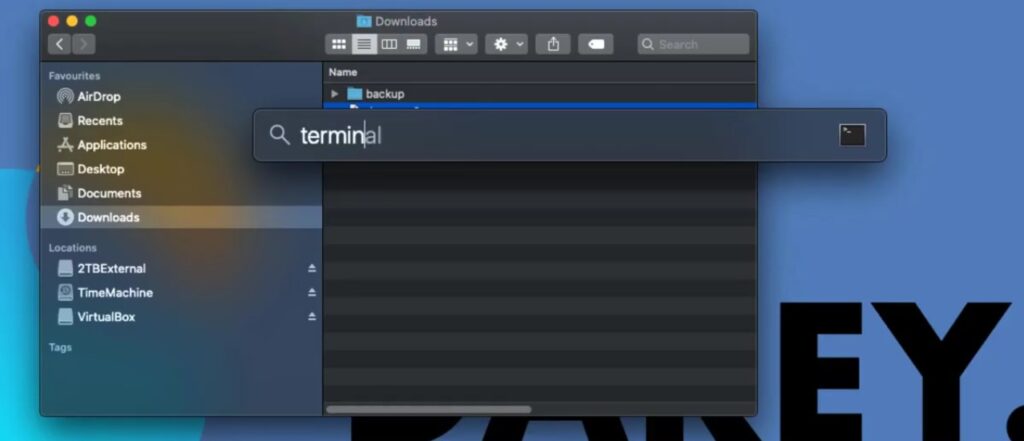
First thing you want to do is on your Mac keyboard you click on the “command” and “spacebar” button. And that’s gonna bring up this search bar you see here that say spotlight search. Type “terminal” and click on terminal to open it up.
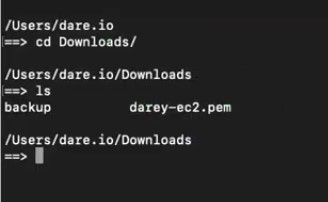
Alright we need to go to the downloads folder. Use this command
cd Downloads/And to see files in there like i want to see my file “darey-ec2.pem”, use this command
lsSetup EC2 Security Group to access Instance from all over the world.
If you created a new instance in AWS EC2 or you launch your instance without configuring group polices.
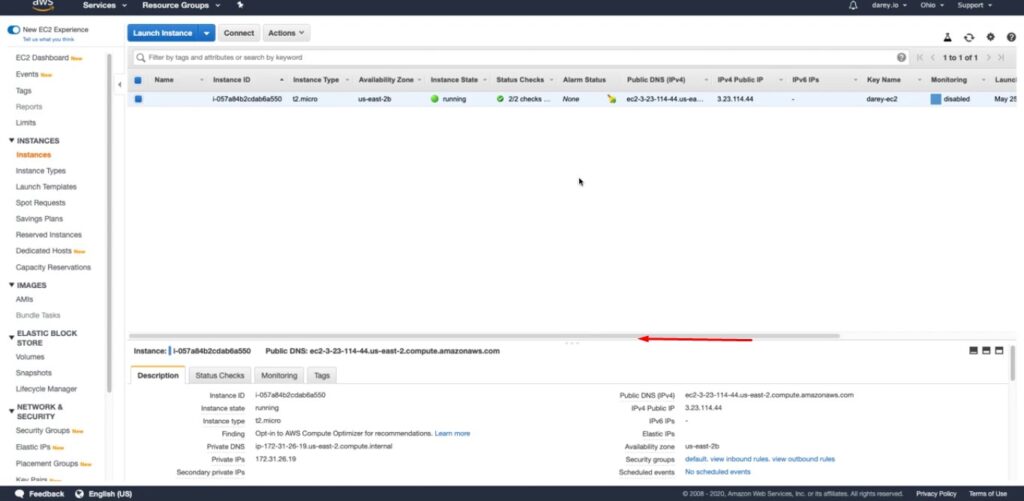
In your instance page bring up security group section mentioned above picture with red line.

As you can see this security group right here. Click on that “default” option.

What we need to do is to go to “Actions” then “Edit inbound rule”
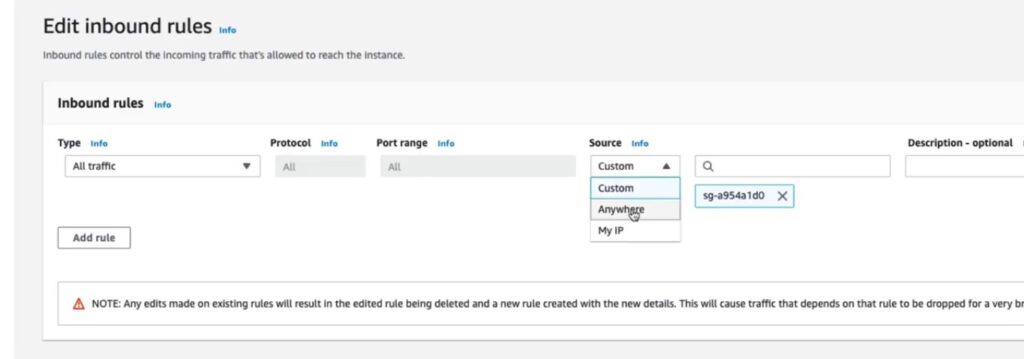
Normally you will put an IP address where you want to be able to connect from but in this incident we want to be able to call it from anywhere so select that. If we save this rule we’re pretty much good to go.
Connecting to EC2 Virtual Machine
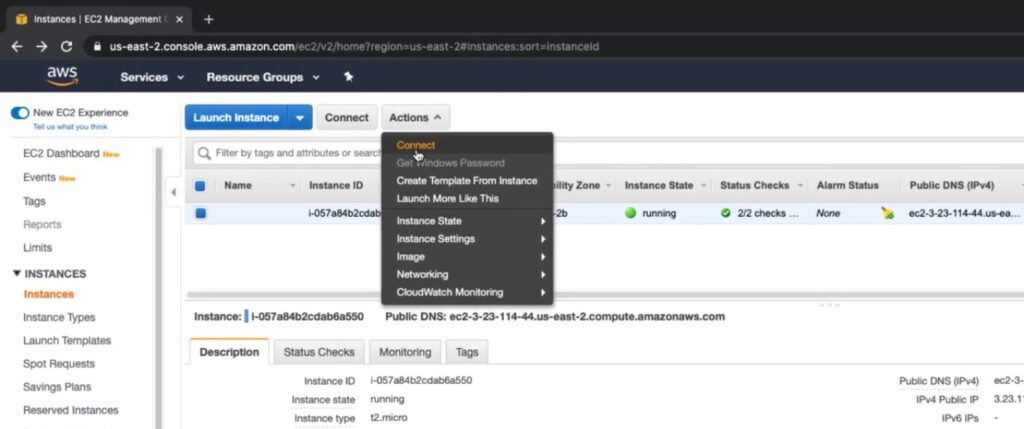
Back to the ec2 instance again and we go to the actions and connect now.
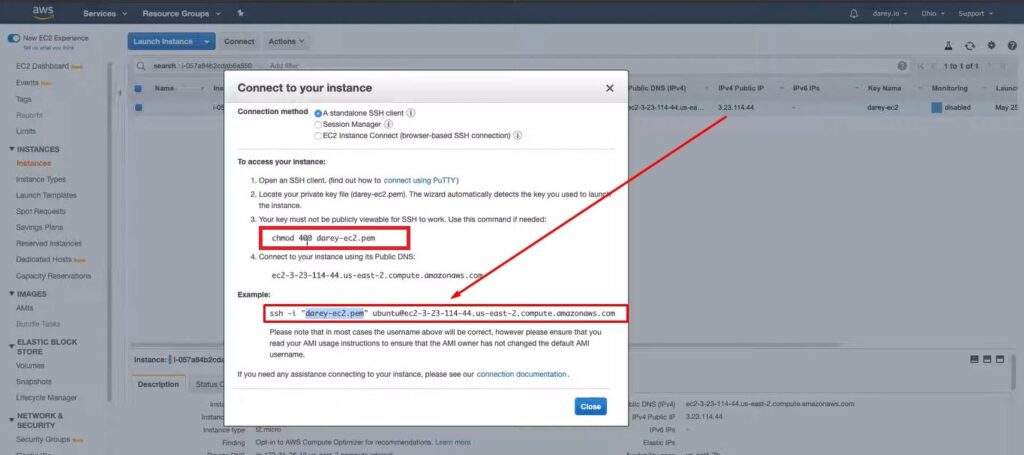
We need to copy and paste to get things to work. Here my key is mention above the picture “chmod 400 darey-ec2.pem”.
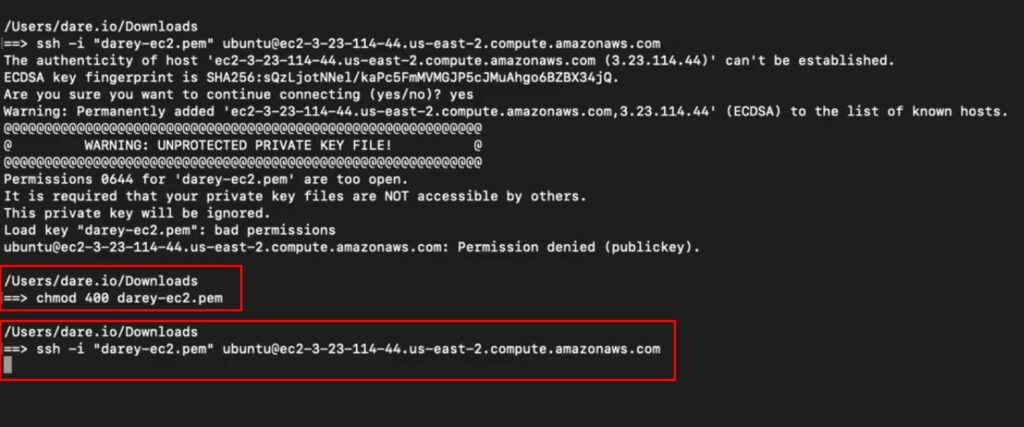
After this command use second ssh command to connect to the EC2 Virtual Machine.

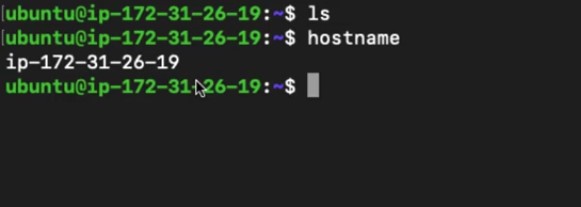
Whoa did you see that? so right now we are in our EC2 virtual machine. So I’m no longer on my MacOS what this means is I’m currently in a virtual machine running somewhere in AWS datacenter.
Use command “hostname” to check IP address of server.
Okay so sit tight and relax before we wrap up this article need to quickly show you how to stop your instance.
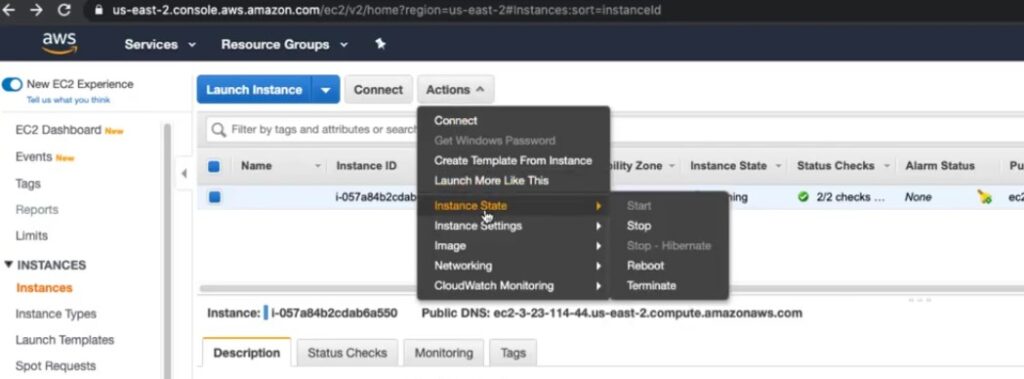
Okay so if you click on the “Actions” go to “Instance State” here you can use stop button now if you to terminate that instance. If you want to reboot that’s more less like restarting the computer. So while you’re still learning you can just stop and when you need to start learning again you click on the start.


