














Hi guys, In this article, we are gonna see how to install a WordPress theme.
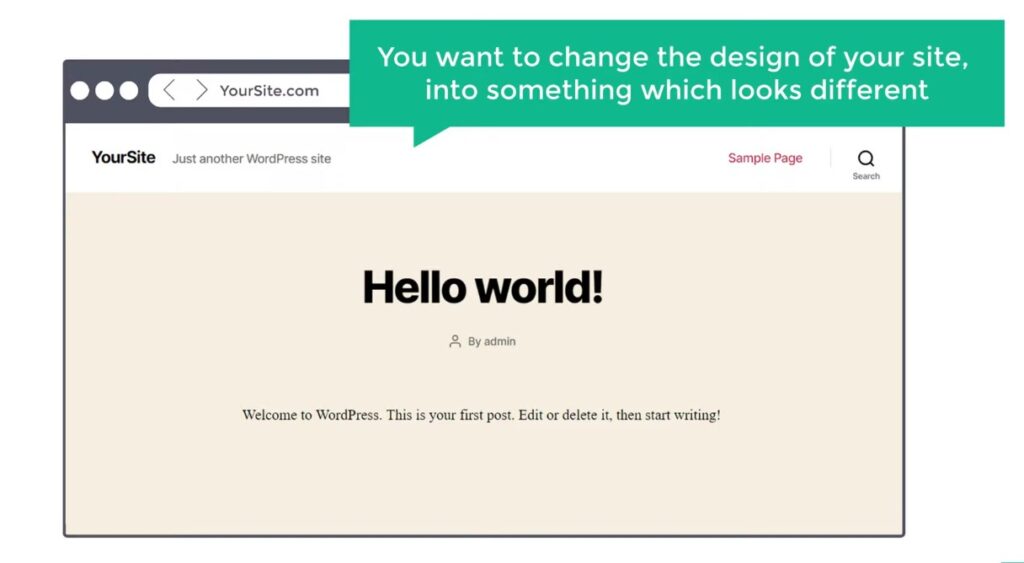
Now Let’s say you have a WordPress website, with a default design like this.

And you want to change the design of your site, into something which looks different, like this. You can do that easily by installing a WordPress theme.
So Let’s get started First, let’s see, what is a WordPress theme? A WordPress theme is simply the design of your website And if you want to change the design, all you have to do is To choose a theme you like and then install it on your site.
Now to install a theme in WordPress, there are 2 methods. The first method is to install the theme, by using the WordPress search.
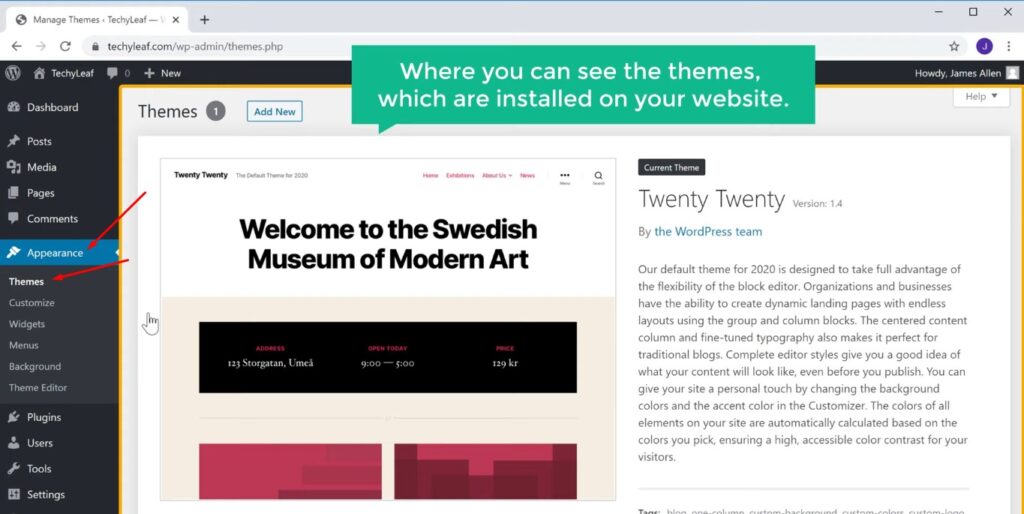
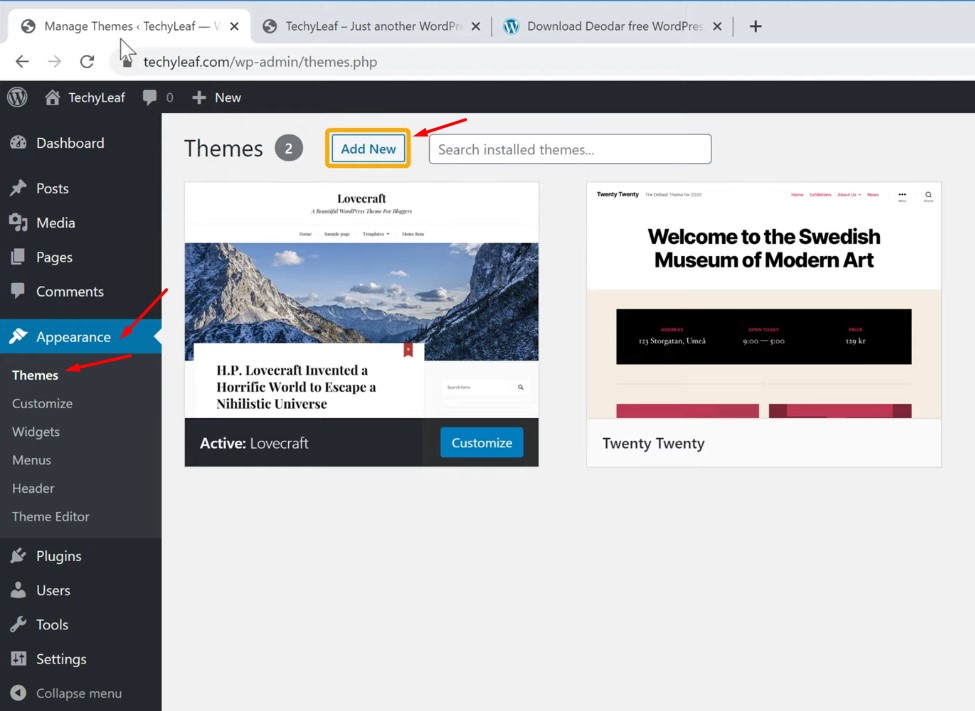
So to install the theme using ‘Search’. Let’s go to our WordPress dashboard And then go to ‘Appearance’ And click ‘themes’ It will take you to this page So this is the page where you can see the themes which are installed on your website.
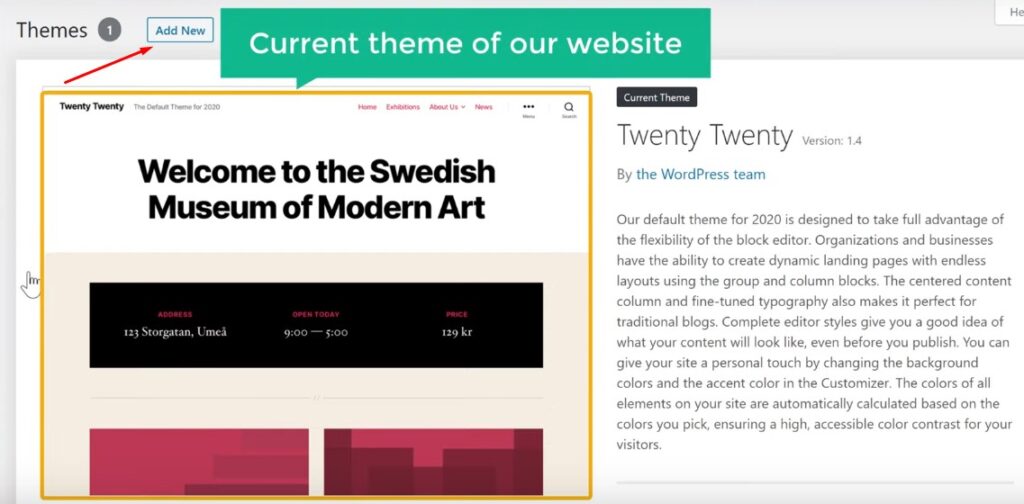
Now this is the current theme of your website Now to change this Just Click ‘Add New’.
Install the theme by using WordPress search
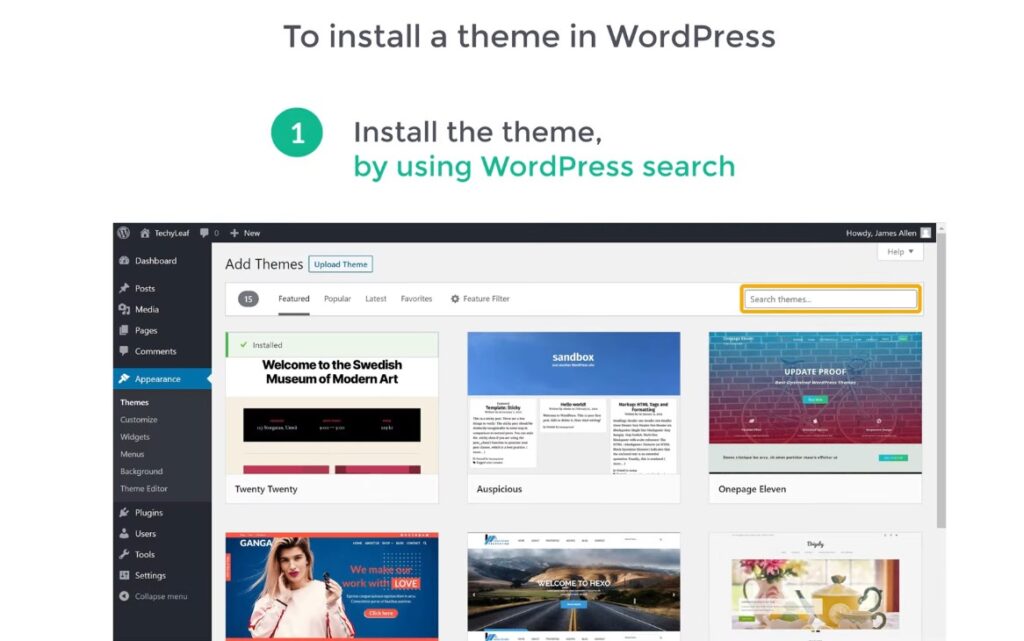
And You will get this page where you can have different themes which you can install on WordPress so just have a look at these Themes and select the one you like.
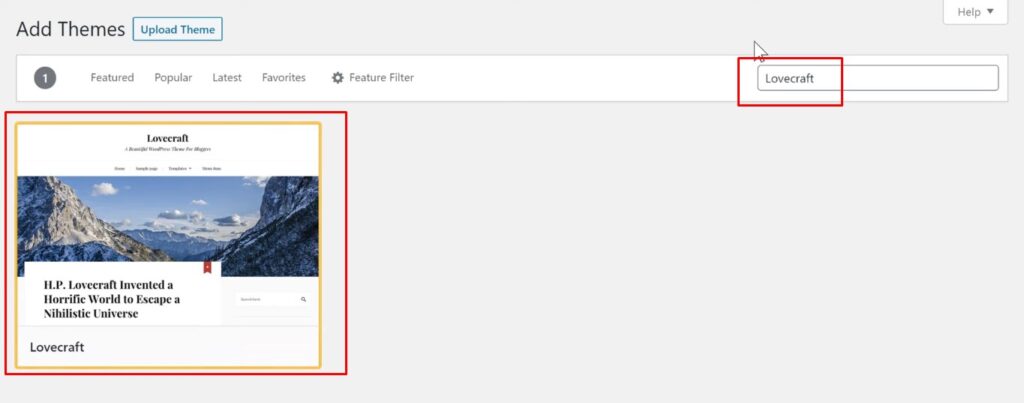
Or if you have a specific theme in your mind then you can search for it by entering the name of the theme here. So, I’m going to search for the theme called ‘Lovecraft’.
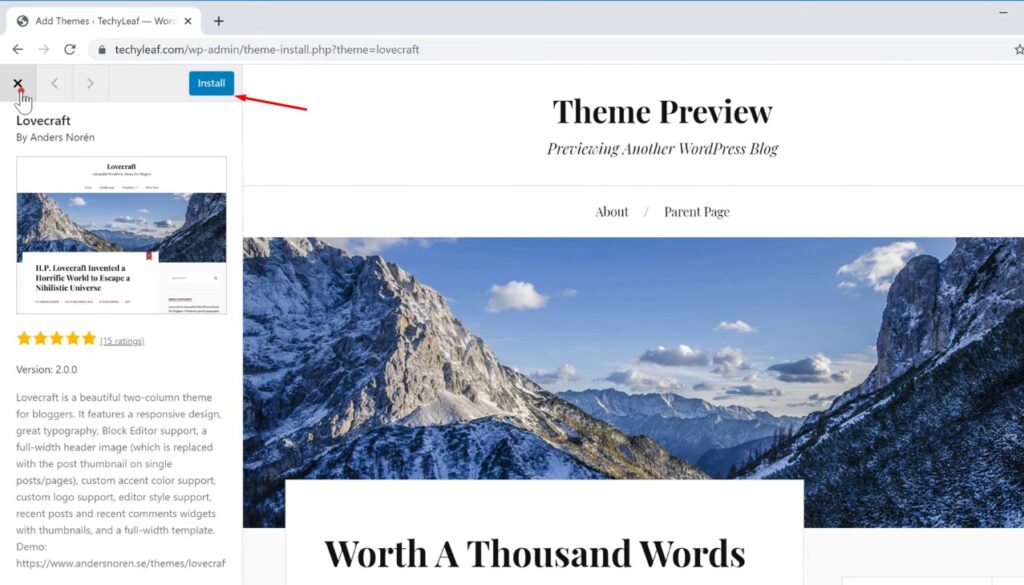
now if you click this theme, you can see a preview of how it will look on your website Now to install this theme Let’s click ‘install’ And the theme will be installed on our website.
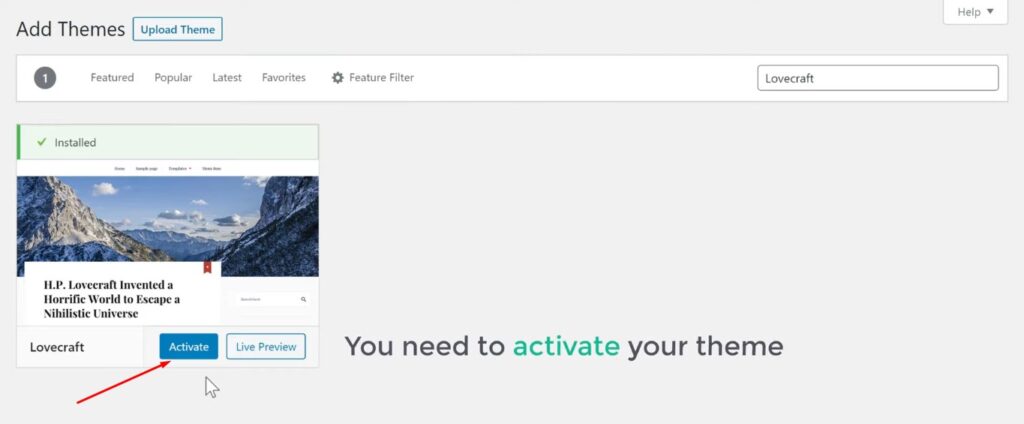
Now to make this theme work on your site You need to activate your theme So let’s click ‘Activate’ And as you can see your theme has been activated.
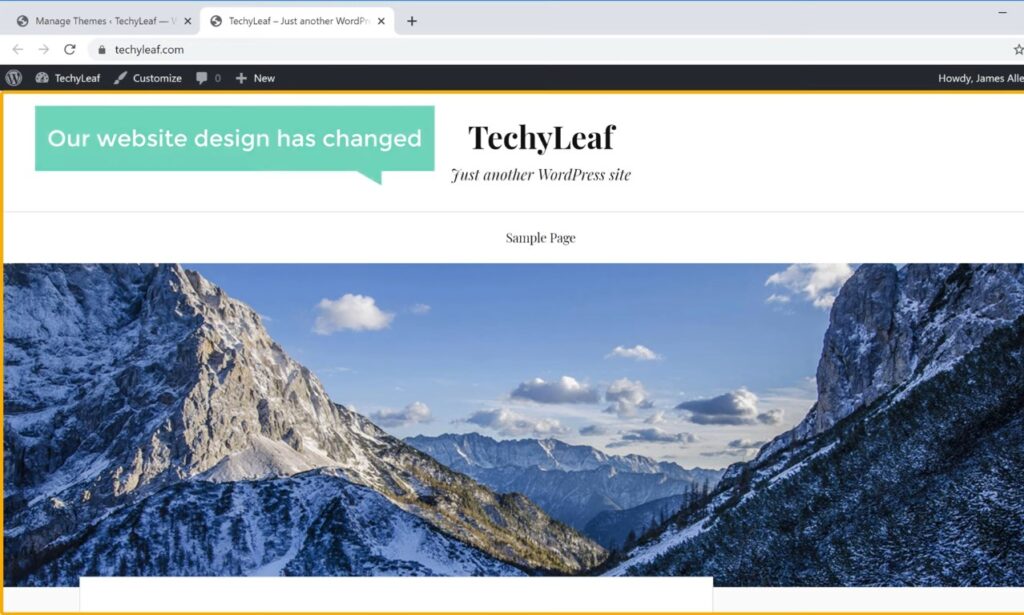
So now if you go to your website You can see that this is how it looked before And now if you click refresh You can see that our website design has changed. So This is how you can install a theme in WordPress.
Find a WordPress theme to install using Google search
Okay! Now, Sometimes you might not find the theme which you need on the WordPress search. In that case, how will you get a theme and install it on your website?
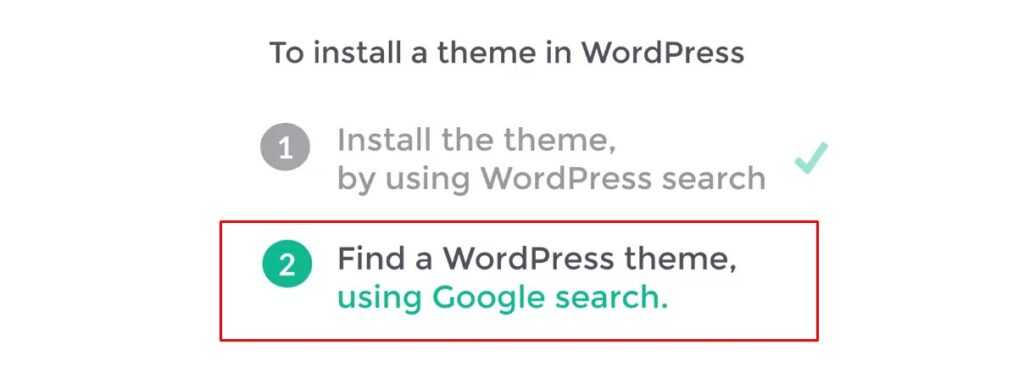
So now, let’s look at the 2nd method, which is to find a WordPress theme, using google search. So to find the theme you want using Google, let’s open Google. Now all you have to do is search for the type of site you’re looking to build space WordPress Theme.
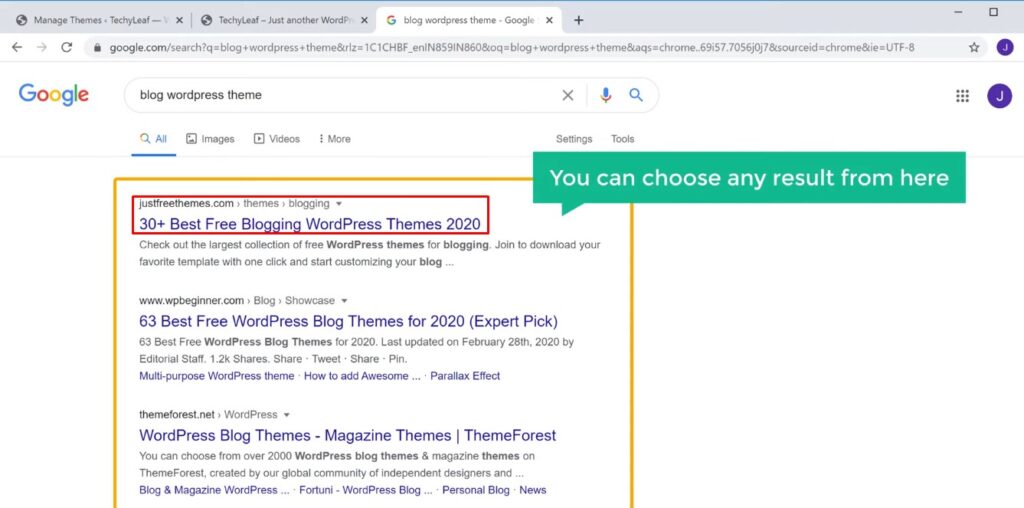
Now let’s say you want a Blog theme, just enter, Blog space WordPress Theme And, press enter. And you will get results like this Now, you can choose any result from here I am going to choose this one Here you will find different blog themes which you can install on your website.

Have a look at all these themes and choose the one you want. So this is how you can find a theme using the google search Now once you have found a theme which matches your need How do you install the theme?
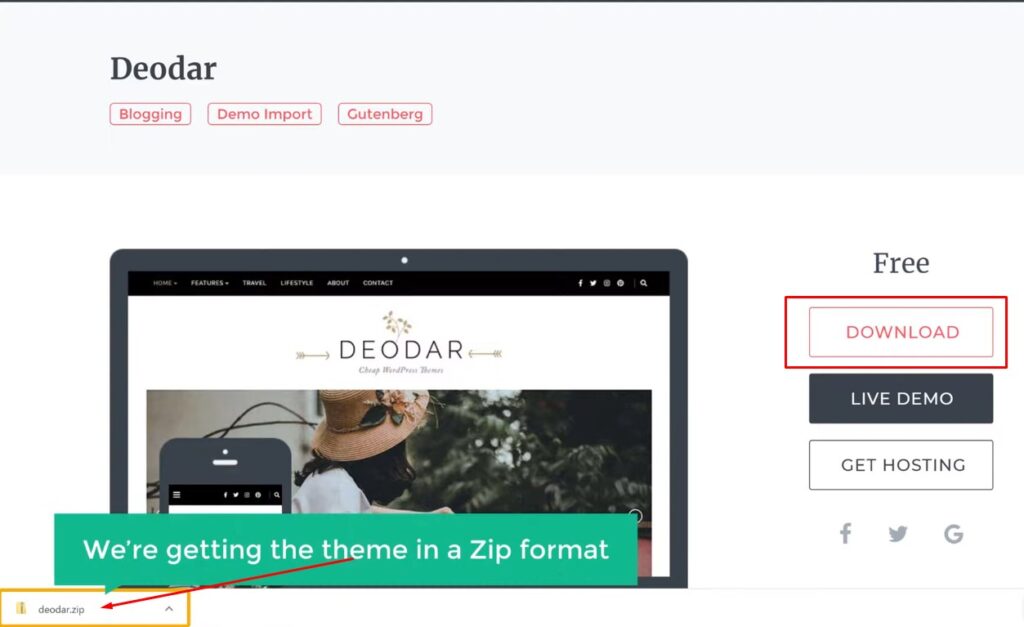
Now let’s say you like this theme and you want to install it If we click here & click download You can see that we’re getting the theme in a .zip format. Now how do you install this theme, on WordPress?
Installing WordPress theme with uploading zip file
So next let’s see how you can install a theme which comes in a zip format. To install this theme, on your WordPress site, You need to upload this file, to WordPress. So to upload this theme, let’s go back to our WordPress dashboard and then click Add New.
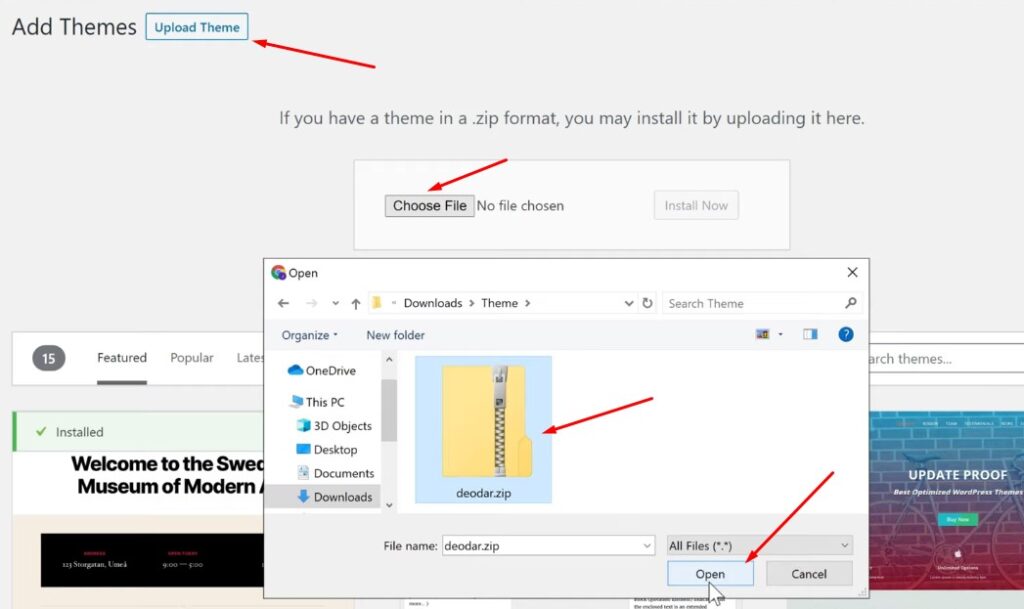
Now instead of using the search box, let’s click ‘Upload Theme’. Now click Choose file and select the theme which you downloaded.
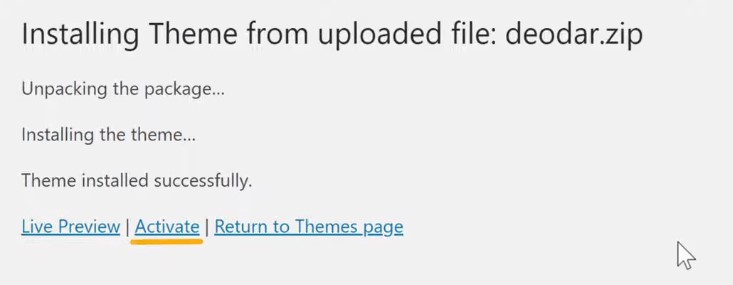
And as you can see the theme has been install. now to install the theme, Just click ‘install.’ And then click ‘activate’. Now the theme will be activate on our website.

So now if you go to your website, You can see that this is how our site was before. Now, if we click refresh, You can see that, our website design has changed. So this is how you can install a theme in WordPress, by uploading the zip file. So now that we know how to install themes in WordPress.
Deleting WordPress Theme
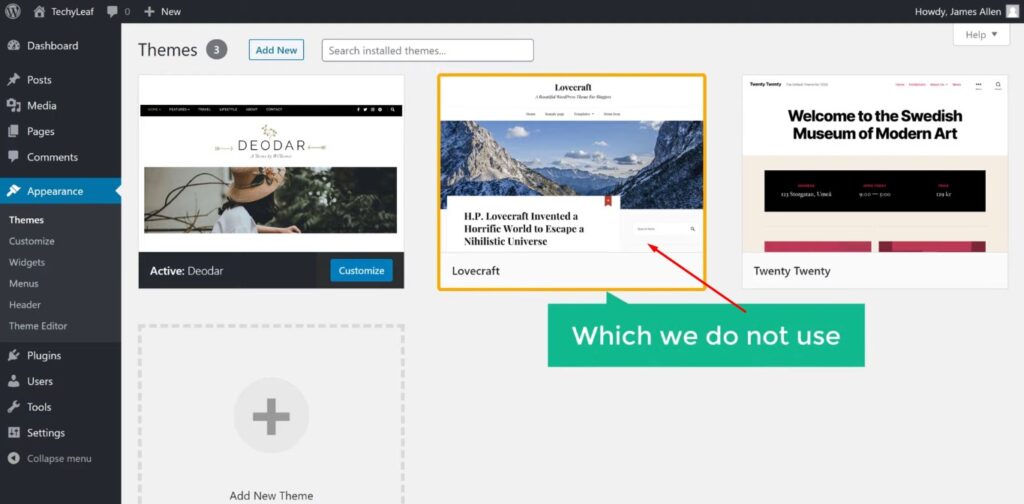
Next, let’s see how you can delete themes which you’re not using on WordPress. Now if you go to your dashboard you can see that, This is the theme which we installed on our website. Here as you can see, we have another theme which we do not use.
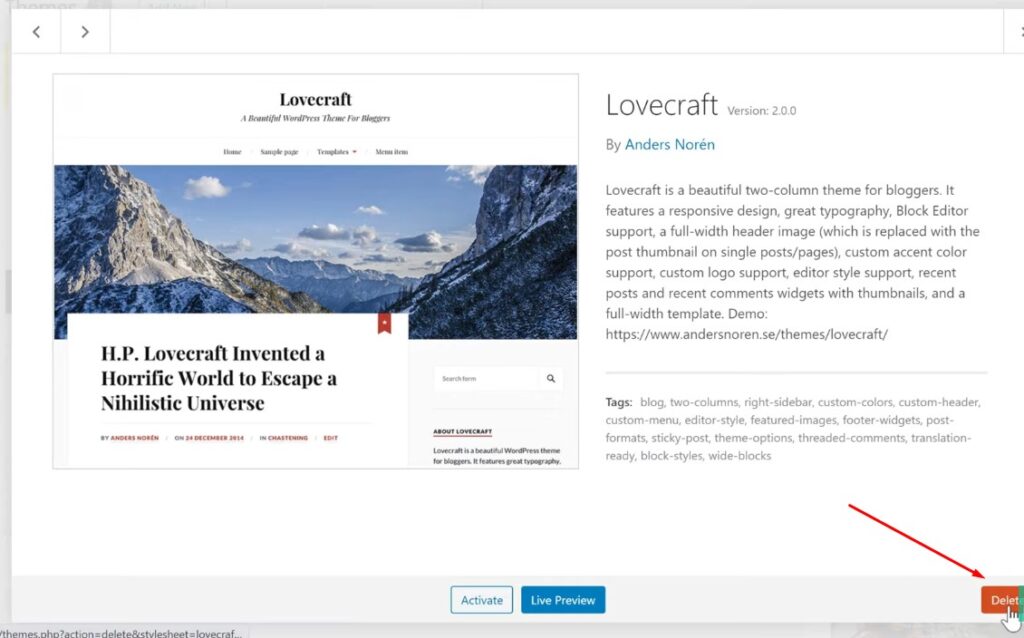
Now to delete this theme, all you have to do is, Just click it and click ‘delete’. As you can see here the theme is deleted And this is how you can delete unused themes in WordPress. By deleting the themes which you are not using, you can improve your website’s security & performance.
So That’s it guys This is how you can install a WordPress theme on your WordPress website. Now as WordPress has thousands of free & premium themes available, you can do a lot of things with your website.
If you want to learn more about WordPress, Visit our blog page.
