














Today we’re going to see how you to reset your WordPress password with 3 easy ways. Now Let’s say you have a website, which is built using WordPress And you have forgotten or lost your admin password. Now how do you reset your password? To reset your WordPress password There are 3 ways.
Method 1 – Using Builtin WordPress password reset option
The 1st way is by ‘using the built-in WordPress password reset option’ So to reset our password, first let’s go to our WordPress site.

Now, let’s go to our login page by typing ‘/login’ here Now if you press enter, you will reach this page.

So now to reset your password All you have to do is click ‘lost your password’.

And it will take you to this page Where it will ask you to enter your email address. So enter the email address which you used while creating your WordPress website. And click ‘get new password’ As soon as you click it You will receive an email to your inbox.
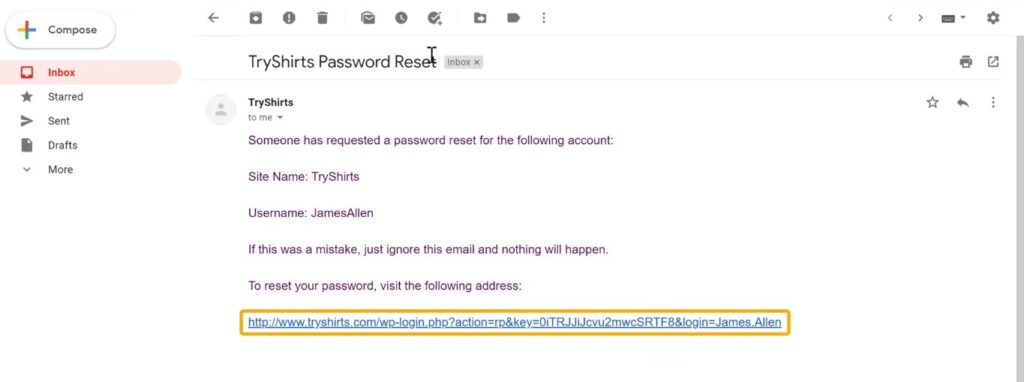
So let’s go to our inbox And here you can see that we have got a mail to reset our password. Now if you didn’t get this mail, make sure you also check the spam folder. So to set a new password to your site Just click this link.
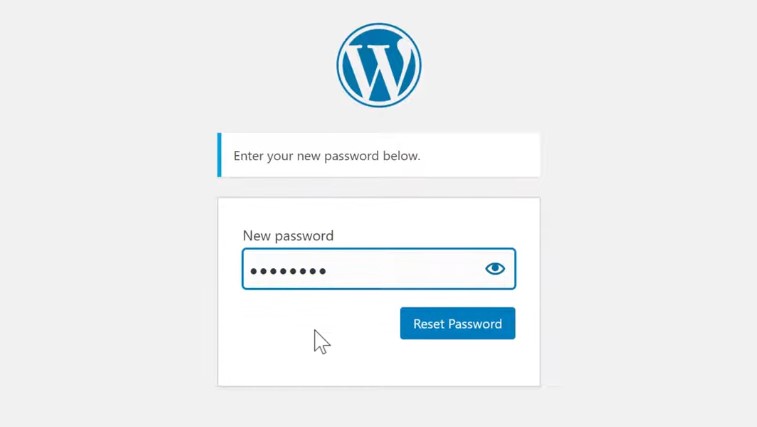
And it will take you to this page here you need to enter a new password for your website. I’m going to enter a new password And then click ‘reset password’. So now we have successfully reset our password. So this is how you can set a new password, for your WordPress site.
Now, what if you don’t remember the email address which you used while creating your website? How do you reset your password?
Method 2 – Reset the password from your hosting account
Next, let’s go to the second method Which is to ‘reset the password from your hosting account’ Now there are 2 types of hosting you can have for your WordPress site. The 1st one is a managed WordPress hosting. And the other one is called Cpanel hosting, which comes with a Cpanel interface like this. First, we’re going to see how you can reset your password on “A managed WordPress hosting platform”.
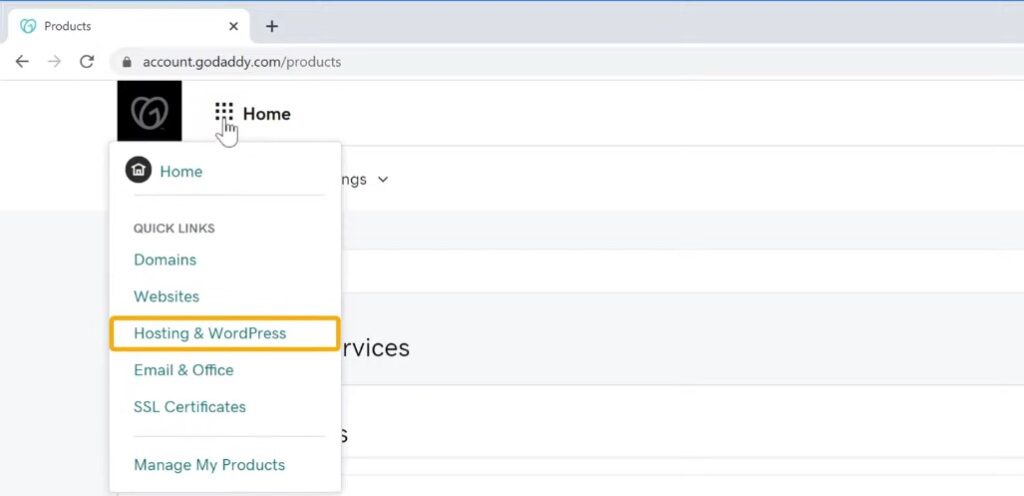
So to set a new WordPress password on this hosting, you need to first login to your hosting account. Since I have hosted my website on GoDaddy I’m going to reset my password from there. Let’s go to Godaddy.com And click ‘sign in’ And it will take you to this page. Now click here And click ‘hosting and WordPress’.
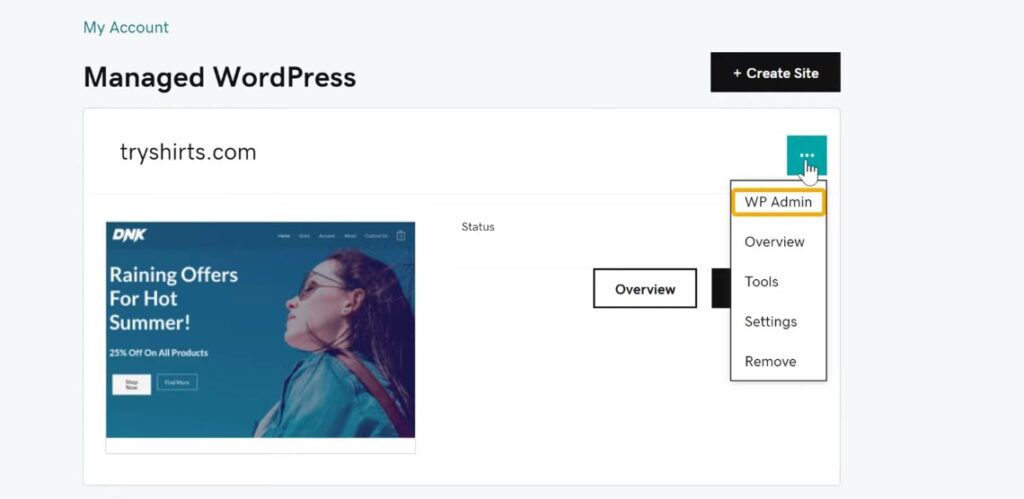
Now here you will see our WordPress site which is host here. So to set our new password for WordPress Click here (…) And then click ‘wp-admin’ And as you can see, we have logged in to our dashboard.
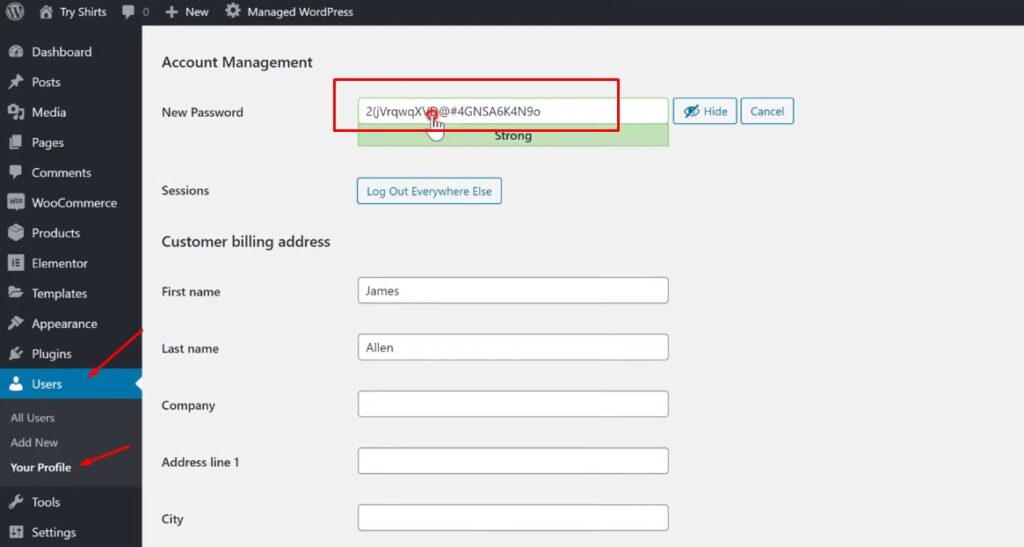
Now to reset the password Go to ‘users’ And click ‘your profile’ Now here you can see your WordPress username. To reset the password for this user, scroll down and click ‘generate password’. Now as soon as you click it, WordPress will generate a password for you. Now to change this password, just delete it and then enter a new one Once you have entered the password To save it, click ‘update’.
So now we have successfully set a new password for our website. So this is how you can reset your WordPress password when you have a managed WordPress hosting without CPanel.
Method 3 – Reset your WordPress password using the CPanel
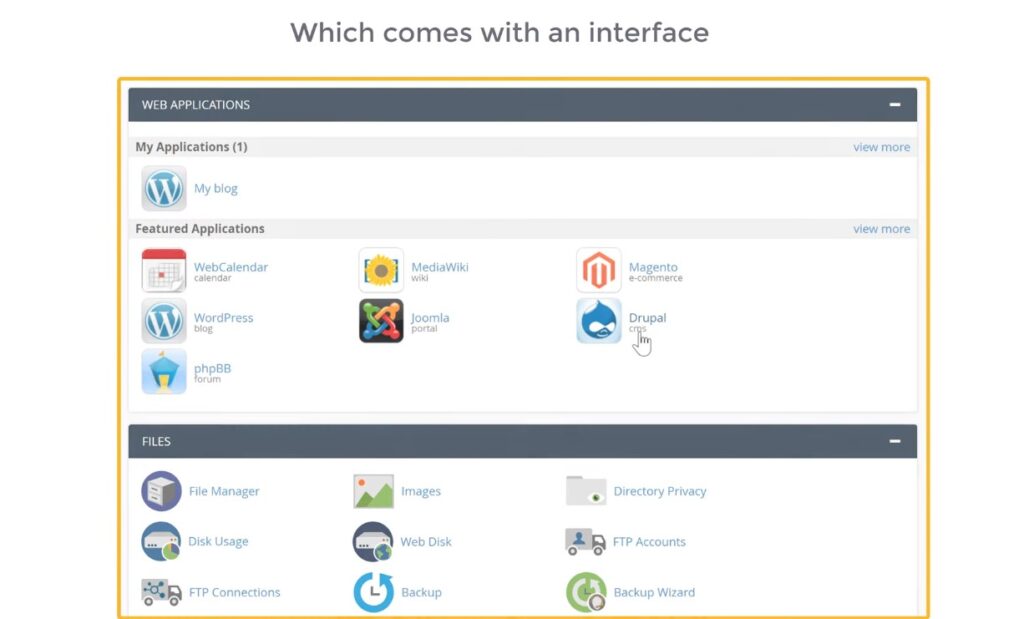
Next, let’s look at the 2nd type of hosting you can have which is called a ‘Cpanel hosting’, which comes with an interface like this. Now to reset your WordPress password using the Cpanel.

First, go to your website address And then type ‘slash Cpanel’.
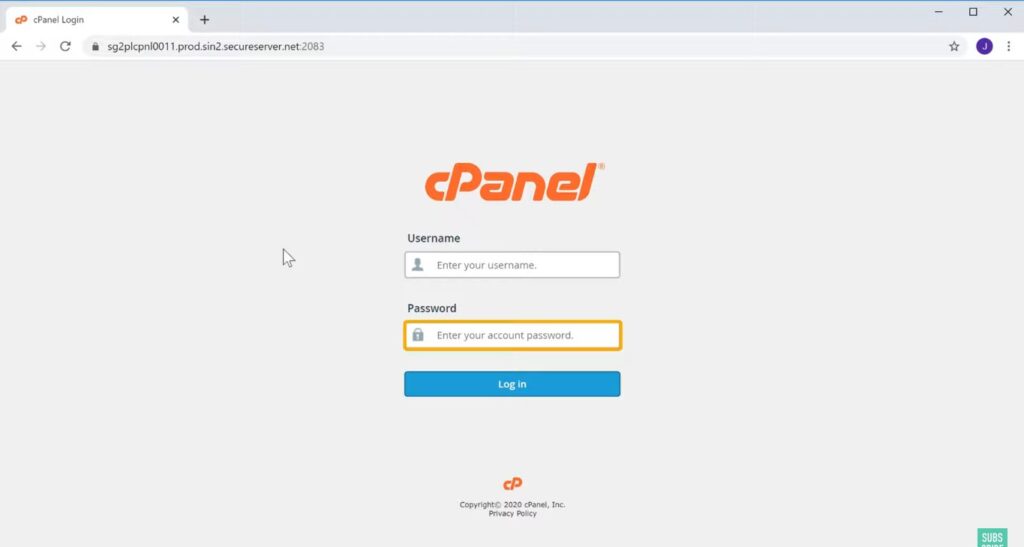
Now it will take you to this page, which is the cPanel login page. Now enter the username and password of your cPanel account Now lets click ‘Login’. And you will get the cpanel where you can control your hosting account.
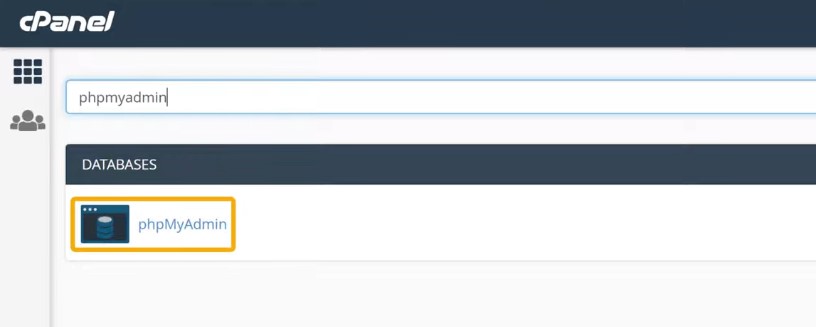
Now to reset your password, search for ‘phpMyAdmin’ here And you will get option To reset your password, just click it.
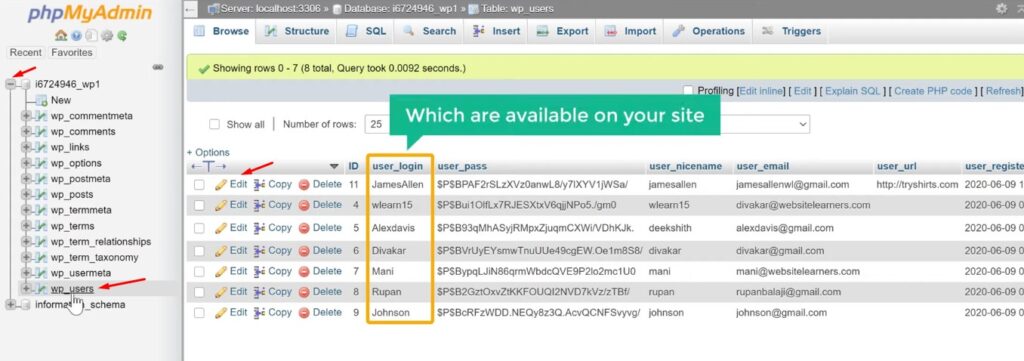
And it will take you to this page. Now here, click the plus icon and here you will see an option called ‘users’ So lets click that Now her. You will find all the user names which are available on your site. Now to change the password for any user, just click ‘edit’.
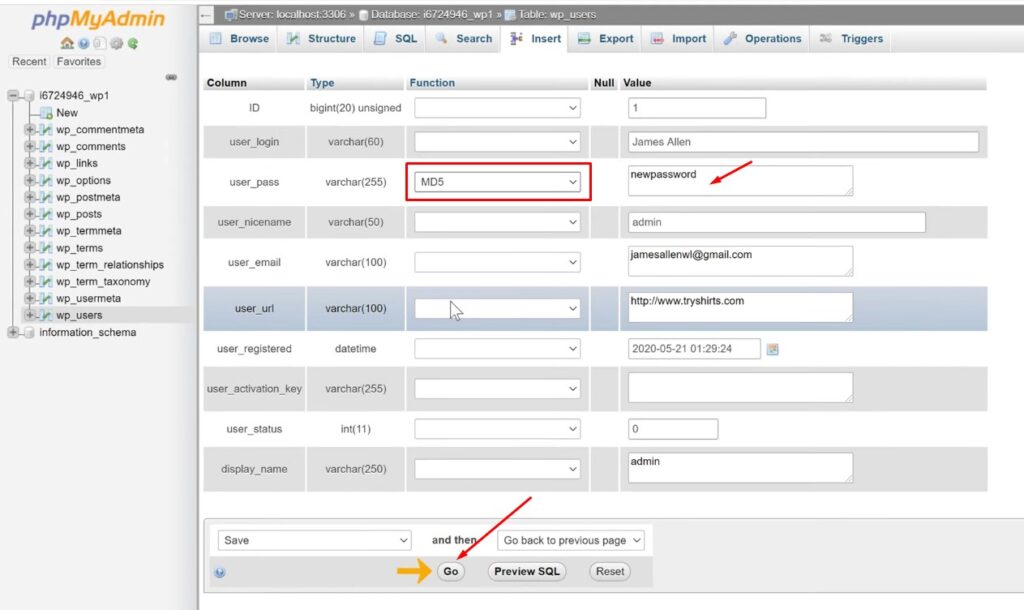
And here you will be able to change the password. So to change the password, Just select this text and then enter a new password here. Once you have entered the password To secure your password, make sure you click on functions selection and select ‘md5’. Now to save the new password, just click ‘go’ And the new password will be save! So now we have successfully reset the password for our site.
So now you know how you can reset your WordPress password, in 3 different ways. That’s it guys This is how you can reset your WordPress password. If you want to learn more about WordPress, visit our blog page.
