















Hi everyone have you ever tried to use plesk if not today’s the best day to try it. In this episode we will show you how to get a plesk free trial and install it with web installer on your server in the simplest manner.

All you need is to have a fresh server and a little bit of time. Let’s go to plesk.com select try for free tab to get a free trial. We need to fill in the short form namely our name, email. Who we are, years of experience, country and confirm that we are not robbers. And also we can subscribe to plesk newsletters and ongoing ruffles.

After that let’s get our free trial check your mailbox and find an email from plesk. There if you see no email in the incoming emails check your spam folder. Here we are asked to confirm our email address so plesk could issue us a license. Confirm it and wait for another email.
Plesk License Key
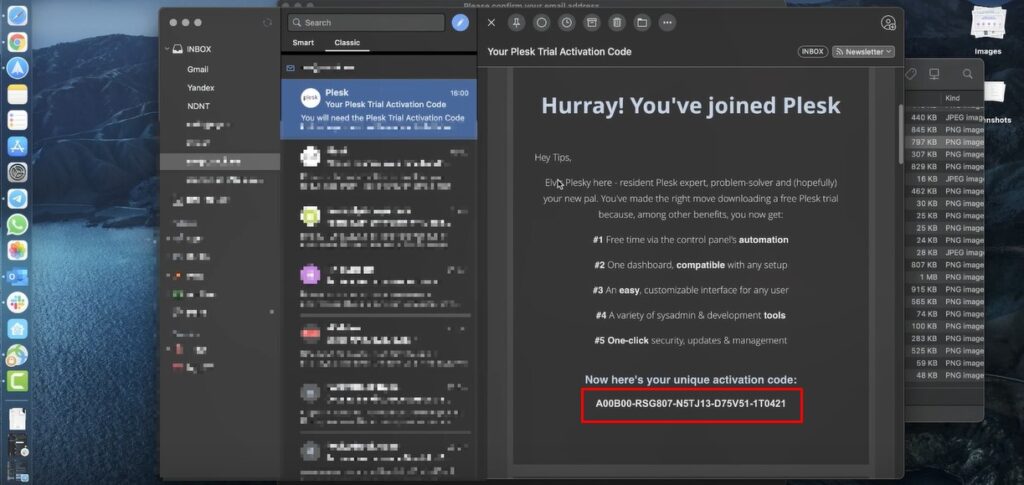
Here it is in this email we can see The free trial key. Which we will need after installing plesk on your server. This key works for both linux and windows based servers. Also there are different methods of how to install plesk.
If your server is on linux based operation systems we highly recommend you to use web for this purpose.
If your server is in windows unfortunately you will have to manually install plesk. And the following tips are not for you.

Let’s follow the link in the email and go to get.plask.com.

We are at web installers page now. Web installer allows you to automatically install plesk even without opening a command line. Specify your server ip address. Then need to select the method of connecting to the server, ssh private key is more advanced. let’s select a bit simpler way so enter your ssh login and password.
Also we recommend you to install os updates before plesk installation as your server may has it outdated and press continue.

Here we can see a disclaimer read it carefully. Notice that plesk should always be installed on the fresh target server without existing data. Plesk will use your server access credentials for installation but it will not keep them. Let’s select a checkbox and press install. The installation has been started on this screen we can see that it will take place about 15 minutes to be installed. You can go and grab a cup of coffee.
Plesk free trial Installation in progress with Web Installer

Switch logs and see what exactly is going on. Note that during installation we should not close the page. If you faces any problem with installation by web installer you can leave a note in the chat.

The installation is finished we can go to plesk by pressing a button go to plesk. Yay we did it plesk is
installed and protected with ssl certificate.

All we need now is to fill in our contact information to be able to login into our server.

Lately copy the plask free trial key from the email previously received. And pasted to the field.

Proceed with the paid license we need to wait for some time while plesk will be initialize.

Congratulations our plesk is ready and we can add our first domain. Finall we learned how to get a Plesk free trial and install it with Web Installer.
Thanks for reading this article hope it’s helpful see you next time stay tuned. Please visit our blog page.


