















In this article I’m going to show you how to create a subscription in Plesk. If you want to see our previous plesk articles:
- SSL It! (Plesk Tips and Tricks)
- How to configure DNS for a domain in Plesk
- How to Configure DigitalOcean DNS extension on Plesk
- Configure Slave DNS manager extension on Plesk
How to Create a Subscription in Plesk
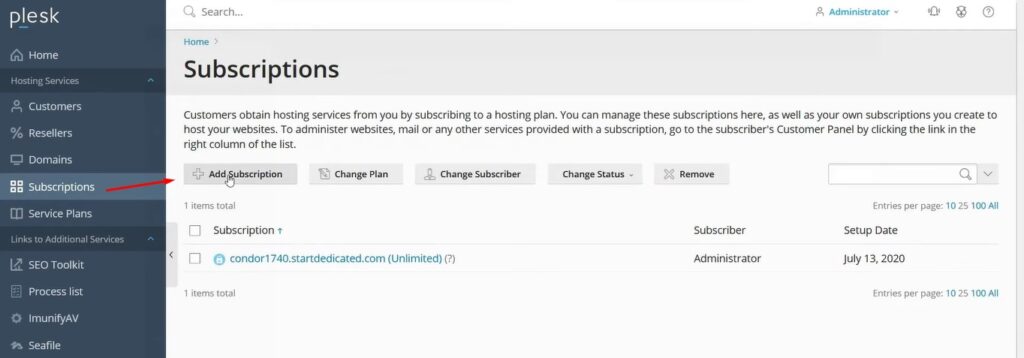
Plesk Subscriptions Menu
So, first, click Subscriptions in the menu on the left. Then click Add Subscription.

Now enter the main domain for the subscription. Select an IP address, type in the username, and generate a new password. The automatic generate automatically gives you a strong password.
SSL/TLS Certificate & Git Support in Plesk
Then select a service plan – I’ll leave this on default. And if you like you can secure the domain with an SSL/TLS certificate from let’s encrypt. Or you can also enable git support if you’re going to be doing any development work.
And then you just click ok and then in the background plesk will create all of the settings and all of the files necessary for this subscription.

Finally as you’ll see it doesn’t take long at all. So, that was how to add a subscription in Plesk. Thanks very much for reading and make sure to take a look at some of our other article on our blog page.


