















Welcome to SSL It (Plesk Tips and Tricks). Now we’re sharing with you how to increase the production of domains with this a solid extension. The extension offers a single interface for securing your websites with a SSL It! certificates.
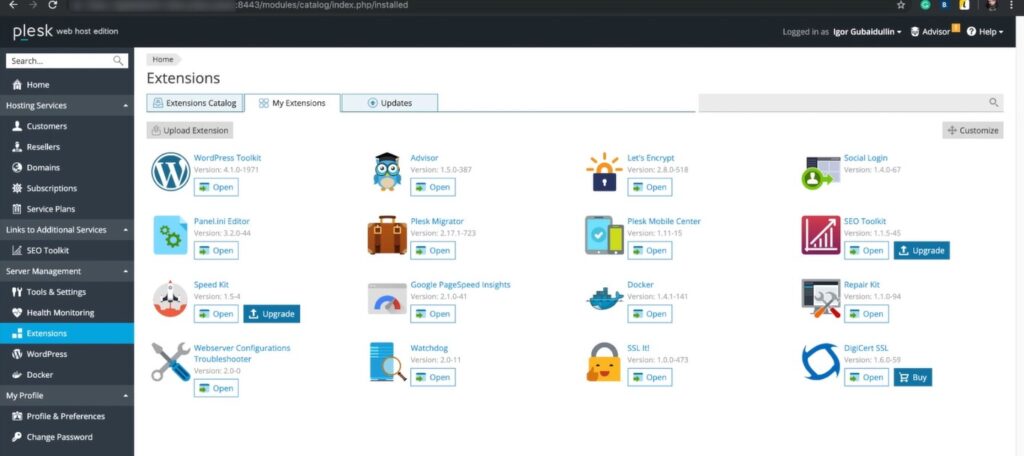
Let’s see how it works?. First of all make sure that SSL It extension and either let’s encrypt or DigiCart SSL extensions are installed.
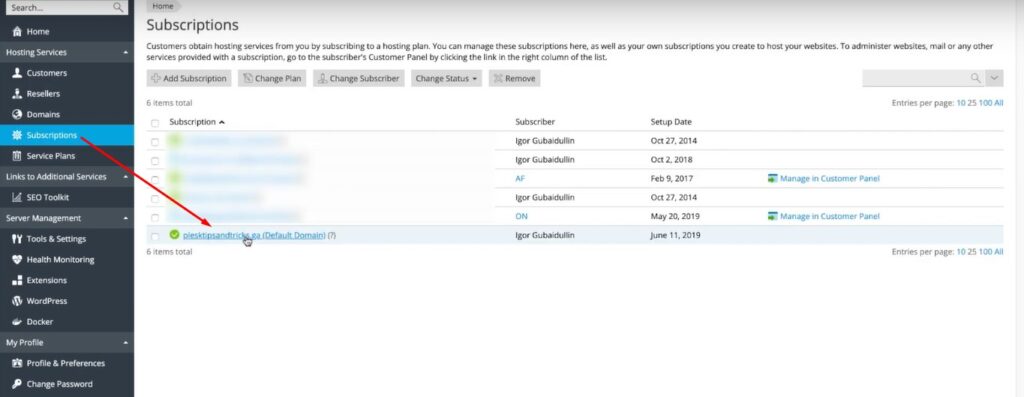
In the subscription list let’s choose the domain we want to protect.
SSL/TLS certificates
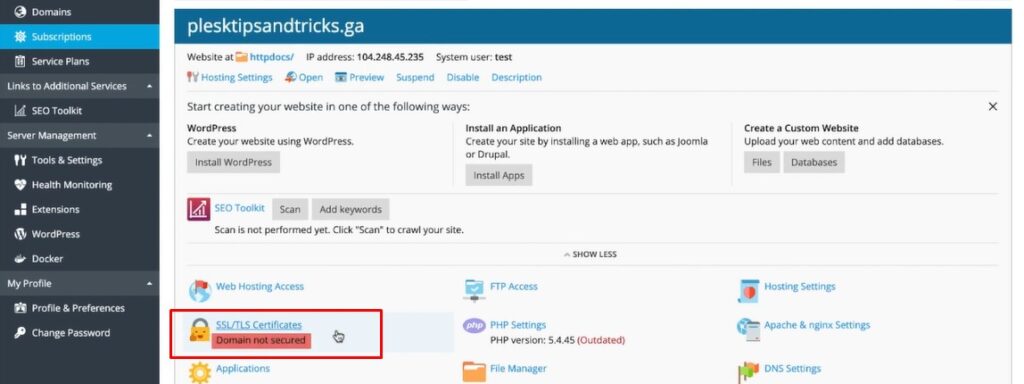
If we look at SSL TLS certificates icon we see the indication below that the domain is not secure. To change it we need to obtain a certificate. Let’s proceed to a SSL TLS certificates page.
Let’s Encrypt – SSL It (Plesk Tips and Tricks)
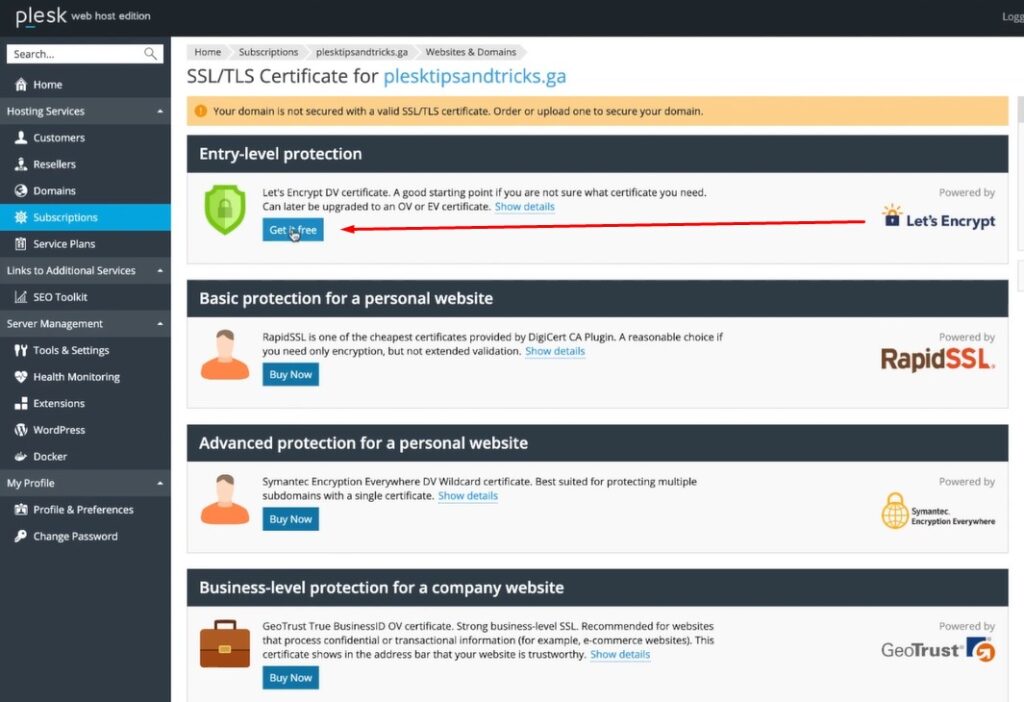
Here we see the list of certificates all options are clearly describe. So we can pick the one for your needs as an example we will use let’s encrypt certificate.
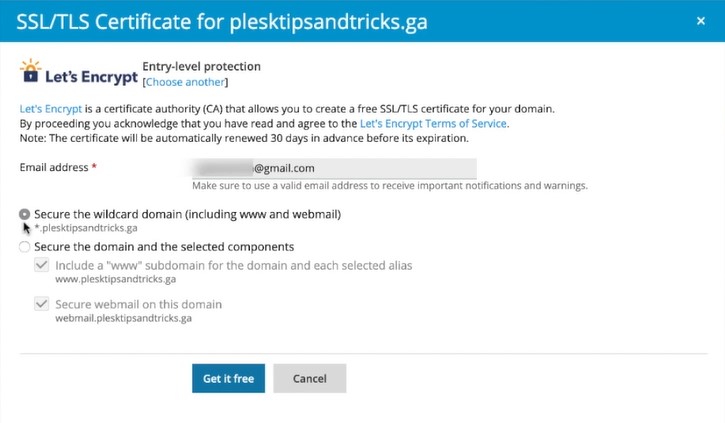
We need to enter the valid email address then choose what exactly we want to secure. The default option secure the domain and the selected components works good. If you are not sure what the DNS settings you have. We choose another option secure wildcard in webmail on this domain. Because we have proper DNS settings. You will learn how to setup DNS properly in the another SSL Plesk tips and tricks series.
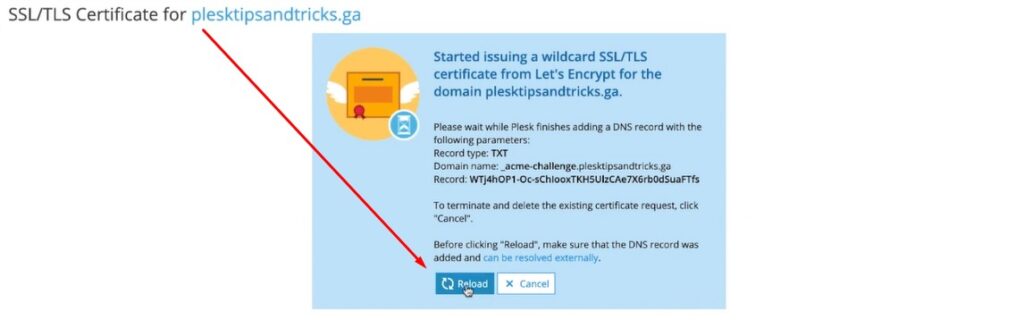
Now we need to click reload and wait while Plesk finishes adding a DNS record.
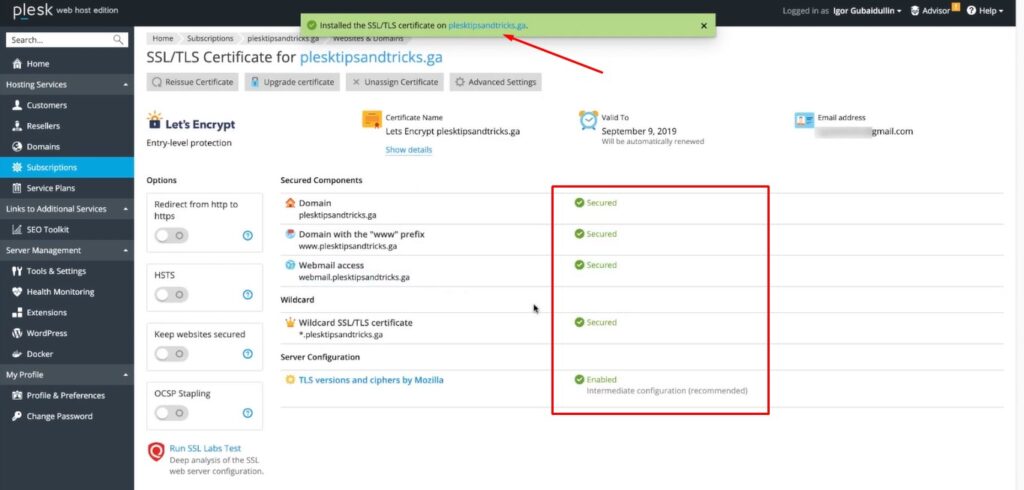
On this page you see that all selected components and wildcard are secure.
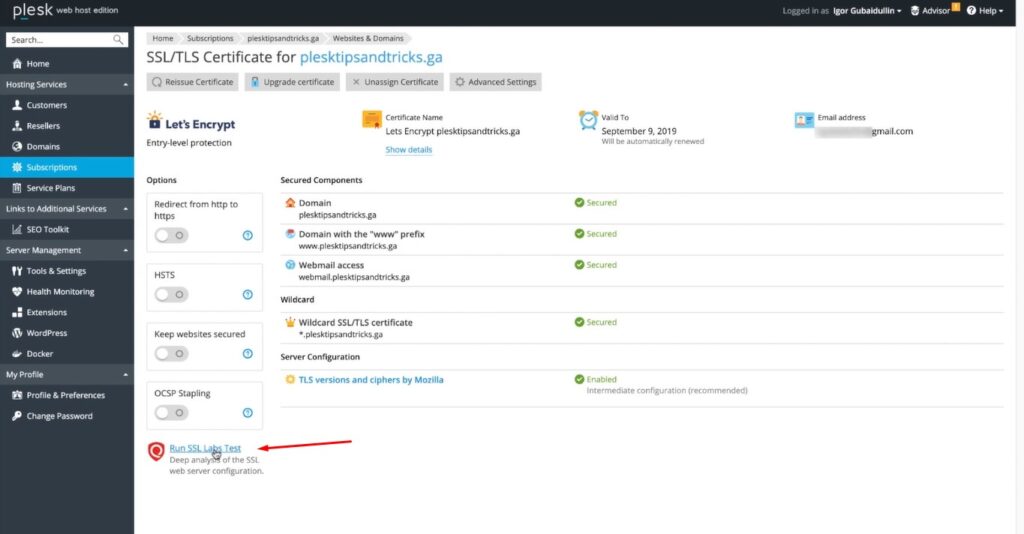
Here you can run SSL Labs Test to check how secure your domain is now.
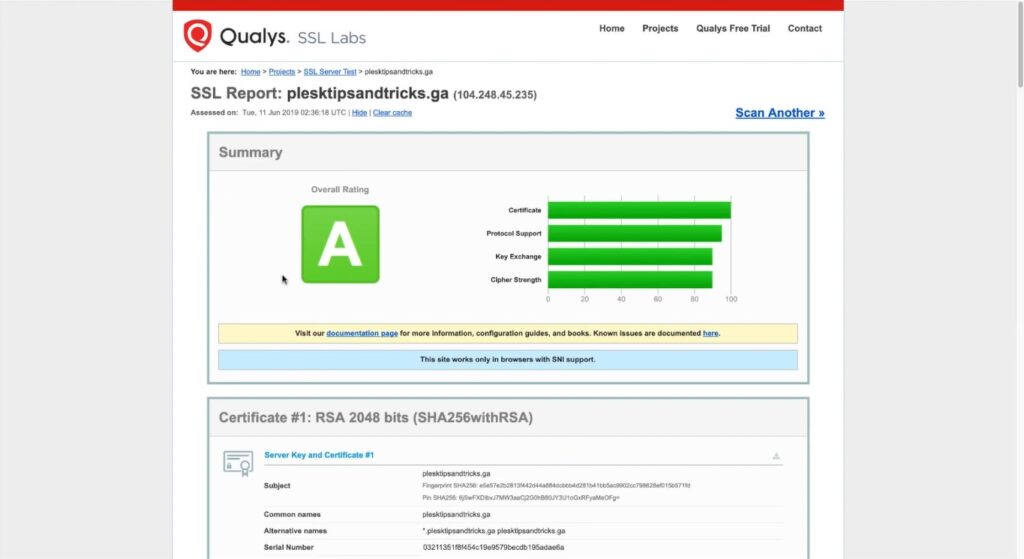
This test shows “A” and this is not the highest rating we can improve it the rating of security if we turn on the four TLS related options. And sync TLS versions and ciphers with Mozilla free service.
TLS Related Options – SSL It (Plesk Tips and Tricks)
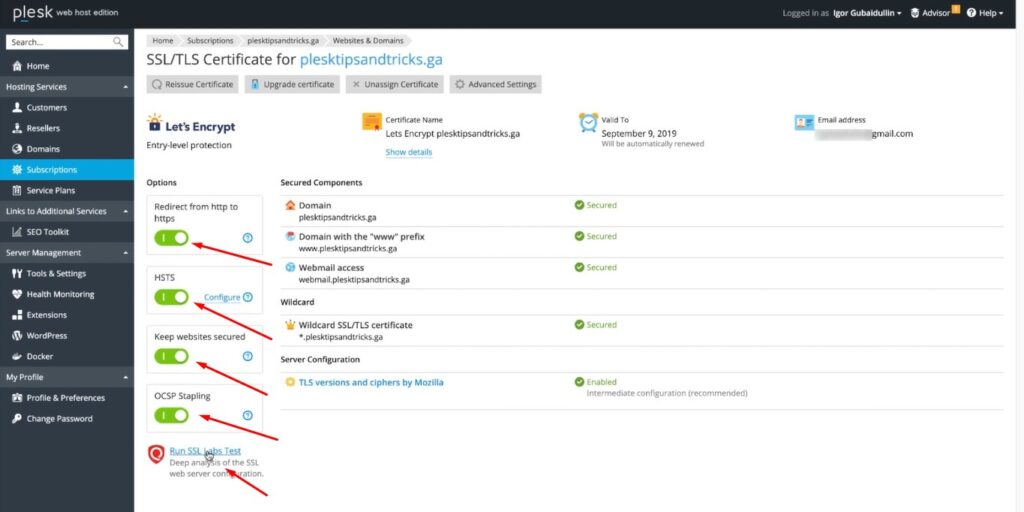
Let’s have a closer look at them.
The first option redirect from HTTP to HTTPS setups a permanent redirect from the unsecured HTTP to the secure HTTPS version of the website.
The second option HSTS prohibits web browsers from assessing the website via insecure HTTP connections. If visitors are unable to connect by HTTPS your website will Become unavailable because your certificate might be expire. The first connection still can be via HTTP the rest connections will be via secured HTTPS. Also when this option is on you can choose the time period when browser sends your to HTTPS. Look simple now but previously on the admin could configure it via additional TLS settings.
The third option keep website secured automatically replaces expired or self signed SSL TLS certificates with free valid certificates from let’s Encrypt. It covers each domains of the main domain, alias and their mail belonging to the subscription.
The last option OCSP stapling enhances the privacy and improves the website performance. The web server will request the status of the website certificate from the CA instead of the visitors browser doing so.
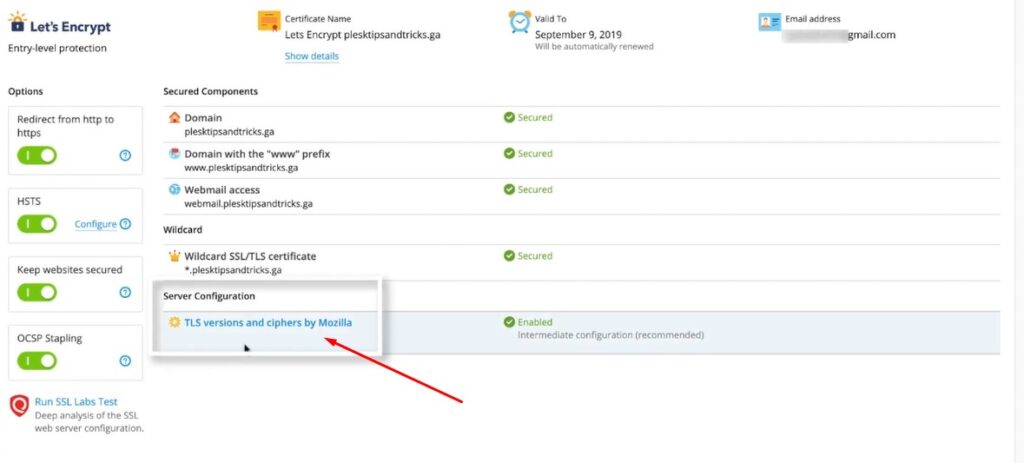
On the page there is ciphers manage by Mozilla and ciphers is constantly being update.
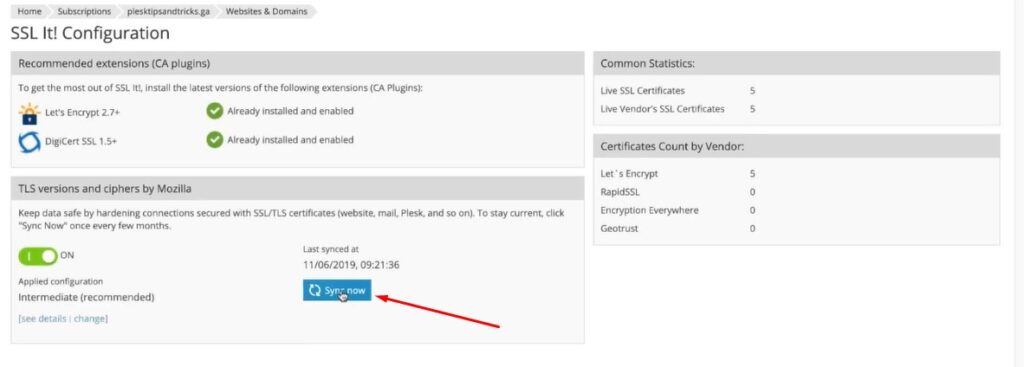
If you want to use the latest ciphers click “sync now”.
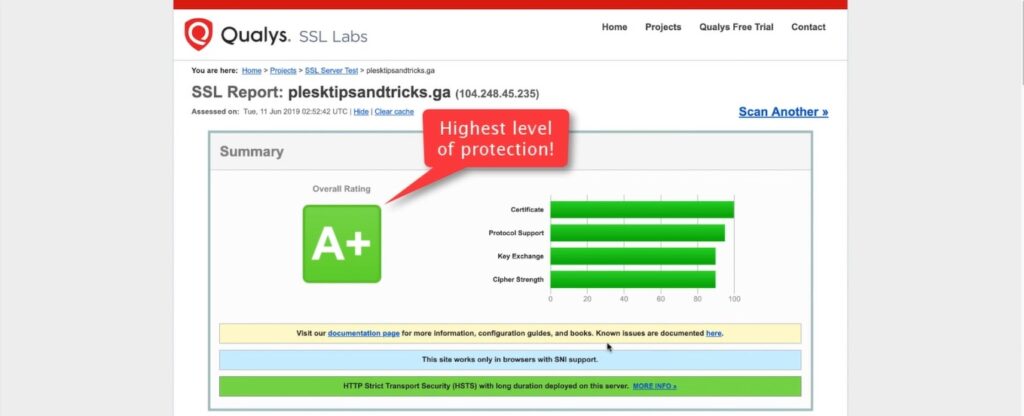
Now with all TLS related options on and sync ciphers let’s run SSL labs test again and check the protection of the domain. Whoo-hoo “A” plus we have the highest level of protection.
If you want to learn more SSL It (Plesk Tips and Tricks) or other topics please visit our blog page.


