
In this article we learn how to create multibranch pipeline with git
if you miss our 1st part you can visit here.
Create multibranch pipeline

So now that we have our Jenkins setup we’re gonna create a multibranch pipeline. The first step is we’re gonna go to create new jobs or you can also use new item and create.

Let’s type my-pipeline and here the types of projects or builds that you can create and one of them here is multi branch pipeline. So I’m gonna create this one.

and it opens the configuration options so let’s go through some of these options. So the first one is just a name and description. And branch source is basically the project which it’s gonna build.


Here we’re gonna add our git project. I have some demo projects which I’m gonna use. And I’m just gonna just clone the URL of my project.
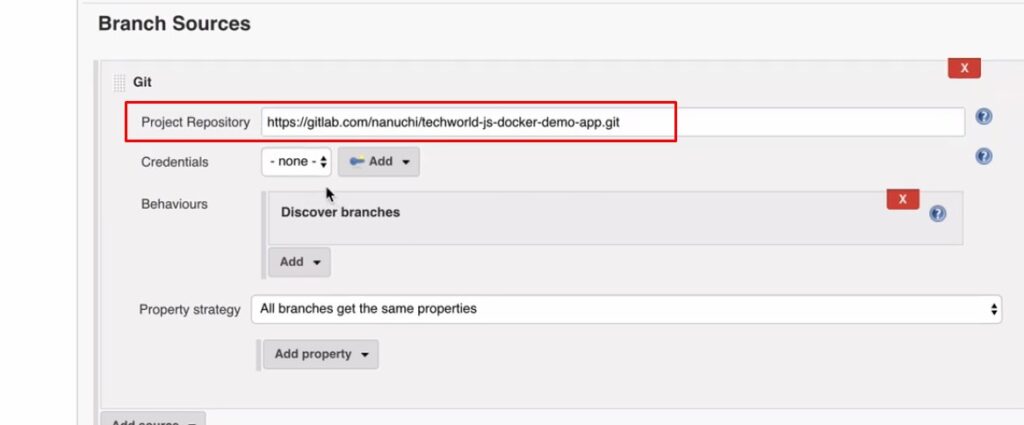
Another thing that I need to configure here is which branches I want to build. So this pipeline is multi branch so it allows me to build multiple branches with the same configuration.

so here I’m gonna say that I want to discover branches using regular expression. And this is a Java regular expression so this one the default one right here means that it matches every branch.

So right now I just have two branches which is master and dev. If I leave it like this it basically gonna build every branch that I have. So if I were to add a new branch here like a feature branch it’s gonna build that one as well.
Jenkinsfile

Another part this build configuration is that is gonna build from jenkins file. And this is just default configuration which we’re going to leave as it is. And the rest of it we’re gonna leave for now as well.
Now obviously it can connect to the git repository without credentials so what we need here is we need the username and password for this git repository.
So that Jenkins could check the code out of that git repository. In order to do that let’s actually look at what credentials are in Jenkins. And how to create and use them.
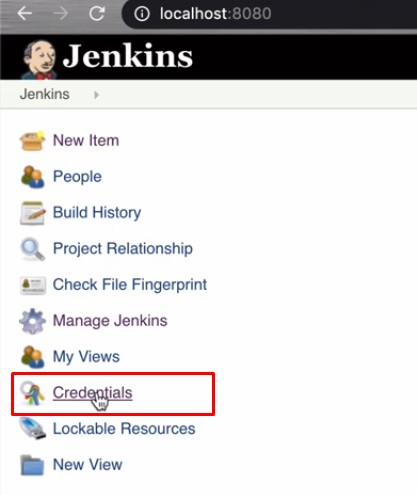
Okay so let’s go back to the main view of Jenkins and look at the credentials option in the sidebar. So this is actually a plugin that we installed and this is a pretty recent plugin addition to Jenkins. Basically now Jenkins offers a way to store and manage credentials centrally.
So instead of having it distributed across different plugins for different services. You can create them in one place and then use that or reference it in different places. Including your projects Jenkins file.

So let’s actually go inside and see that by default we just have one scope which is Jenkins this is a global one. And you have one domain under it so if I click on “Jenkins” then I can go inside a domain.

And I see that I have no credentials. So let’s create one and here we see that we have two different scopes.
Credentials Scopes

This is important distinction here a system credential in Jenkins is basically available only for Jenkins server. For example if you’re a Jenkins administrator that administers the Jenkins server that does all the administrative work. For example configures Jenkins communication or interface with other services etc.
You’re gonna create a system credential because system credential is not visible or accessible by Jenkins jobs. For examples of in our pipeline we wouldn’t see the Jenkins system credential the global credential.
However is accessible everywhere it’s accessible to the jenkins administrators and all the build, jobs pipelines, all shops, so everything across Jenkins. So that’s the scope of the credential and then there is a type of credential.

The most commonly used one is username and password but of course you can also have other types. So you can have a certificate, you can have a secret file, secret text. If Jenkins needs to connect to some other services it might be using a secret file and not a username and password.
So I have different options here and also note that depending on what other plugins you have installed in Jenkins. You might get new types of credentials so a new Jenkins plugin might actually come with its own type of credential. For example github I think has its own github user access token type.
Creating Credentials for create multibranch pipeline with git
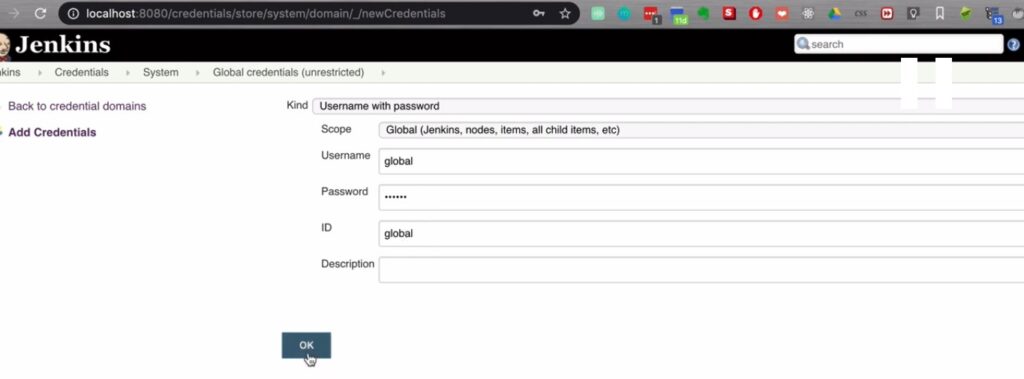
we’re gonna use the username and password and I’m gonna actually create the global credential. And the ID is very important here because this is how you’re gonna reference credentials everywhere, in your build job or in a Jenkins file. So this is an important one, this is a handle to your credential.

I’m gonna create another one is system variables so I’m gonna call it system so now I have two of them.

If I go back to my pipeline so note here this is very important as well so you have the credentials option here on the main page of Jenkins and if we go inside the newly created “my-pipeline” you also see a credentials button here so what that is is basically a third scope.

This scope is basically limited to your project and this comes only with the multi branch pipeline. So other job types do not have this. And this actually comes from a folder plugin.
Folder plugin is basically for organizing your build jobs in folders and this enables you to have credentials scoped to your project. It means that if I create a credentials here in this scope.

Let’s go here you see here we’re not in Jenkins credentials but we are in Jenkins my-pipeline credentials.
my-Pipeline
Let’s actually use username and password I don’t have a scope here anymore. Because it scoped to this pipeline so I’m gonna actually call it my-pipeline. So I’m gonna create that one.

If I go back to credentials see that I have two credentials available for these projects for my pipeline. So the global one that we created and my-pipeline scope that we created. The system credential is not accessible for this project or for any other projects.
This is a pretty good way to organize your credentials but also separate them so if we have for example a very complex very big deployment projects.
Or we have two teams that have their own projects on the same Jenkins you can actually hide the credentials between the projects. So each one will have their own credentials that will not be visible by others.

I’m gonna create here a username and password for my git repository.

Build for create multibranch pipeline with git
Now go back to my configuration so first of all refresh this and paste git url again. And if I click here I have all the available credentials to select from. So the global one is here and one in my-pipeline scope is also there. So I’m gonna choose the correct one and I’m gonna save it.

It’s gonna build right away off her skin and then build. So here you see that it’s connected to the repository. And it checked the branches but I didn’t find Jenkins file in any of the branches because I don’t have it yet.
And you didn’t build anything so as the next step we’re gonna create a Jenkins file in our repository. But before that we’re gonna see how to explicitly configure. Which branches of our repository we want to be built.
So let’s see that so by default as you see the pipeline will scan all the branches that I have in the repository. There is no limitation but in some cases you don’t want to build all the branches.

Filter Branches by Name
Let’s say you have master and dev branches. Let’s actually go and see our branches and let’s say you have a lot of feature branches. And you have a lot of bug fix branches but you don’t want to build all of them with every commit.
Maybe just want to build the dev branch and master branch and some feature branches. But you never want to build bug fix branches. So how do you actually configure that in your pipeline so the way to do that is in discover branches section.

Here you just say filter by name and by default as we saw it scans all the branches. So this is actually a Java regular expression and this one here means that it’s going to match any character or many times. So here we’re gonna delete that one.

And we’re gonna explicitly say that we want dev branch or master branch or feature branches right but future branches have different names. So we’re gonna add a regular expression here. We’re gonna match any character after feature.
So this expression will not match any bug fix branches. If they start with the name “bug” or “bug fix”.
Today we learn how create multibranch pipeline with git.
In part 3 you will learn about creating a jenkins file in dev branch.