















in this article we’ll learn how to download and install VirtualBox, but before we start let’s talk about your PC or your laptop or whatever machine you intend to use.
PC/Laptop configuration suitable for this VirtualBox
You need a machine something powerful enough to be able to do all the things that you want to do without any hiccups.
System Information
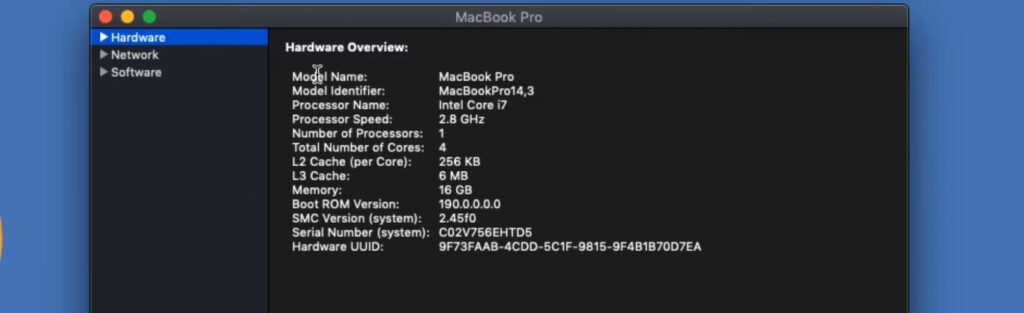
You can see on the picture above, the processor speed is 2.8 gigahertz, number of processors is one, total number of cores is number 4 so this is a quad core based computer if you have anything of this sort you’re good to go.
So you can use these to gauge, if your system is good enough for this course or if you need to buy a new laptop.
You can use this as a guide now have a look at the memory this is the other side of the coin that is also very important here we got 16 gig.
16 gig based PCs, laptops are usually expensive I mean the gap between 16 gig and 8 gig is usually quiet for a part.
If you have 8 gig it’s good to go if you have 16 gig much better because we’re gonna be spinning up virtual machines and building clusters and doing all sorts of things.
If you’re able to get this awesome
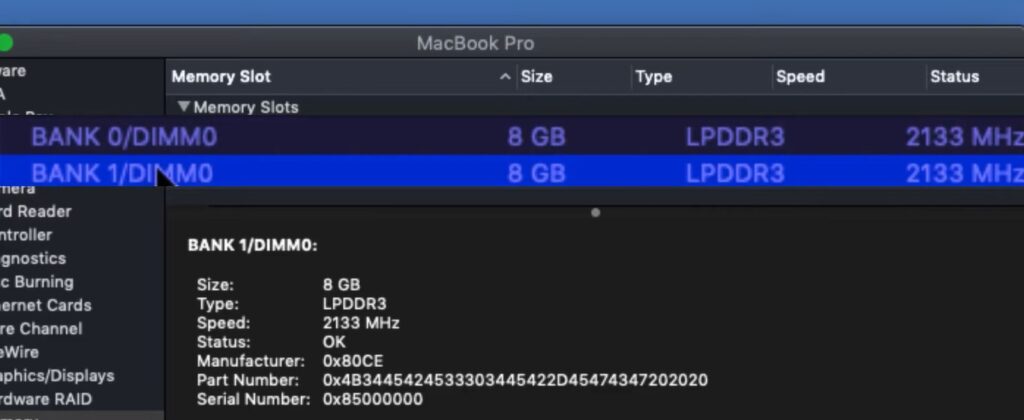
I just wanted to show you a little bit detail of what my memory setup is like it’s just two slots of 8 gig of ram so if you have 8 gig already and your laptop is able to accommodate another 8 gig.
You probably don’t need to throw away your laptop all. you need to do is figure out if you can buy an additional 8 gig and just put it in.
You have an idea of what sort of system configuration you need to have to get the most out of this DevOps mentorship program.
Understanding VirtualBox – Download and Install VirtualBox
Let’s go ahead and download and install virtualbox, but before we do that I like to get you to really understand what exactly VirtualBox is
- How it works
- What technology runs within it
I found this definition online on Quora come by a guy named “Avishek Chakrabarty”, but I found there’s a lot of definition online that is very convoluted and hard to follow especially for someone who was coming into IT world newly but this is quite very straightforward to understand.
How VirtualBox works?
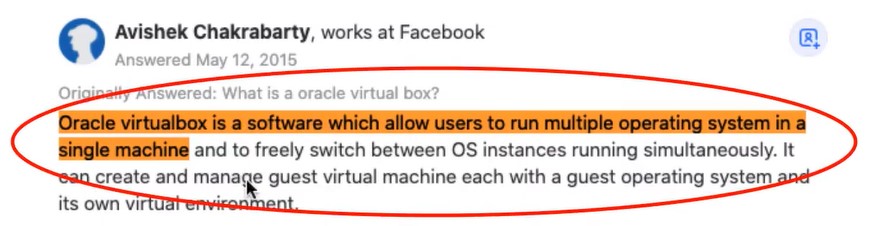
It basically says Oracle VirtualBox is a software which allows users to run multiple operating system in a single machine so that’s very straightforward.
Because that’s exactly what it does it allows you to run multiple operating system on a single machine.
If you have a laptop that is windows-based and you want to run Linux, Mac or another Windows operating system on it you need a tool like VirtualBox that would allow you to do that.
That takes us to another conversation around how exactly does VirtualBox do that now there’s a technology called hypervisor.
Hypervisor
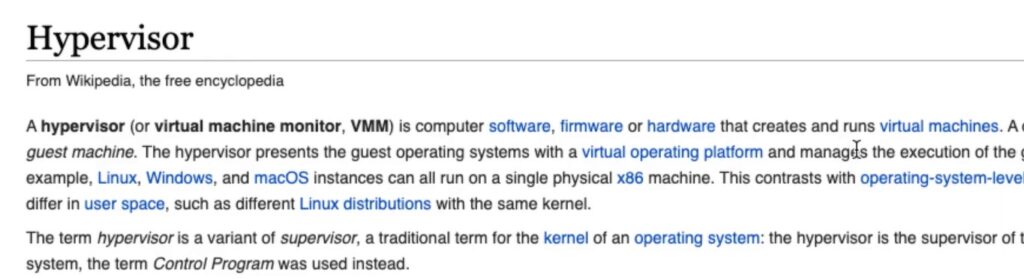
A hypervisor (or virtual machine monitor, vmm) is a computer software that creates and runs virtual machines.
There’s a software layer to VirtualBox that allows it to be able to run multiple operating systems,
The hypervisor is the supervisor of the supervisor.
Think about the word hyper so when something is above a super then it’s just another way of saying above super.
Supervisor is nothing but the operating system kernel its regarded as so rather than saying, the operating systems kernel you can hear in some places where they say the supervisor.
So if there is a layer above that kernel that monitors the operating system. Then we’re talking in terms of hyper and that’s where the word hypervisor comes in.
Hypervisor is basically the software layer or in some cases a firmware or hardware. That allows the software to be able to run multiple operating system.
Host Machine and Guest Machine
Another very important concept you need to understand is the difference between a host machine and a guest machine. So a computer on which a hypervisor runs one or more virtual machines is called a host machine.
Essentially if VirtualBox for example installed on your computer. Which uses hypervisor that laptop of yours that has the VirtualBox installed is the host machine.
Now when you start putting virtual machines inside the VirtualBox. Each of those virtual machines are then considered as the guest machine.
So these concepts are very important and just have to know them so that you don’t get confused. When this word start flying around in this tutorial.
We are going to be using VirtualBox that is our chosen virtualization software to allow us have multiple operating systems.
Other similar multiple software products
It’s very important as well to know that there are multiple other software products that does the same thing.
For example we have VMware so VMware is another software just like VirtualBox that uses hypervisors to run multiple OS.
Similarly Microsoft has a protocol hyper-v which does literally the same thing.
How to download and install VirtualBox
Here we using VirtualBox. So If you go to virtualbox.org this is the official website. Depending on the operating system and by the way VirtualBox is free.
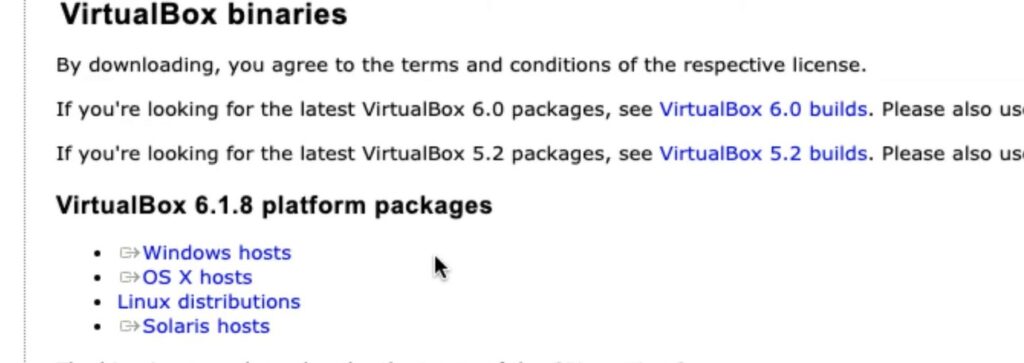
It runs on Windows, on MacOS 10, on Linux and Solaris on different operating systems.
Depending on what you want you can select which one you want.
I’m here select MacOS 10 and I’m going to download OS X version and once that is done
We’re just gonna go in there and run the Installer.
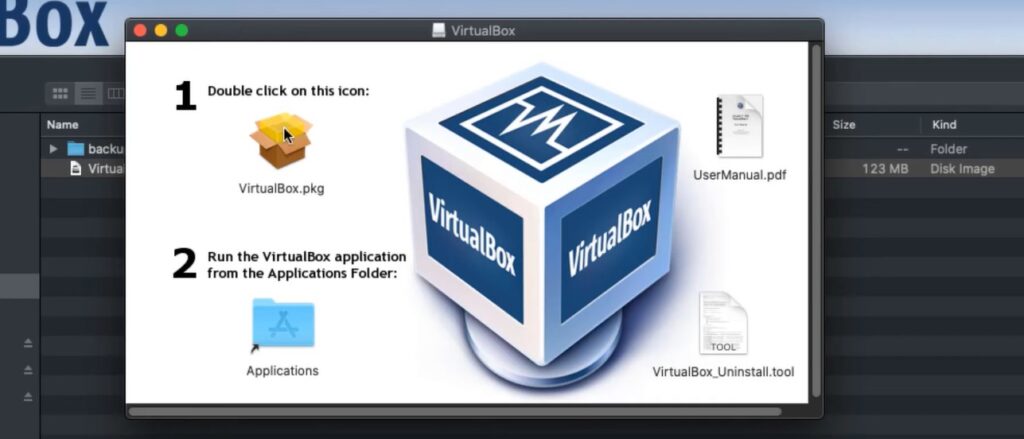
Double click that where my mouse is pointed. Then go to Applications folder as that’s copying into the Applications folder let’s just search for VirtualBox.
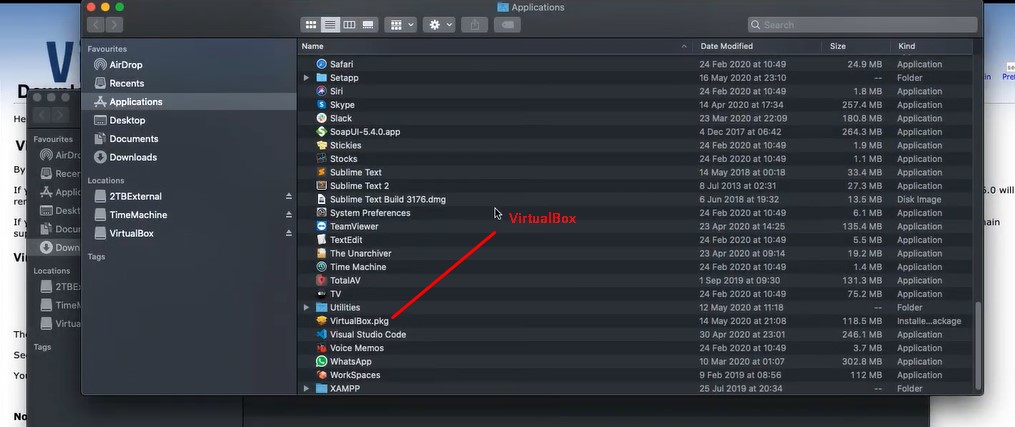
you’re gonna have the pkg file format.
You then have to double click to bring up the installation dialog box.
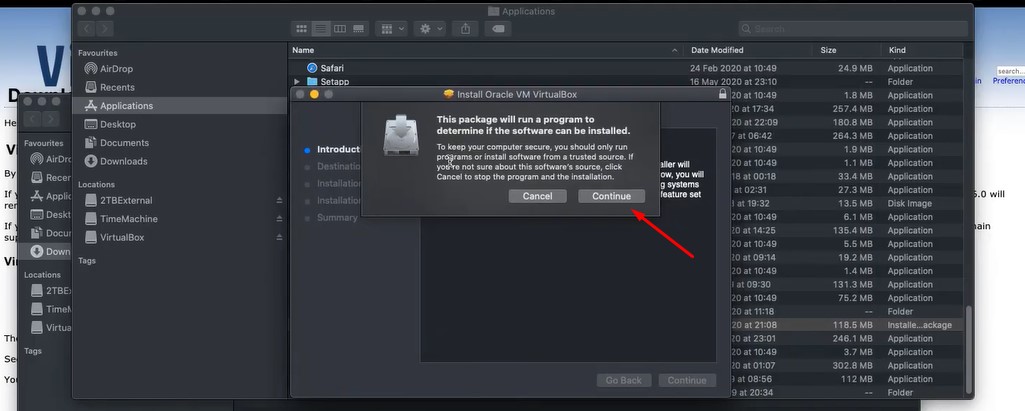
It will ask for your permission do you want to continue to install this software.
>>Click Continue
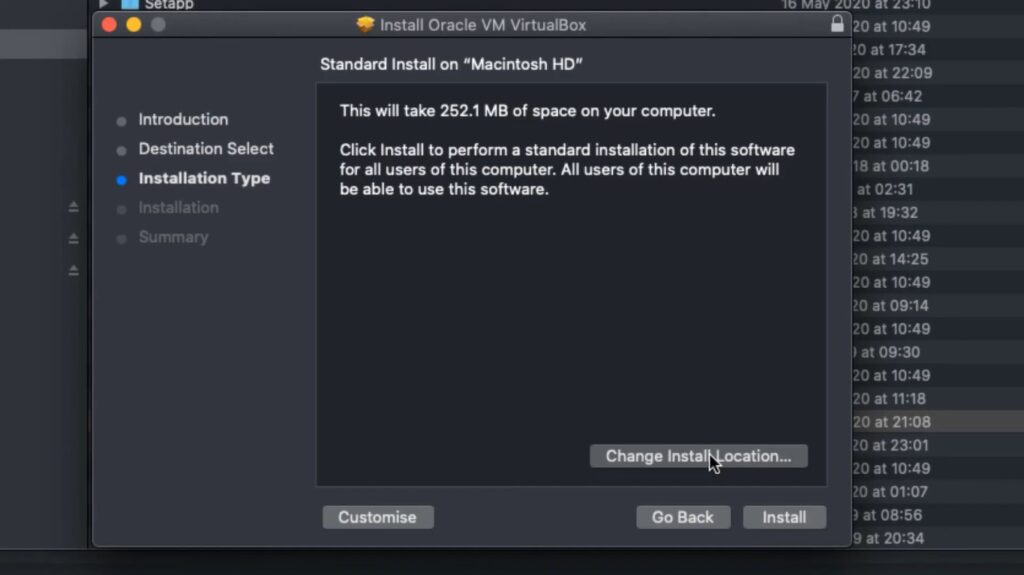
you want to change the location you can just click “Change Install Location…” and specify where exactly you want it to install.
>>Then Click Install
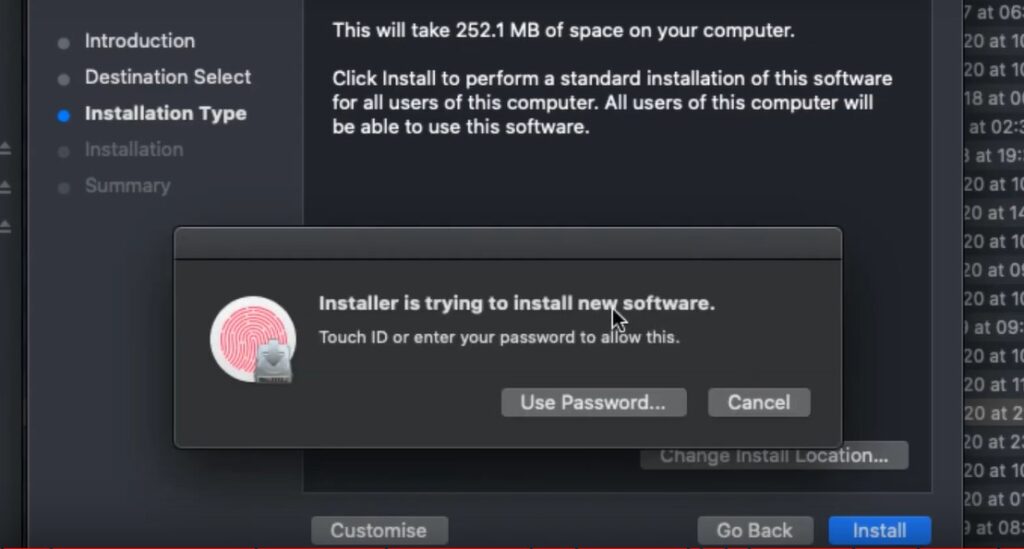
It will asking for fingerprint. Then it will completely installed.
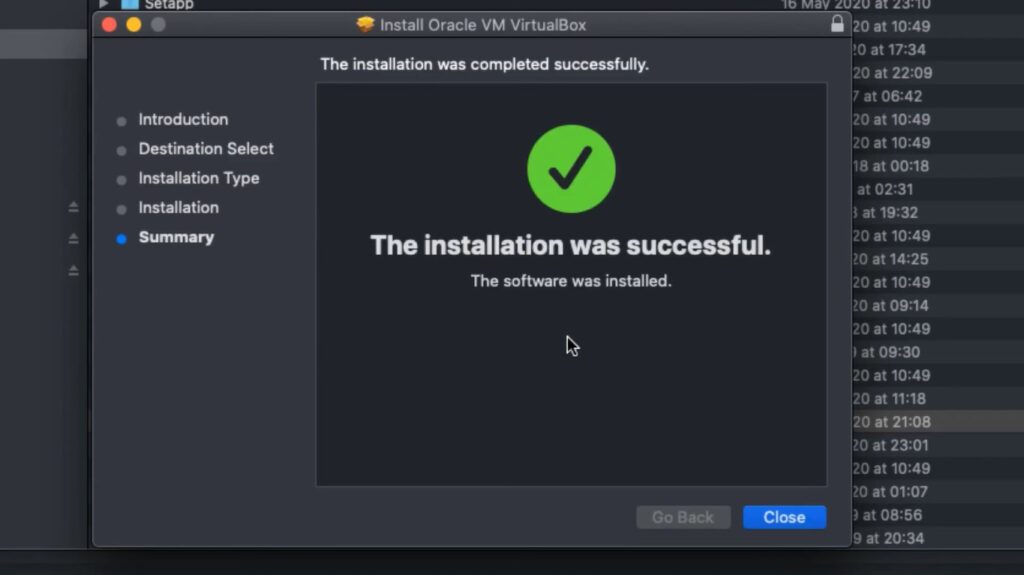
Now double-click on the newly installed application we should have our VirtualBox ready to go.
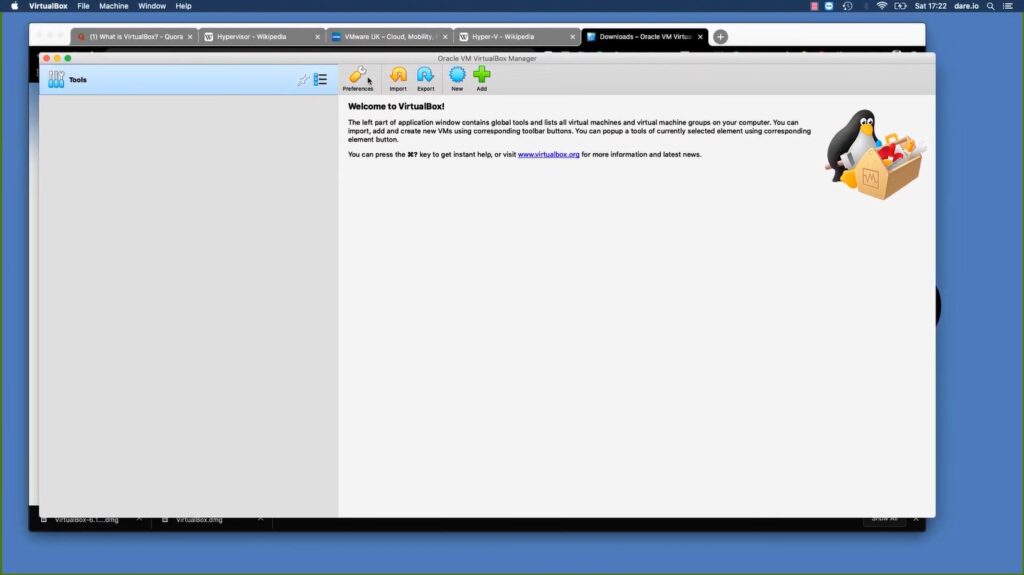
This is the interface very simple and it does the job. This is a really powerful tool and very soon we’re gonna start seeing multiple operating systems here.
Which will be working on from time to time.


